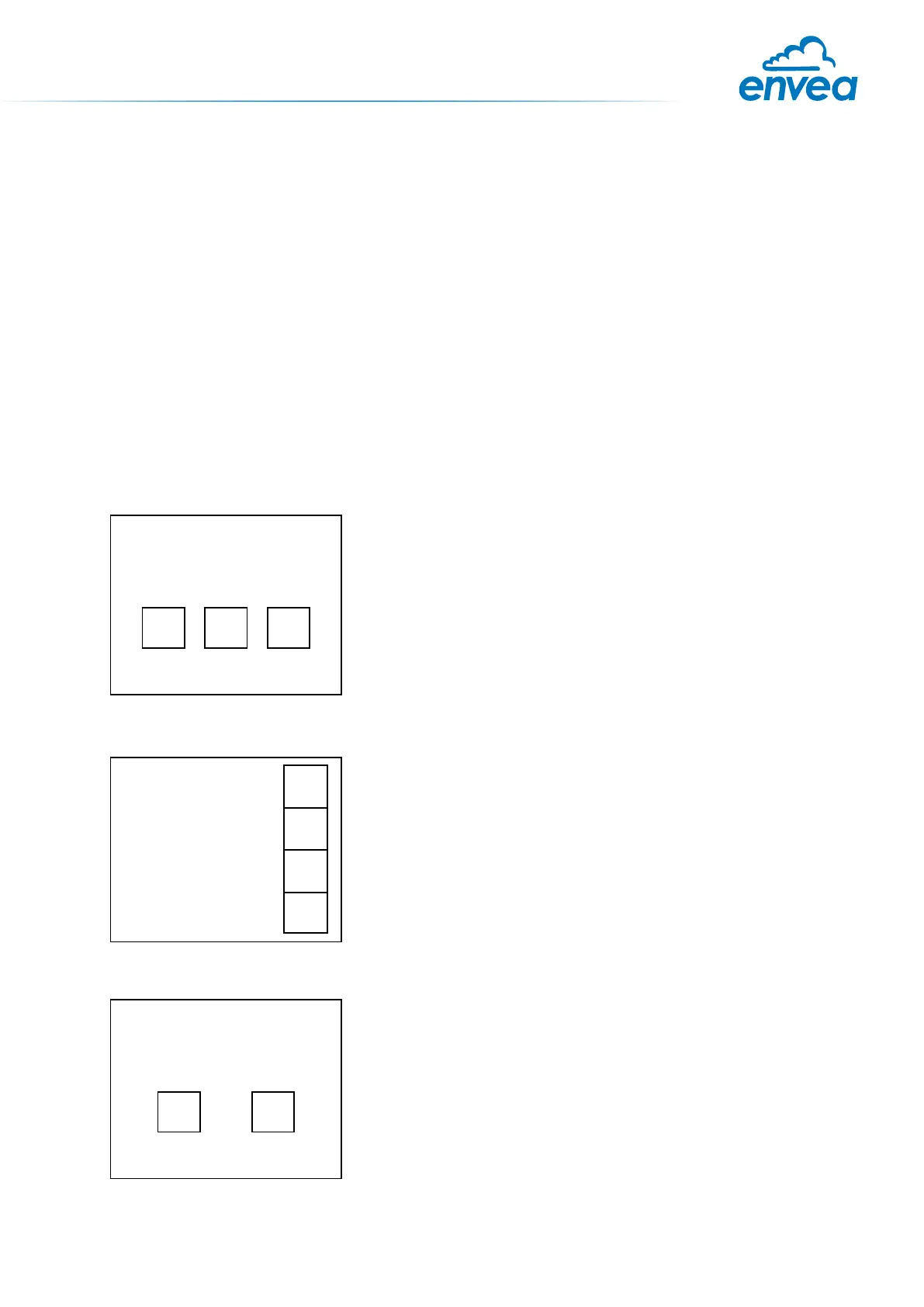
The display is touch-sensitive. Available keys are displayed directly in context. When the measuring
system is rst started, a query is initiated to select the language and sensor.
Initialization screen when the Evaluation unit in the eld housing
started rst time.
Selection of the menu language: Deutsch, English, Français.
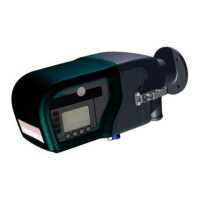
If a language has been selected, the sensor to be used must be
selected. To be available:
SolidFlow 2.0, Paddy, PicoFlow, MaxxFlow HTC, DensFlow,
SpeedFlow 2.0, SlideControl 2.0, ProSens, M-Sens 2, M-Sens 3,
M-Sens WR, M-Sens WR2.
If any data has been changed, the change will only be taken
into account when you exit the complete menu structure and
answer [Yes] when asked if you wish to save the changes.
Afterwards the start page appears.
If you want to communicate with our sensor using our dedicated software, you need to download the
latest version on our website and install it.
https://www.envea.global/solutions/process-optimization/dahs-software/
It might also be necessary to install drivers, also available on our website.
1st start note
For the 1st use of the sensor, correct sensor type should be selected via the screen or the software.
Software must be installed if needed.
1. SOFTWARE INSTALLATION
2. MSE 300-FH (WITH SCREEN)
Select Language
D E F
E
#
$
8
Sensor
SolidFlow
Save changings?
J N


 To Next Page