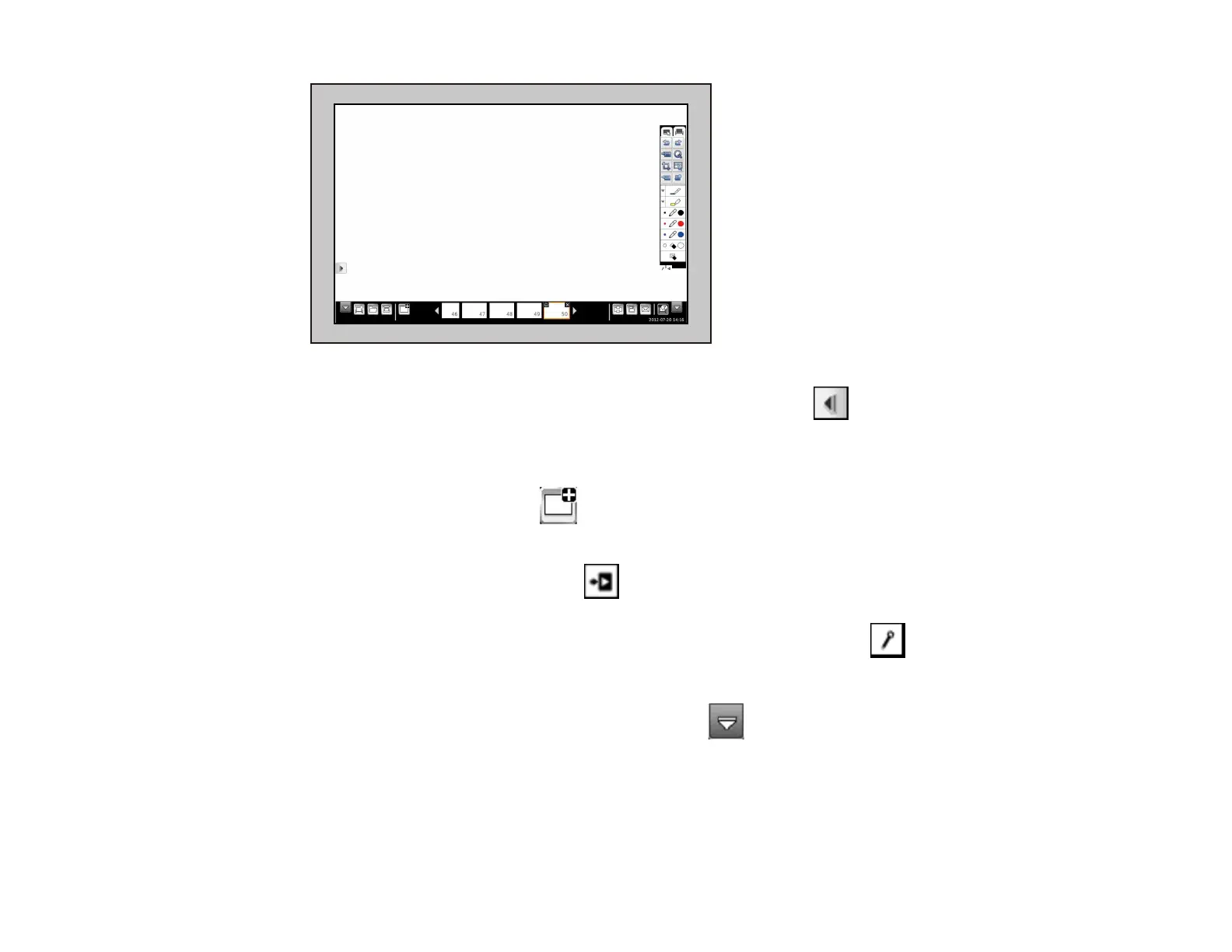
2. To move the main toolbar to the other side of the screen, select the arrow.
Note: You can use the pen to move the arrow up or down.
3. To add a new page, select the New page icon on the bottom toolbar.
Your current page appears as a thumbnail image on the bottom toolbar.
4. To close the main toolbar, select the icon at the bottom of the toolbar.
Note: If you want to hide the toolbar automatically after drawing, select the icon at the bottom of
the toolbar.
5. To show or hide the bottom toolbar, select one of the arrows.
Parent topic: Whiteboard Mode
Related references
The Main Whiteboard Toolbar
The Bottom Whiteboard Toolbar
138










 To Next Page