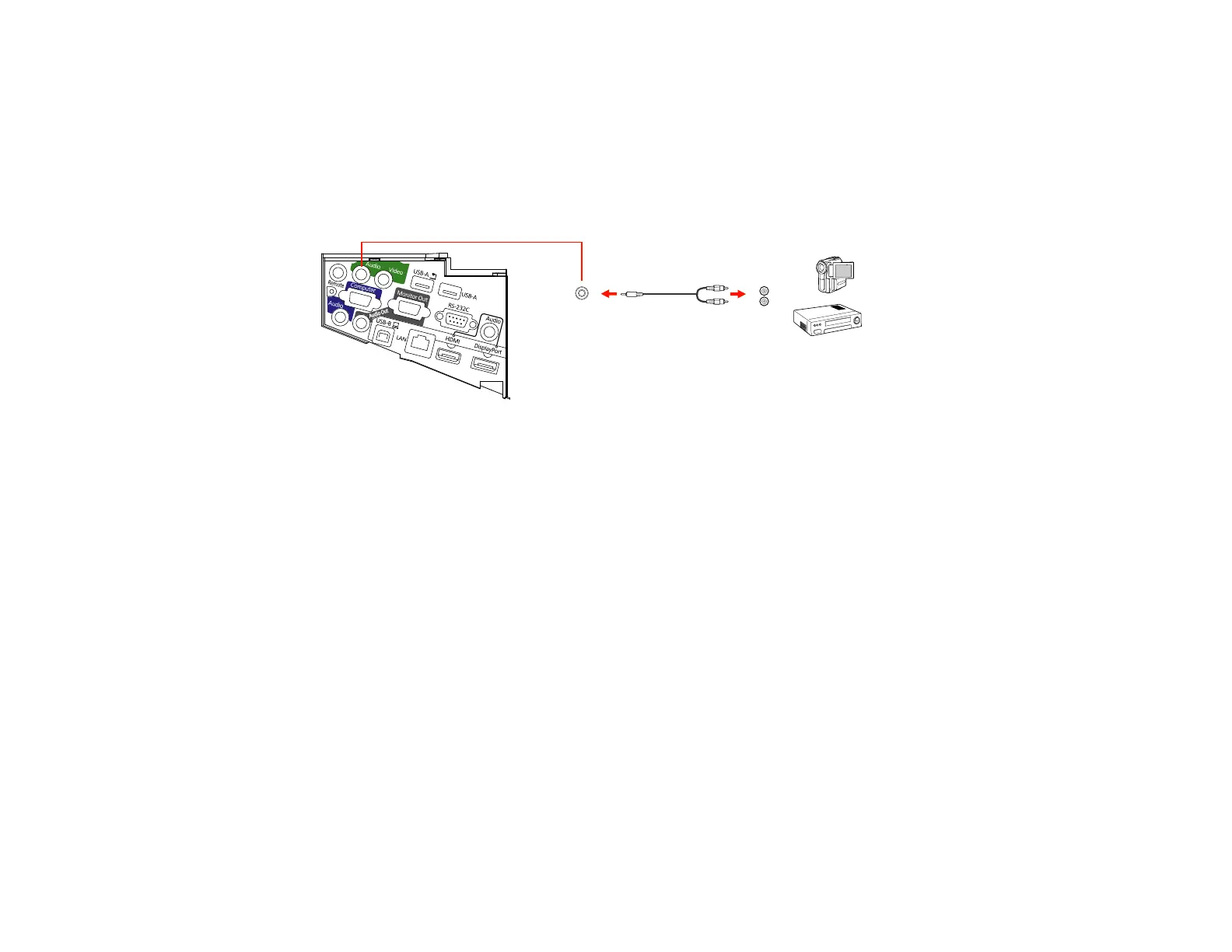
Connecting to a Video Source for Sound
You can play sound through the projector's speaker system if your video source has audio output ports.
Connect the projector to the video source using a stereo mini-jack adapter cable (with one 3.5 mm mini-
plug and two RCA plugs).
1. Connect the audio cable to your video source's audio-out ports.
2. Connect the other end of the cable to the projector's Audio port or ports.
Parent topic: Connecting to Video Sources
Connecting to an External Computer Monitor
If you connected the projector to a computer using a Computer port, you can also connect an external
monitor to the projector. This lets you see your presentation on the external monitor even when the
projected image is not visible.
Note: Monitors that use a refresh rate less than 60 Hz may not be able to display images correctly.
1. Make sure your computer is connected to the projector's Computer port. If there are two computer
ports, make sure you use the Computer1 port.
45










 To Next Page