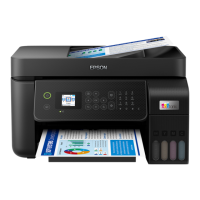
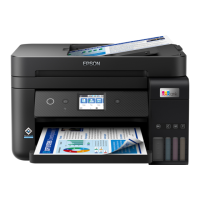
Menu List of Control Panel
You can use this product as a printer, copier, scanner, and fax. When using one of these functions, except the printer
function, select your desired function by pressing the corresponding Mode button on the control panel. Each mode’s
main screen appears as you select the mode.
Copy Mode
Note:
Depending on the model, some functions may not be available.
Press x to see the menu.
Setting Item Setting item and description.
Layout With Border, ID Card Copy
Reduce/Enlarge Actual Size, Auto Fit Page, Custom
Paper Size A4, Legal
Paper Type Plain Paper
Quality Draft, Standard Quality, Best
Copy Density -4 to +4
Restore Default Settings Reset Fax Send/Receive
Settings
Initializes Fax Send/Receive settings to the factory default
settings.
Reset Fax Data Settings Initializes Fax Data settings to the factory default settings.
Reset Network Settings Initializes Network settings to the factory default settings.
Reset Wi-Fi Settings Initializes Wi-Fi settings to the factory default settings.
Reset All except Network &
Fax Settings
Initializes all settings except for Network & Fax settings to the
factory default settings.
Reset All except Wi-Fi & Fax
Settings
Initializes all settings except for Wi-Fi & Fax settings to the factory
default settings.
Reset All Settings Initializes all settings to the factory default settings.
Wi-Fi Settings
(Wi-Fi capable models
only)
Wi-Fi Setup See the online Network Guide. You can access the Wi-Fi Setup
menus directly by pressing the
button.
Check Wi-Fi Connection You can check the network connection status, and print the report.
If there is any problem with the connection, the report helps you
find the solution.
Confirm Wi-Fi Settings You can see the current network settings.
Print Wi-Fi Status Sheet You can print a network status sheet.
User’s Guide
Menu List of Control Panel
73


 To Next Page