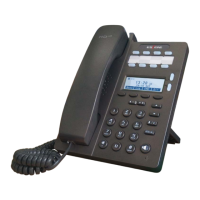
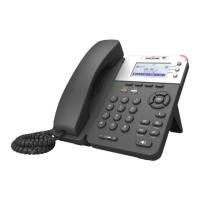
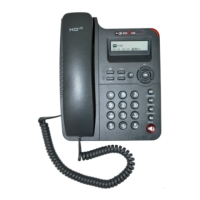
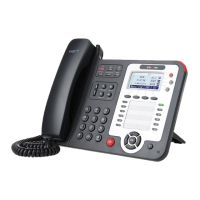
Press MENU> System Settings> Advanced Settings> Password (Default is Empty)> Network> LAN Port
⚫ Press LAN Port to login into the menu
⚫ Select "PPPoE" mode
⚫ Press "Enter" key
⚫ Set the Username\Password\web port\telnet port
⚫ Press "Save" key to make it work
⚫ Tips "Network is changed, press OK reboot "
--1) Select “System setting” > “Advanced setting”.
--2) Enter the password required(The default is empty).
--3) Select “SIP” > “Account sip”.
--4) Select one of the accounts you want to set, you can configure the following parameters
-Enable account*: Select Enable
-Number of lines: Default is 2
-Description: description of this account
-Display Name: The name displayed on the screen
-Authentication user: The Authenticated users are matched with the SIP server. (The
default with the same account)
-Account*: the account matches with the SIP server. (extension number)
-User password*: the user password matches with the SIP server
-SIP Server*: The primary SIP server, all calls through this server
-Out Bound Server: The out bound SIP server
-STUN Type: Enable/Disable STUN feature
-STUN: Input STUN URL
-Auto Answer: Enable/Disable this account auto answer feature
* Note: When you finish the setting, you can press Save to make it work, and then you can see
the status icon in the LCD idle. The parameters with the * mark must be set.
--1) Select “System setting” > “Advanced setting”.
--2) Enter the password required(The default is empty).
--3) Select “SIP” > “Account sip”.
--4) Select “Enable account” > “Disable”.
--5) Select “Save” to saves settings


 To Next Page