User’s Guide Using Esi-Link
H.3
Dialing an Esi-Link location
To dial a station through Esi-Link, press the appropriate Location Key followed by the desired station’s remote
location extension number. For instance, let’s say you’re in Dallas and want to call extension 112 at your
Chicago location. Just press the Location Key for Chicago plus the extension number (112).
1
Transferring calls,
dialing VOICE MAIL, etc. all operate the same way. Basically, in each case where you would dial an extension,
mailbox, or outside line access, just press the Location Key first if you’re calling a remote Esi-Link location.
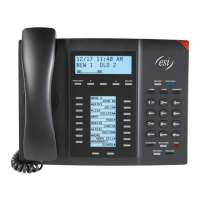
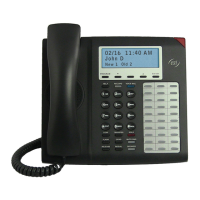
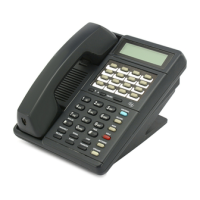
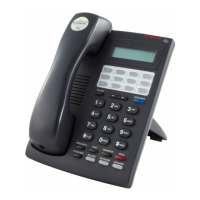
As you dial, your ESI Feature Phone’s display shows the progress of the call. When you dial a Location Key, the
short name of the location will appear on the Feature Phone’s display (e.g., a location in Dallas might be
assigned a short name of “DAL”).
For example, let’s say you want to dial your Chicago location.
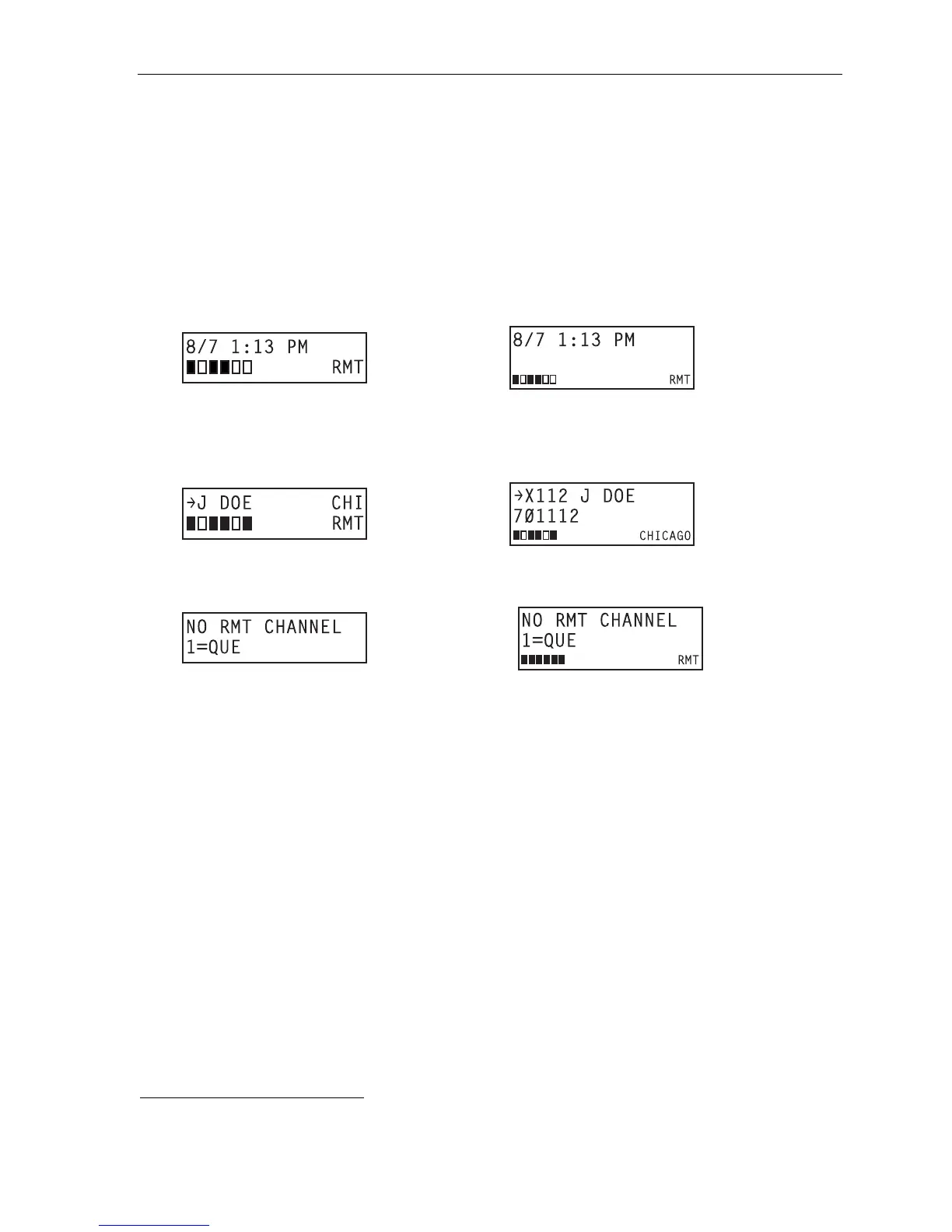
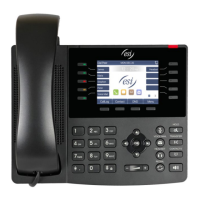
After you press the Location Key for Chicago, the display on your phone might look similar to this:
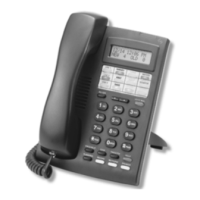
24-Key
Feature
Phone
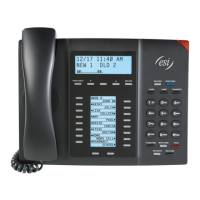
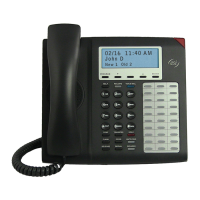
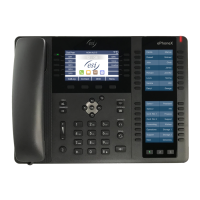
48-Key
Feature
Phone
The boxes on the bottom line of the display show there are a total of six Esi-Link channels active at your location.
Three of the Esi-Link remote channels are busy; the rest are idle and available for new calls.
Or, when you press the Chicago Location Key and then dial the remote location extension (112 in this example),
the display will look like this (note that another remote channel is now in use):
24-Key
Feature
Phone
48-Key
Feature
Phone
If all Esi-Link channels at your location are busy, you will see:
24-Key
Feature
Phone
48-Key
Feature
Phone
You will then be prompted to press 1 to queue for an available channel. If you choose to queue, you may press 1
and hang up. When a channel becomes available, your phone will ring, and when answered, you can redial the
Esi-Link number.
1
Or, if you prefer, you can directly dial the location number — so, in this example, you’d dial 7 0 2 1 1 2. Throughout this text, any reference to
pressing the Location Key is interchangeable with direct dialing of the applicable location number.


 To Next Page