27
TOUCHSCREEN
Installers: before you install your first unit, we
highly recommend familiarizing yourself with the
touchscreen. We've built a comprehensive tool,
called the 'Touchscreen Simulator', which simulates
the physical touchscreen very accurately. Go take a
look at www.essencyhome.com - we think it will really
help with your knowledge and eciency.
HEAT+ CUSTOM SMART
1
2
3
4
7
6
5
B6 B5
B4B3B2B1
B7
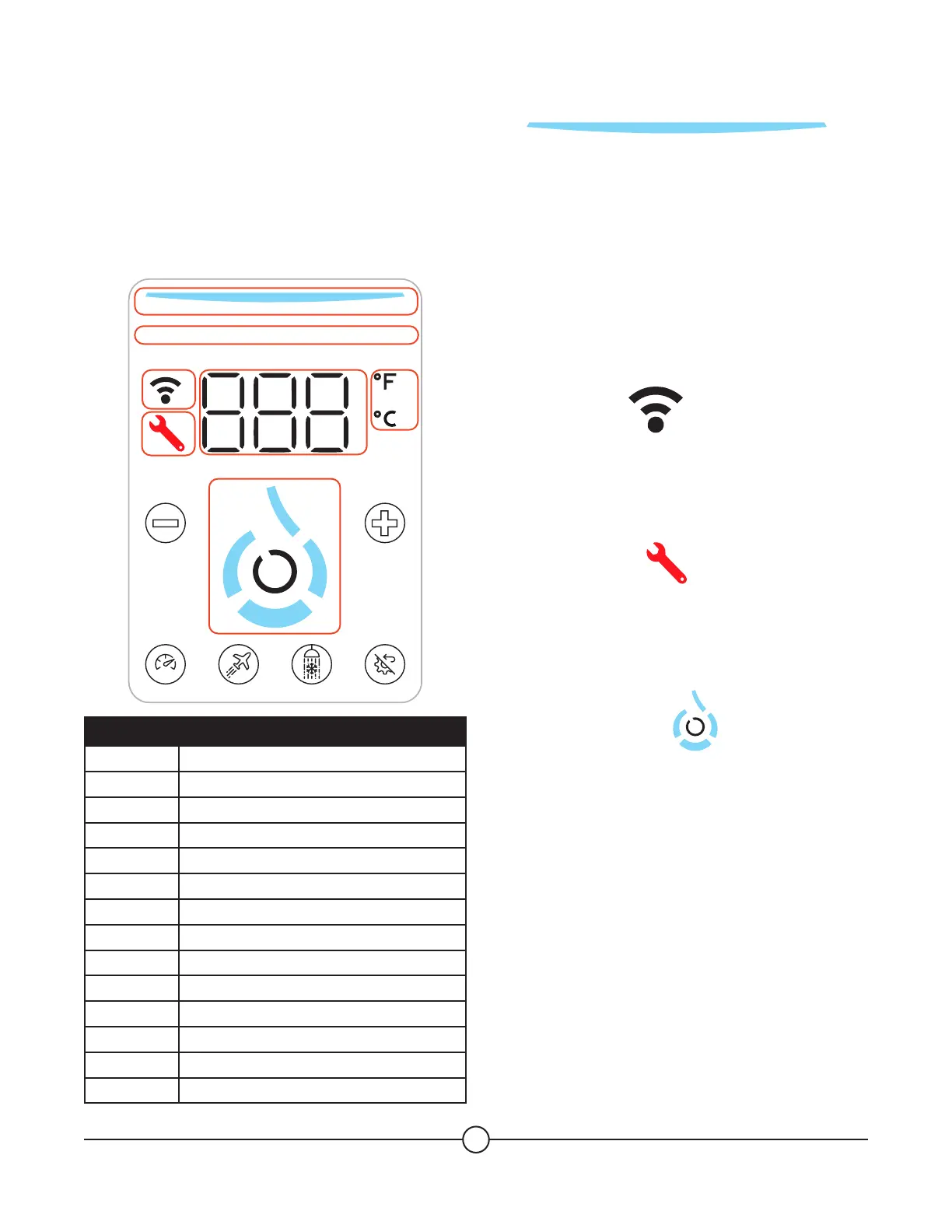
FIGURE DESCRIPTION
1 Status indicator
2 Active mode
3 Temperature unit
4 Alphanumeric display
5 WiFi status
6 Fault indicator
7 Capacity indicator
B1 Boost (temporary function)
B2 Vacation (temporary function)
B3 Water Saver (temporary function)
B4 Multi Function button
B5 + Button
B6 - Button
B7 Confirm button
Fig 1. Status Indicator
The color of the banner indicates the heating mode
or the water heater status:
• Light blue: Normal operation.
• Red: An alarm has been triggered and needs to
be acknowledged (see Troubleshooting & Service
section page 43).
• White: Service menu.
Fig 5. WiFi Status
• The indicator is ON when the WiFi is connected.
• The indicator flashes when the water heater is
searching for WiFi.
Fig 6. Fault Indicator
• The indicator is ON when a fault is active
(see Troubleshooting & Service section page 43).
• The indicator is OFF when there is no active fault.
Fig 7. Capacity Indicator
• When static, the water drop icon indicates the
quantity of hot water available.
- In Smart Mode: Up to 8 back-to-back showers
(for 8 min showers at 2GPM and 100°F)
- In Heat+ Mode: 9 back-to-back showers
The Smart mode optimizes the hot water
storage. That is normal some time to time to see
some segments of the indicator unlit, according
to hot water usage and elements activation.
In Heat+ mode, the 4 segments are more likely
to be all lit.
• The animation of the drop indicates whether the
water tank is filling or heating.


 To Next Page