3 Operation 61
Bounce
Once the fixture completes the entire sequence, it reverses the order of the presets and
steps backward through them until reaching the starting step, at which point it starts the
Sequence over again, in the original order.
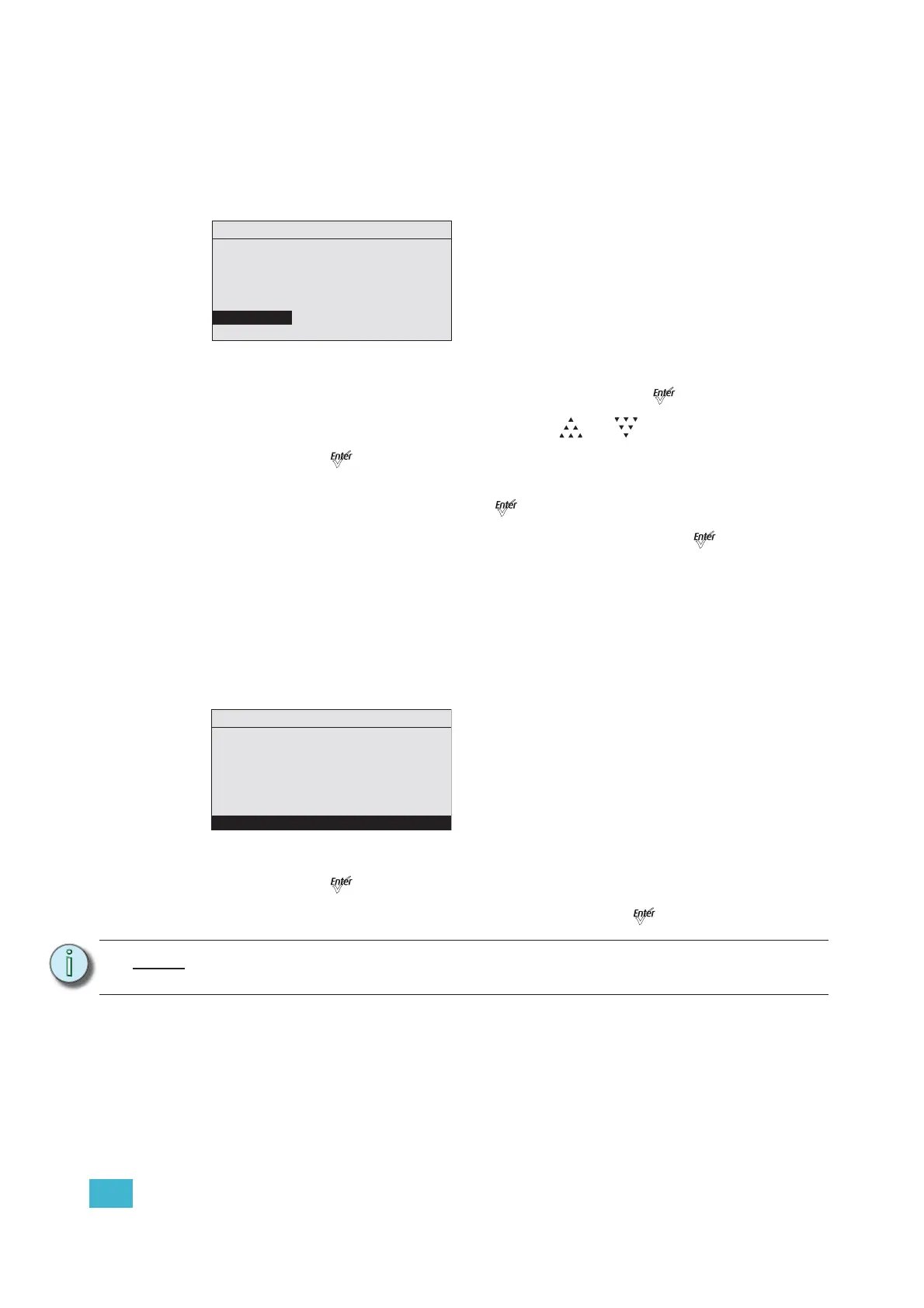
Figure-3.27 Setting Sequences End State.
Step 1: On the Sequences menu, scroll to Preset and press [].
Step 2: With the Preset number selected Press [] or [] until you reach 0.
Step 3: Press [].
Link Time on the screen is replaced with End State.
Step 4: Scroll to End State and press [] to toggle between the options.
Step 5: If the Sequence is not active, scroll up to Status and press [].
Copy to Other Fixtures
If other fixtures are connected to the same data chain, you can copy the Sequences
settings to the other fixtures. The fixture automatically becomes the Master and controls all
the other fixtures (Slaves) in the chain until another fixture has its Preset or Sequence
settings selected or activated. For more information, see Master/Slave Operation, page 62.
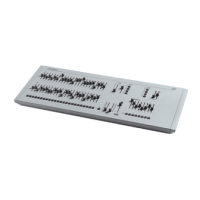
Step 1: On the Sequences screen, scroll to Copy to Other Fixtures.
Figure-3.28 Selecting Copy to Other Fixtures.
Step 2: Press [].
Step 3: When asked if you are sure, select Yes and press [].
Note:
This option only copies Sequence data; it does not copy changes to the Preset
settings or color mixes used within the Sequence.
Sequences
Sequence: * 3
Status: Active
Rate: 100%
Step: 01
Preset: 0
End State: Loop
Copy to Other Fixture
Sequences
Sequence: * 3
Status: Active
Rate: 100%
Step: 01
Preset: 0
End State: Loop
Copy to Other Fixture











 To Next Page