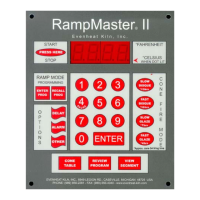
Set-Pro Control Operating Manual
Metal Clay version – Nov. 2014
Page 7 of 21
Use your Smart-phone to scan this QR code to watch Set-Pro how-to Programming Videos!
Use this Quick Guide to Immediately Begin the Custom Mode Programming Process
The Custom Mode allows the creation of your own, individual firing programs. You choose the rate of temperature increase or decrease, the temperature
you want to achieve and any hold time once you’re there. These 3 items, taken together create what’s known as a segment. Segments are basically
chained together to create a multi-segment program. Enjoy full artistic control with Custom Mode Programming. The Custom Mode can be used for all
types of firing including glass, metal clay and ceramic.
Quick Steps for Custom Mode Programming
1. Throw the power switch on the kiln control panel to the On position.
2. The Set-Pro begins its initialization process and the display will illuminate.
3. The Set-Pro will finish its initialization process and then display IdLE (Idle).
4. Press the Enter key one time to begin the programming process. The display will read GLAS, ALAr, bEAd, M-C, CEr or CUSt.
5. Use the Up or Down arrow keys to make the display read CUSt (Custom Mode) if it does not already.
6. Press the Enter key. USr is displayed along with some number.
7. Use the Up arrow key to choose. You’re choosing which of the 4User program numbers will be used to store your program. Your choices are 1 thru 4.
8. Press the Enter key. SEG is displayed along with some number.
9. Use the Up or Down arrow keys to choose. You’re choosing the total number of segments used in the program. Your choices are 1 thru 8.
10. Press the Enter key. rA 1 is displayed along with some number.
11. Use the Up and Down arrow keys to choose. You’re programming the temperature rate (°/hr.) for this segment.
12. Press the Enter key. °F 1 is displayed along with some number.
13. Use the Up and Down arrow keys to choose. You’re programming the temperature set point for this segment.
14. Press the Enter key. HLd 1 is displayed along with some number.
15. Use the Up and Down arrow keys to choose. You’re programming the hold time for this segment.
16. Press the Enter key. rA 2 is displayed. Repeat steps 11 thru 14 for all remaining segments.
17. Once all remaining segments have been programmed the display will read rEdI (Ready).
18. Press the Enter key to begin the firing. The Set-Pro is now running your Custom Mode program.
When the firing is complete the display alternates between CPLt and total firing time. Press the Start/Stop key at this point will cause the display to briefly
read StOP and then IdLE.
You may stop the firing at any time by pressing the Enter key. Doing so will cause the firing to stop and StOP will briefly be displayed.



 To Next Page