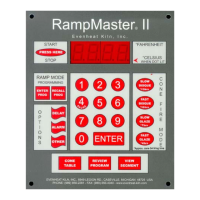
Set-Pro Control Operating Manual
Metal Clay version – Nov. 2014
Page 11 of 21
Use your Smart-phone to scan this QR code to watch Set-Pro how-to Programming Videos!
Custom Mode Programming (Detailed)
The Custom Mode is a method of programming that allows the artist to precisely define every aspect of the firing. You’re creating a custom firing program
designed for the work at hand.
Creating a custom program is not difficult. It does, however, require some knowledge and forethought about what you want to do and how to go about it.
We have included a “Basic Glass Firing Guide” with your new kiln that goes through the basics. But these are just the basics and you will want to seek out
more detailed information. Having said that, you do need to know how to translate what you want into a firing program and we’re going to show you how
to do it.
1. Throw the power switch on the kiln control panel to the On position.
2. The Set-Pro begins its initialization process and the display will illuminate.
3. The Set-Pro will finish its initialization process and then display IdLE (Idle).
Idle simply means the Set-Pro is at rest and is not running any programs.
4. Press the Enter key one time to begin the Custom Mode programming process. The display will read GLAS, ALAr, bEAd, M-C, CEr or CUSt.
The Set-Pro includes preset programs designed to fire glass, metal clays, and ceramic as well as offering custom programs.
These choices are displayed as:
GLAS – Glass Express Mode
ALAr – Process Alarm Feature
bEAd – Load-n-Go Bead Annealing Process
M-C – Metal Clay Express Mode
CEr – Ceramic Express Mode
CUSt – Custom Mode
5. Use the Up or Down arrow keys to make the display read CUSt (Custom Mode) if it does not already.
6. Press the Enter key. The display will read USr along with some number.
The Set-Pro needs to know which of the 4 available locations you would like to store your Custom Mode program. In other words: a program
number. Your choices are 1 thru 4.
7. Use the Up arrow key only to select the desired program number.
8. Press the Enter key. The display will read SEG along with some number.
The Set-Pro needs to know the total number of segments you would like to use for the Custom Mode program.
Most glass firing programs require the kiln to go to multiple temperatures and to use multiple heating rates throughout the firing. In order for
the Set-Pro to perform all these changes, it breaks the entire program down into smaller bits called “Segments”. Your program will consist of
many segments, chained together, one after another, to create the finished program. During firing, the Set-Pro works from one segment to the
next until all segments have been completed.
A Segment consists of these 3 questions: Rate: how fast am I supposed to get to temperature? Set Point: what temperature am I going to? Hold
Time: the amount of time to hold at my Set Point temperature?
You can use up to 8 segments for your program. Your choices are 1 thru 8.
9. Use the Up and Down arrow keys to select desired number of segments to be used in the Custom program.



 To Next Page