EKB500_ma_en_rev1.5_3.doc 16
COM Port Setting
Device Setting
6 MENU SETTINGS
After electrical installation and start-up, both the connected devices and the keyboard itself have to be
set up.
Hold the
S
S
S
H
H
H
I
I
I
F
F
F
T
T
T
key and press the
M
M
M
E
E
E
N
N
N
U
U
U
key to enter the keyboard menu.
Use the joystick and the
E
E
E
N
N
N
T
T
T
E
E
E
R
R
R
key for menu navigation. Use the
E
E
E
S
S
S
C
C
C
key to leave the menu and return
from submenus.
The "<" icon at the end of the second line indicated further settings to be effected in this menu. Use the
J
J
J
O
O
O
Y
Y
Y
S
S
S
T
T
T
I
I
I
C
C
C
K
K
K
to switch between the lines.
Selected settings are displayed blinking. Press
E
E
E
N
N
N
T
T
T
E
E
E
R
R
R
to confirm the setting and
E
E
E
S
S
S
C
C
C
to return to the
previous menu level.
6.1 MENU STRUCTURE
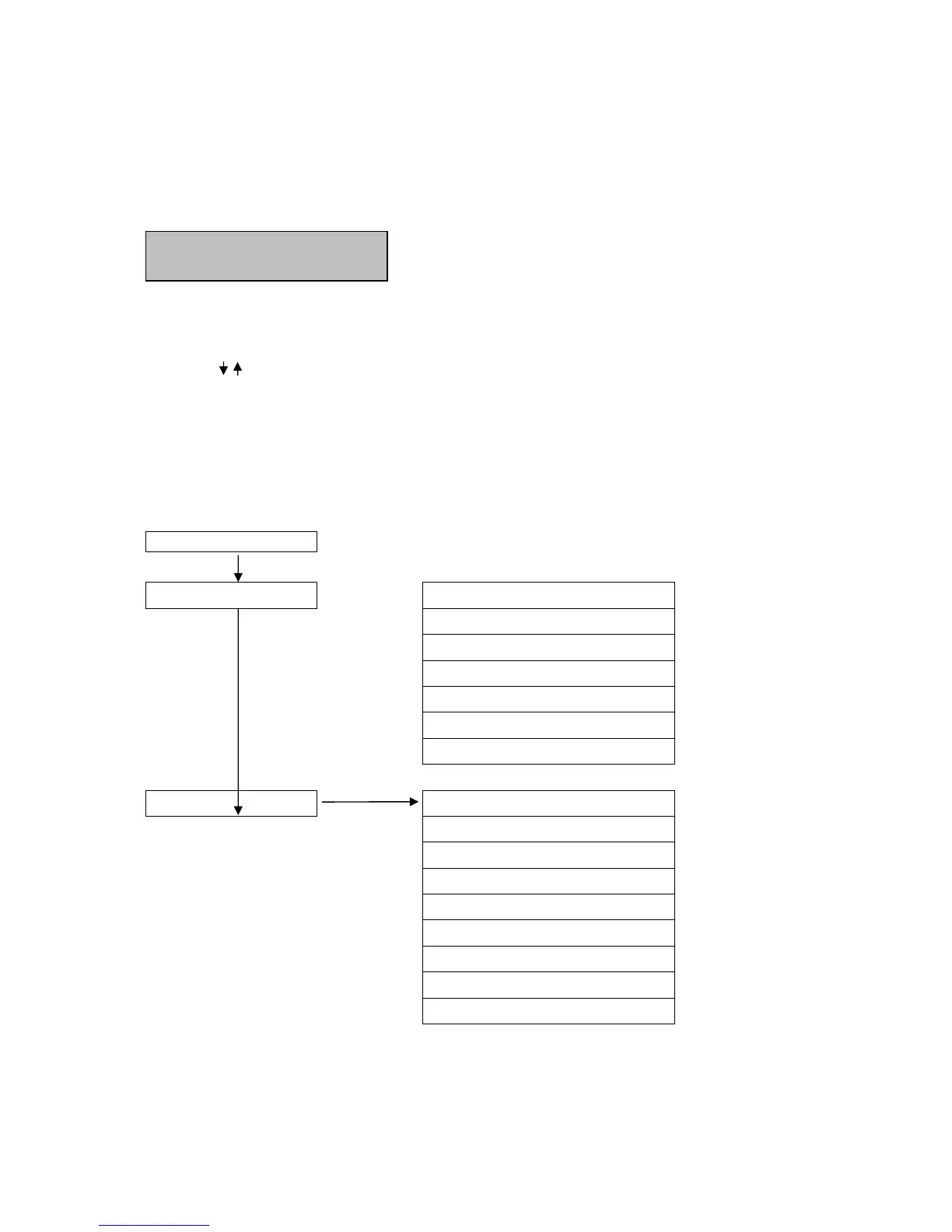
The LCD display menu shows the following structure:
COM Port Setting
Device Setting Camera Setting
Monitor Setting
DVR Setting
Camera List & Delete
Monitor List & Delete
DVR List & Delete
Non-listed Device
Keyboard setting
Sub Keyboard Setting
MENU Password
Lock Password
Buzzer ON/OFF
Joystick Calibration
Keypad Test
Jog & Shuttle Test
Load default setting
Firmware update



 To Next Page