144
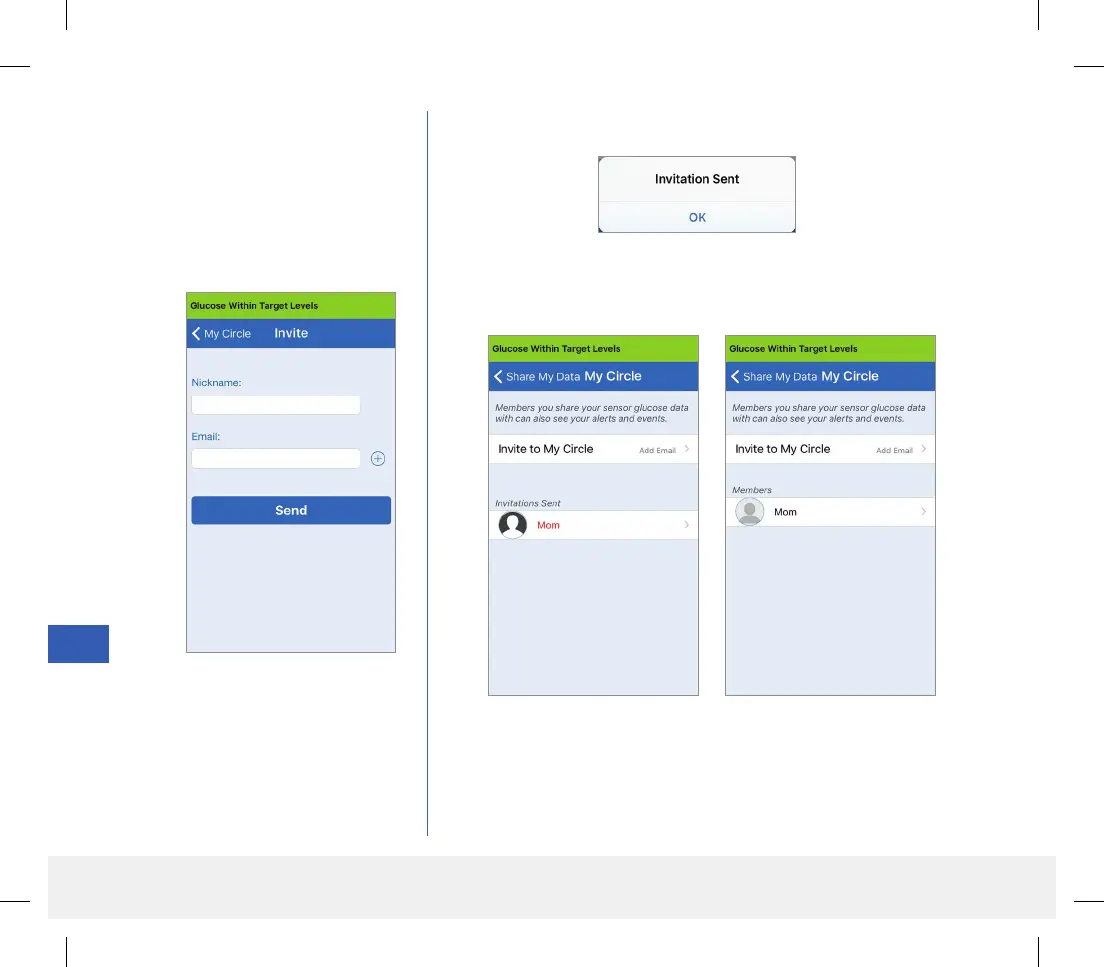
3. Enter the email for the person you
would like to invite to your Circle,
and tap Send when complete.
Note: You can tap the “+” next
to the email field to select an email
address from your Contact list.
4. An Invitation Sent screen appears. Tap OK.
When the invitation has been accepted, the member’s name will
appear in your Members List on the MY CIRCLE screen in your app.
Tip: Nicknames are optional, and
are used to help you easily manage
your Circle Members. If you choose
not to give a nickname to a Circle
Member, their email address will show
in place of a nickname.
Note: Profile pictures of those remotely viewing your glucose
data are set up in the DMS account by the account owner. You cannot
change profile pictures of those you have invited to your Circle.
LBL-1602-01-001 Rev N_Eversense User Guide_mgdL_R1.indd 144LBL-1602-01-001 Rev N_Eversense User Guide_mgdL_R1.indd 144 2/26/20 12:59 PM2/26/20 12:59 PM


 To Next Page