84
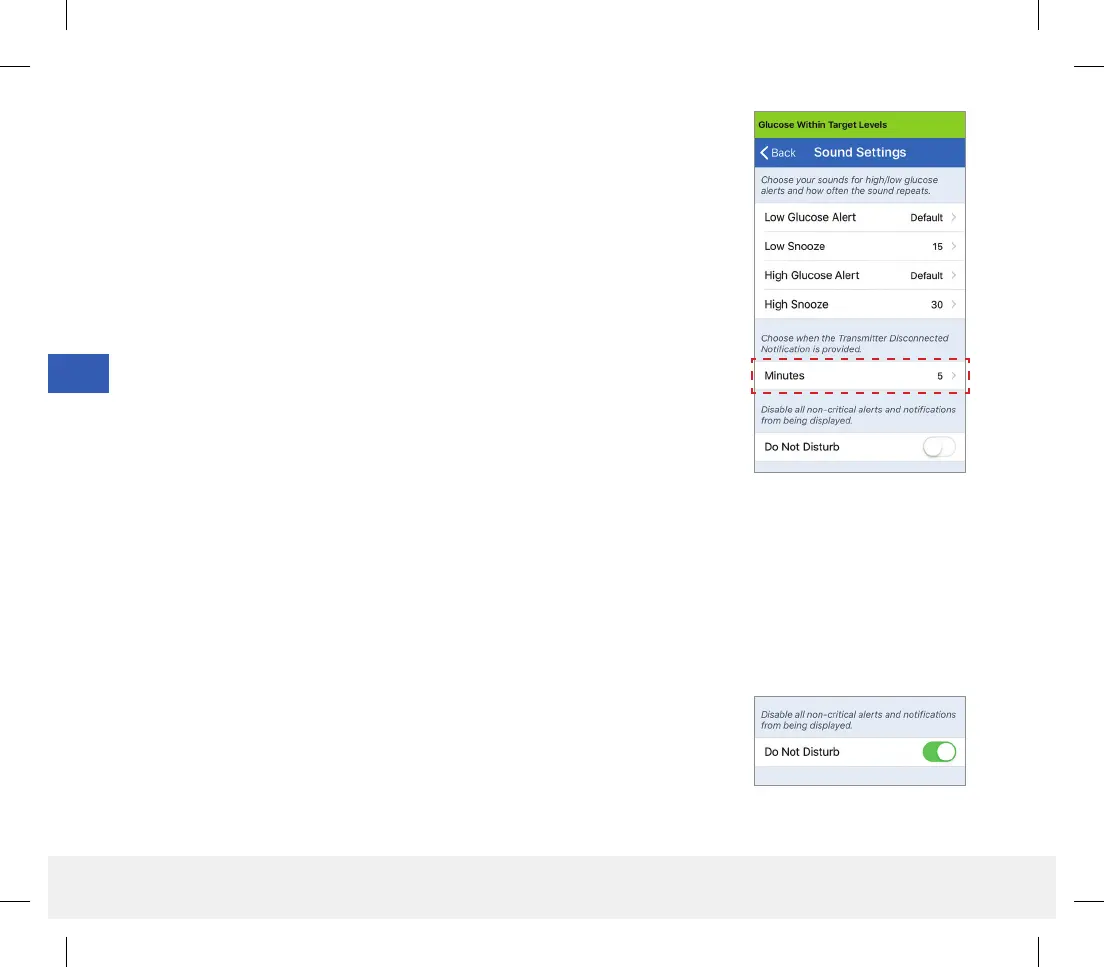
The SOUND SETTINGS screen also allows you to enable and disable the Do Not Disturb mode.
• Do Not Disturb. Places the app and smart transmitter in a “Do Not Disturb” mode.
• OFF – ALL notifications – alerts and notifications – regardless of critical nature will be provided by the smart
transmitter and app.
• ON – ONLY critical alerts will be provided by the app and smart transmitter’s on-body vibe alerts.
Note: When you enable Do Not Disturb mode on your mobile device
you will not receive any alerts or notifications from the Eversense App.
The DND icon will appear on the Home Screen. For a list of alerts, please see
Alert Descriptions.
Transmitter Disconnect Setting
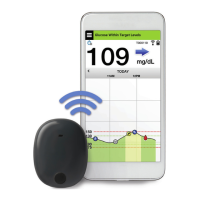
There may be times when the Bluetooth connection between your smart
transmitter and mobile device is interrupted. This may be due to the devices
being out of range, smart transmitter battery empty, or the Bluetooth
feature is turned o in your phone settings. You can customize how long
before the system notifies you of a communication interruption. You can set
the time to alert you 5 to 30 minutes after a connection is lost. When there
is no communication between the smart transmitter and the app, you will
only receive vibratory alerts from the smart transmitter. See next section
regarding Do Not Disturb mode.
LBL-1602-01-001 Rev N_Eversense User Guide_mgdL_R1.indd 84LBL-1602-01-001 Rev N_Eversense User Guide_mgdL_R1.indd 84 2/26/20 12:59 PM2/26/20 12:59 PM


 To Next Page