111
Log Specific Events
Glucose
Enter and track blood glucose meter tests (test results other than calibrations).
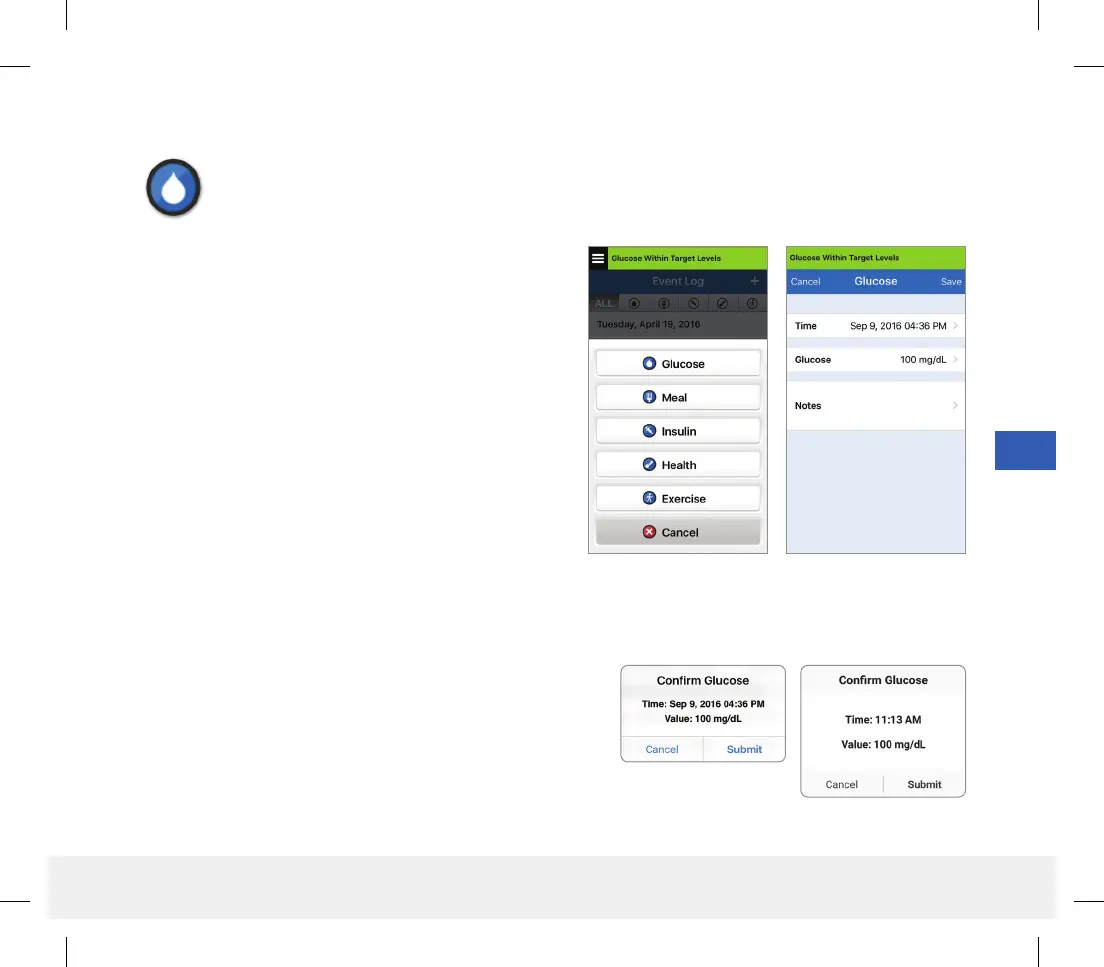
1. Tap Menu > Event Log.
2. Add an event using the event icon “
+
” > Glucose.
3. Tap Time to enter the correct date and time.
Tap Done.
4. Tap Glucose to enter the correct blood glucose value.
Tap Done.
Note: You can enter a BG value between 20 and
600 mg/dL. Entries < 20 mg/dL will be converted to 20,
and entries above 600 mg/dL will be converted to 600
for calculation and display purposes.
5. Tap Save.
6. On the Confirm Glucose pop up box, tap Submit to confirm
the glucose event and return to the EVENT LOG screen,
or tap Cancel to exit without saving changes or to edit the
information before saving.
Note: Glucose Events do not replace calibration
measurements. You will still have to enter calibration readings.
iOS
Android
LBL-1602-01-001 Rev N_Eversense User Guide_mgdL_R1.indd 111LBL-1602-01-001 Rev N_Eversense User Guide_mgdL_R1.indd 111 2/26/20 12:59 PM2/26/20 12:59 PM


 To Next Page