SAIC Exploranium – GR-135 System Manual page: 16
5.4 DISPLAY CONTRAST
When the unit is first turned ON, the user may use the joystick to adjust the Display Contrast to suit
themselves. Clicking LEFT changes contrast to lighter, clicking RIGHT changes contrast to darker.
The control is limited to 10 steps in either direction and when extremes are reached, an audio
double-beep is heard to advise the user that they are at the limit of adjustment. Note that the user-
set display contrast will be retained even when the unit is powered OFF.
After the initial contrast setting by the user, the contrast is automatically adjusted by
temperature compensation using an internal temperature sensor.
5.5 MAIN MENU
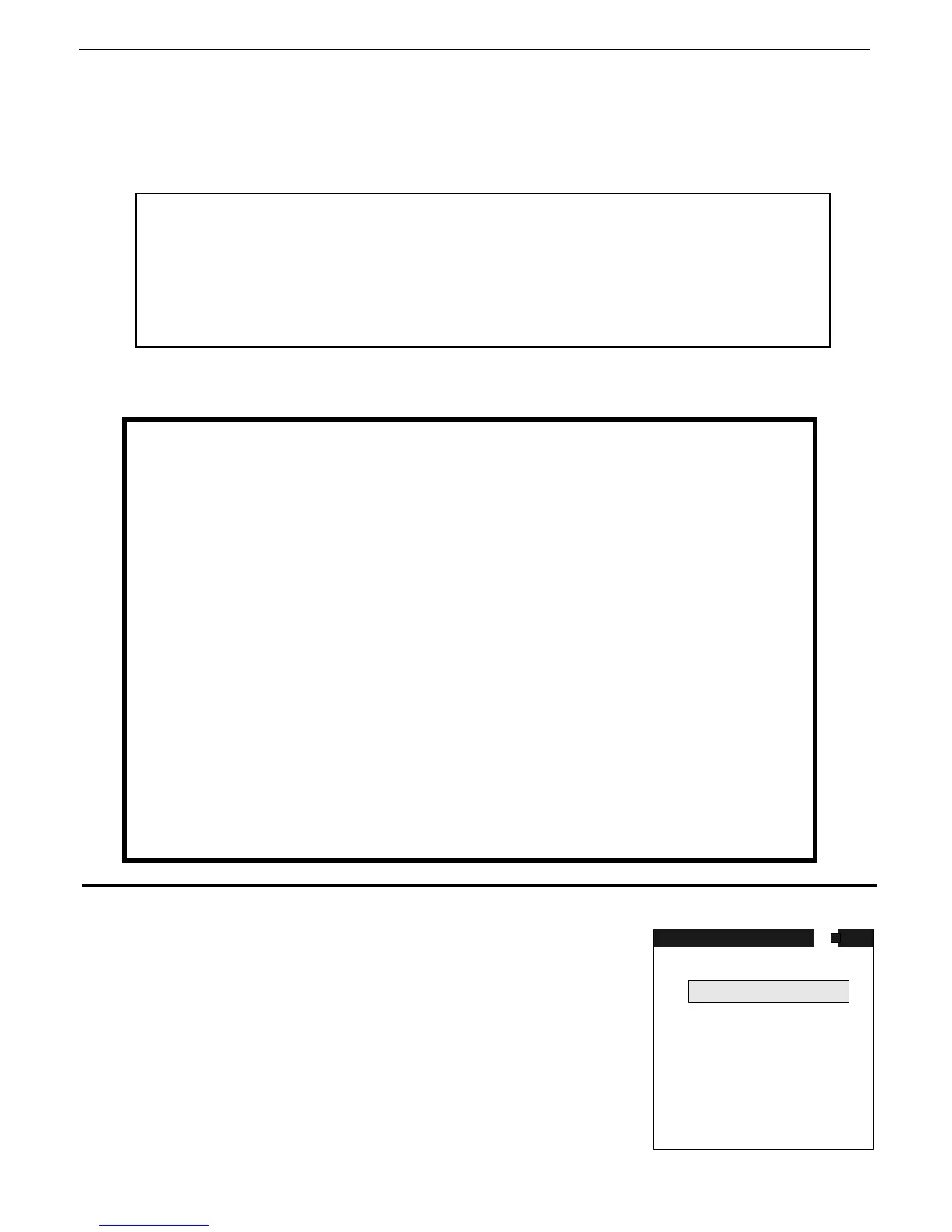
After the initial start-up screen, the GR-135 Main Menu appears.
The user may scroll through the menu items by a short click UP or
click DOWN. Reverse “highlighting” shows the current menu item
selected.
Menu items are selected by highlighting the desired item and using
ENTER to activate the selection.
Fig. 4
NOTE
Manual contrast adjustment is only enabled during the first 60 seconds
after power on. This is to prevent inadvertent contrast adjustment
during other system operations. 60 seconds is usually long enough for
adjusting contrast, however if further adjustment is required, switch
the unit off then on again to obtain another 60-second adjustment
SEARCH + DOSE
IDENTIFY
STABILIZE
DATA MEMORY
SETUP
MAINTENANCE
MAIN MENU
USER ADVISORY
Some users switch the unit ON
And see NO DISPLAY.
This is usually because they have set the CONTRAST
completely wrong.
If a greenish-colored blank display is seen, switch the unit
OFF (UP for 5 seconds ensures the unit is switched OFF).
Now power ON, wait 5 seconds, then RIGHT click the
Joystick repeatedly. 5-6 clicks is usually enough to restore
the display CONTRAST – the display should now be visible.
If the display is blue, then repeat the above procedure but
click the Joystick LEFT.
Contact Exploranium if the display is still blank.



 To Next Page