SAIC Exploranium – GR-135 System Manual page: 57
APPENDIX B - IDENTIVIEW SOFTWARE
1. GENERAL
IdentiView is a specially designed software program supplied by Exploranium that is used to
download data from the GR135 instrument and view/analyze/format the data. In this version of
software documentation it is assumed that the user is ALWAYS in the AUTOMATIC MODE and only
spectra will be downloaded. For MANUAL mode operation, the procedure for downloading data from
the GR-135 is identical except that the GR-135 must first be set to the REMOTE data access mode.
2. Installing the Software
1. Load the Exploranium “Program/Document Support” CD into the PC.
2. Select RUN and BROWSE, then navigate to the GR135\Software\Identiview release
version xxx\disks directory, where xxx is the version number. Select the file setup.exe
and click OK.
3. Select desired install location (default = C:\IdentiView).
4. Click FINISH. After some screen activity, the screen should show “Successful
Installation”.
5. Once the IdentiView Application program appears, right-click and use “Send-to” to
setup an icon on the Desktop.
6. Close this window.
7. Follow screen prompts to install the LabView engine software.
8. Exit all screens.
3. USING THE SOFTWARE IN AUTOMATIC MODE
3.1 SETTING UP THE SYSTEM
Set up the system as follows:
1. Connect the DS to the PC com port via the supplied 9 pin cable.
2. Apply power to the DS with the power cord. The green light should be on.
3. Click the GR135 joystick button down for at least 2 seconds. The unit will power ON and
after a few seconds the SYSTEM READY message appears.
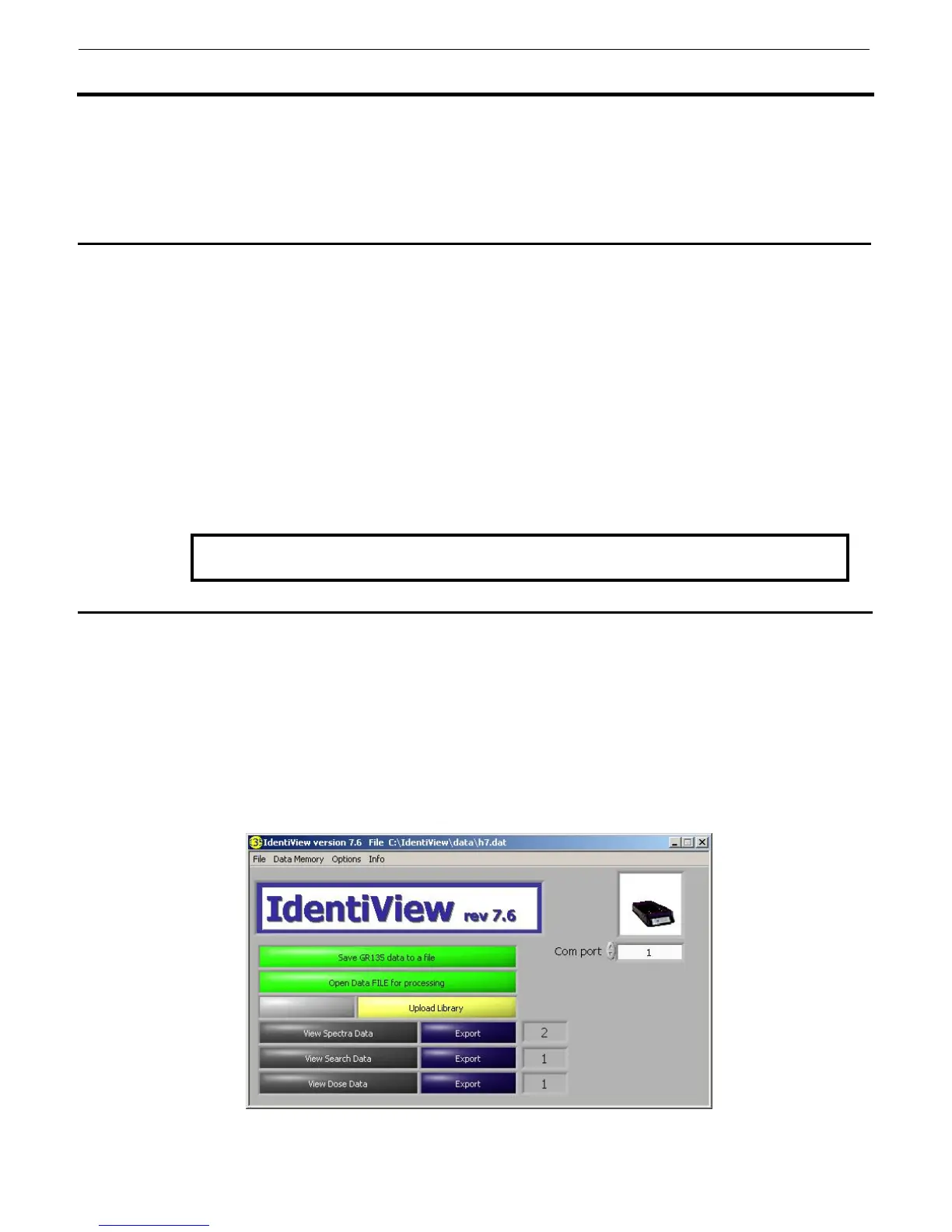
4. Start the program by clicking the IdentiView icon. The following screen appears.
Fig. B1
Note: The GR135 is hard-wired to operate at 19200 Baud to suit most computers.



 To Next Page