SAIC Exploranium – GR-135 System Manual page: 58
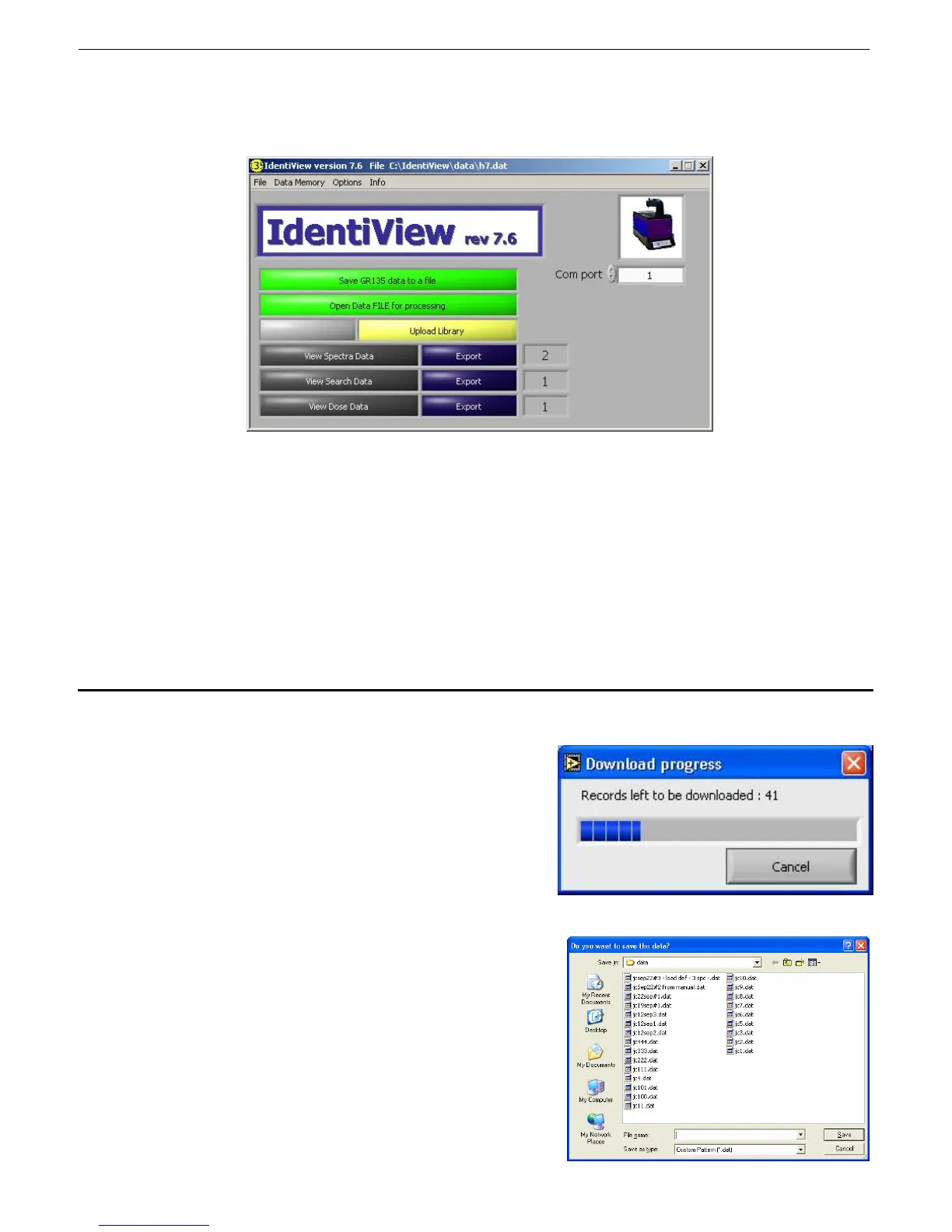
The icon in the top right-hand corner of the display indicates when the GR135 IS NOT in the DS,
or if it is not communicating with the PC. If the unit IS in the DS then this graphic is replaced
with an icon depicting the unit in the DS as shown below:
Fig. B2
If the correct icon as in Fig. B2 is NOT seen, check:
that the GR135 is correctly placed in the DS
the DS is cabled to the correct COM port (to check this change the COM port
settings on the IdentiView screen)
that the DS and the GR135 are both powered on.
If the icon is still not visible, remove the GR135 from the DS and power off. Exit the software
(File/Exit), restart the software, then place the GR135 in the DS. If the icon is still incorrect,
contact Exploranium.
3.2 DOWNLOADING DATA
- As soon as the IdentiView software recognizes
that the GR135 is in the Docking Station it
automatically starts to download the data and
the following display appears:
- The program is downloading the data at approx
1 spectra/second.
- At the end of data transfer the following screen
on the right appears.
- Enter an appropriate location and filename and
click “Save”.
- The default file location is C:\Indentiview\Data.
- Enter an appropriate location and filename and
click “Save”.



 To Next Page