Network
Verify with your network administrator whether the IP address for the touchpanel is assigned by
Dynamic Host Configuration Protocol (DHCP) or set manually. If they are set manually, you need
to obtain an IP address, a subnet mask, a gateway address, and a Domain Name Server (DNS)
from the network administrator.
Press the
Network button in the navigation panel at the top of the screen to open the Network
screen.
Status
Display Audio Advanced Exit
Network
DHCP
On Off
Host Name:DNS Primary:
IP Address:
Subnet Mask:
Domain Name:
Gateway:
MAC Address:
TLP-AB-CD-EF
192.168.254.251
255.255.255.0
0.0.0.0
00-05-A6-AB-CD-EF
Revert Apply
127.0.0.1
Figure 6. Network Screen
1. If IP addresses are assigned by DHCP, press On. The selected button is highlighted in
yellow. If DHCP is selected, you can set only the Host Name and the DNS IP address. All
other values are set by the DHCP server.
If IP addresses are assigned manually, press Off. When DHCP is Off, all values can be
edited.
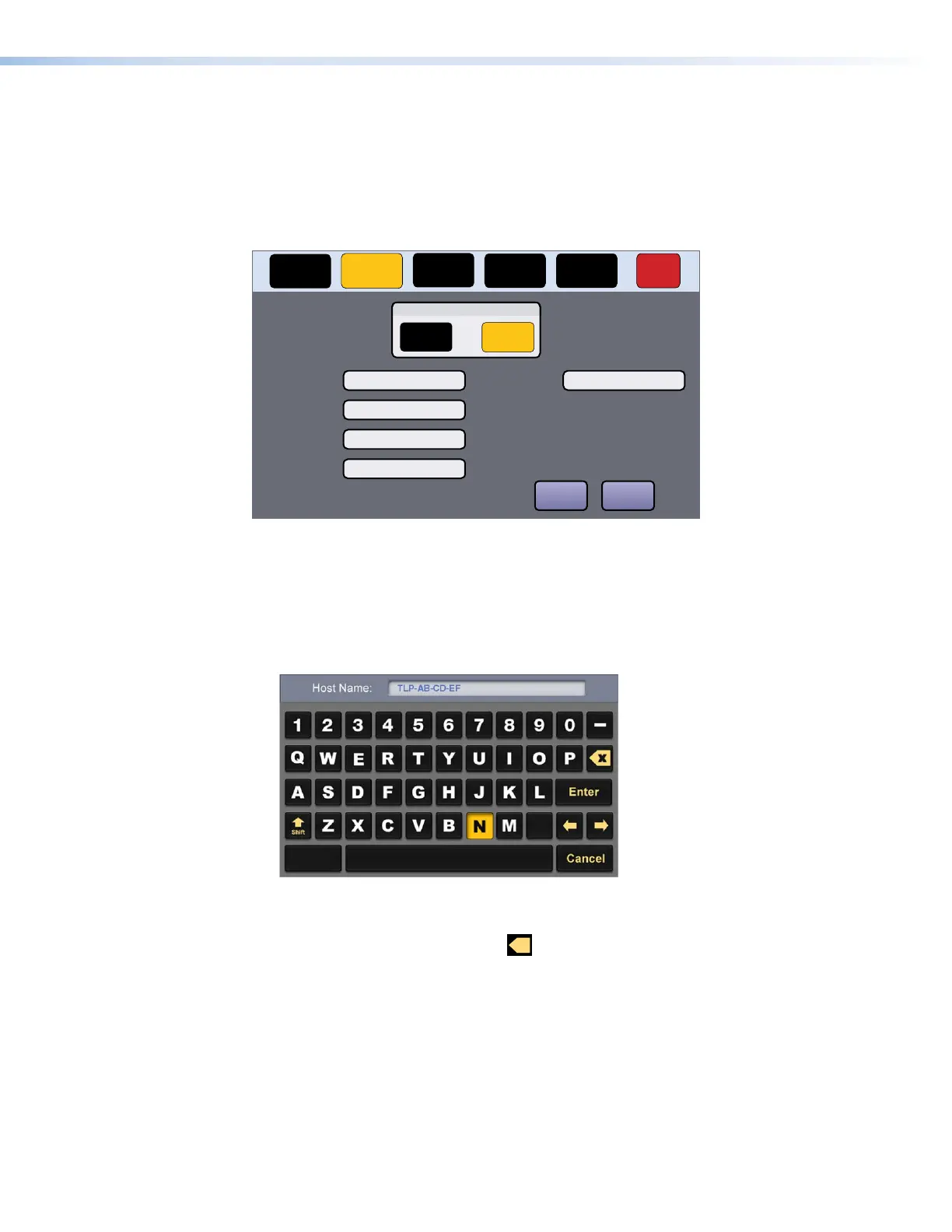
2. Edit the Host Name by pressing that button. A keypad opens:
Figure 7. Alphanumeric Keypad
• Use the keypad to enter a new name, which appears in the Host Name text box.
• Use the backspace character (
x
) to delete existing characters.
• The right and left arrows move the cursor inside the Host Name text box.
• Click the Shift key to toggle between upper and lower case letters.
• Press Enter to save the new name.
TLP Pro 1022 Series • On-screen Menus 9



 To Next Page