Updating the Firmware
Firmware for the TLP Pro 1022 series can be upgraded using Toolbelt or the touchpanel web
page. Before starting, consult your IT team and ensure that the touchpanel has a unique IP
address.
Downloading Firmware
1. Power on a computer that is connected to the same network as the touchpanel.
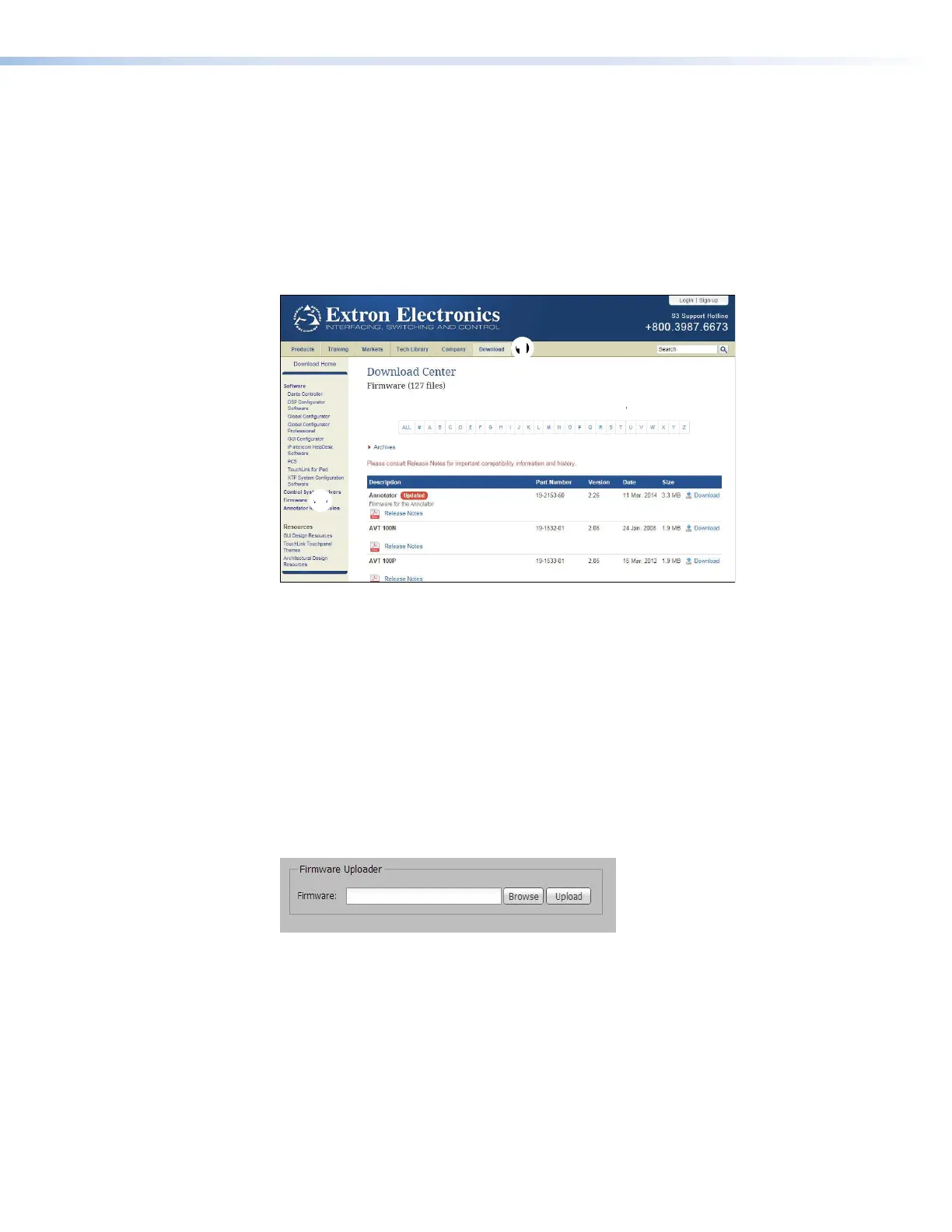
2. On the Extron website, click Download in the menu bar along the top of the page (see
figure17,
1
).
11
2
2
3
3
Figure 17. Firmware Download Center
3. Click Firmware in the menu bar in the left side bar (
2
).
4. Click the letter T from the alphabet menu (
3
).
5. Scroll down the page until you find the firmware for your model.
6. Click Release Notes for more information about the firmware.
7. Click Download.
8. Follow the onscreen instructions to download the program. Make a note of where the
firmware is stored on the PC.
Updating Firmware Using the Touchpanel Web Page
1. If you have not already done so, download the firmware file to a computer on the same
network as the touchpanel (see the previous section).
2. Open the TLP Pro 1022 Series Web Pages (see the previous page).
Figure 18. Touchpanel Web Page: Firmware Uploader
3. Click Browse and navigate to the firmware location.
4. Click Upload. The firmware file is uploaded to the touchpanel. Follow the on-screen
instructions.
Updating Firmware Using Toolbelt
For complete information about using Toolbelt, see the Toolbelt Help File.
TLP Pro 1022 Series • Configuration Software 17



 To Next Page