On-screen Menus
On-screen menus allow initial configuration of the TLP Pro 1022 series:
• Setup Menu
• Calibration Screen
Setup Menu
To open the setup menu, use a screw driver with a fine blade to press the Menu button. The
Menu button is located on the rear panel of both models (see figure 3,
C
on page 5) or below
the front panel of the TLP Pro 1022M (see figure 2,
G
on page 4).
The menus open at the
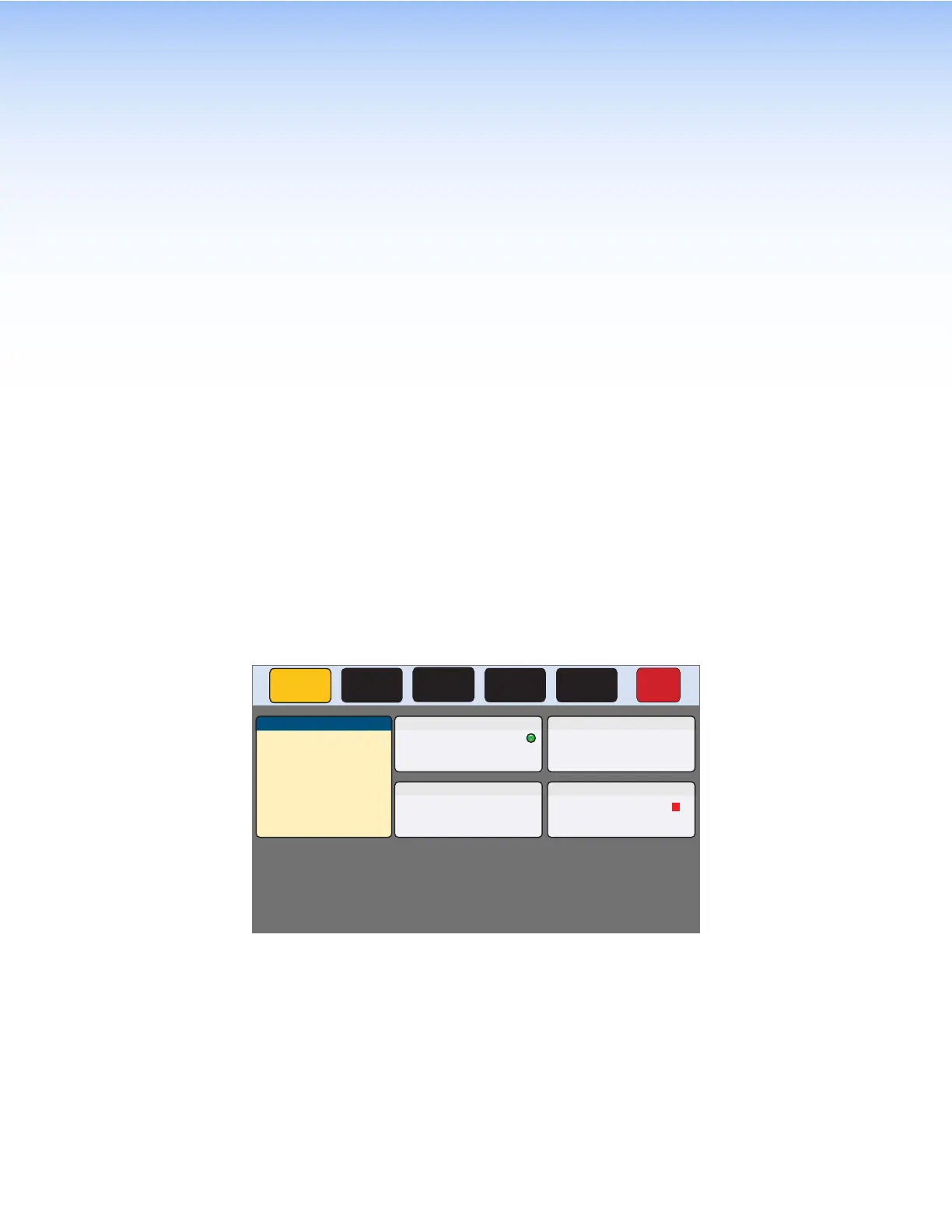
Status screen. There are five different screens (Status, Network,
Display, Audio, and Advanced). These can be selected by pressing the appropriate button in
the navigation panel at the top of the screen. The button for the selected screen is yellow; the
buttons for the remaining screens are black.
There is also a red
Exit button in the top right corner of the screen. Pressing this button applies
and saves any changes and closes the menu screens.
In this section, the figures show the screens for the TLP Pro 1022M. The screens for the
TLP Pro 1022T are similar.
Status
Press the Status button in the navigation panel at the top of the screen to open the Status
screen.
Status
Display Audio Advanced Exit
Network
Info
Model: TLP Pro 1022M
Part Number: 60-1602-02
Firmware
Version:
1.02.0001-b001
PoE Status: Active
Network
IP Address:
DHCP:
Host Name:
Off
192.168.254.251
TLP-AB-CD-EF
Display
Resolution:
GUI Project:
Sleep Timer:
1024x600
N/A
5 Minutes
Audio
Master Volume:
Master Mute: Off
99
Advanced
Controller IP: N/A
Project Size: N/A
Bootloader
Version: 1.03.0000
Figure 5. Status Screen
The Status screen is a read-only screen that provides basic information about the touchpanel.
Each of the other four panels shows a summary of the information on the other screens.
Pressing any of the panels opens the corresponding screen in exactly the same way as pressing
the buttons in the top navigation panel.
The green bubble in the
Network panel lights when there is a network connection or a red
square appears if there is no connection. The green bubble in the Advanced panel lights when a
control processor is connected or a red square appears if none is connected.
TLP Pro 1022 Series • On-screen Menus 8



 To Next Page