Installing GUI Designer, Global Configurator, and Toolbelt
NOTE: Use GUIDesigner, Global Configurator Plus and Professional, and Toolbelt to
configure the TLP Pro touchpanel.
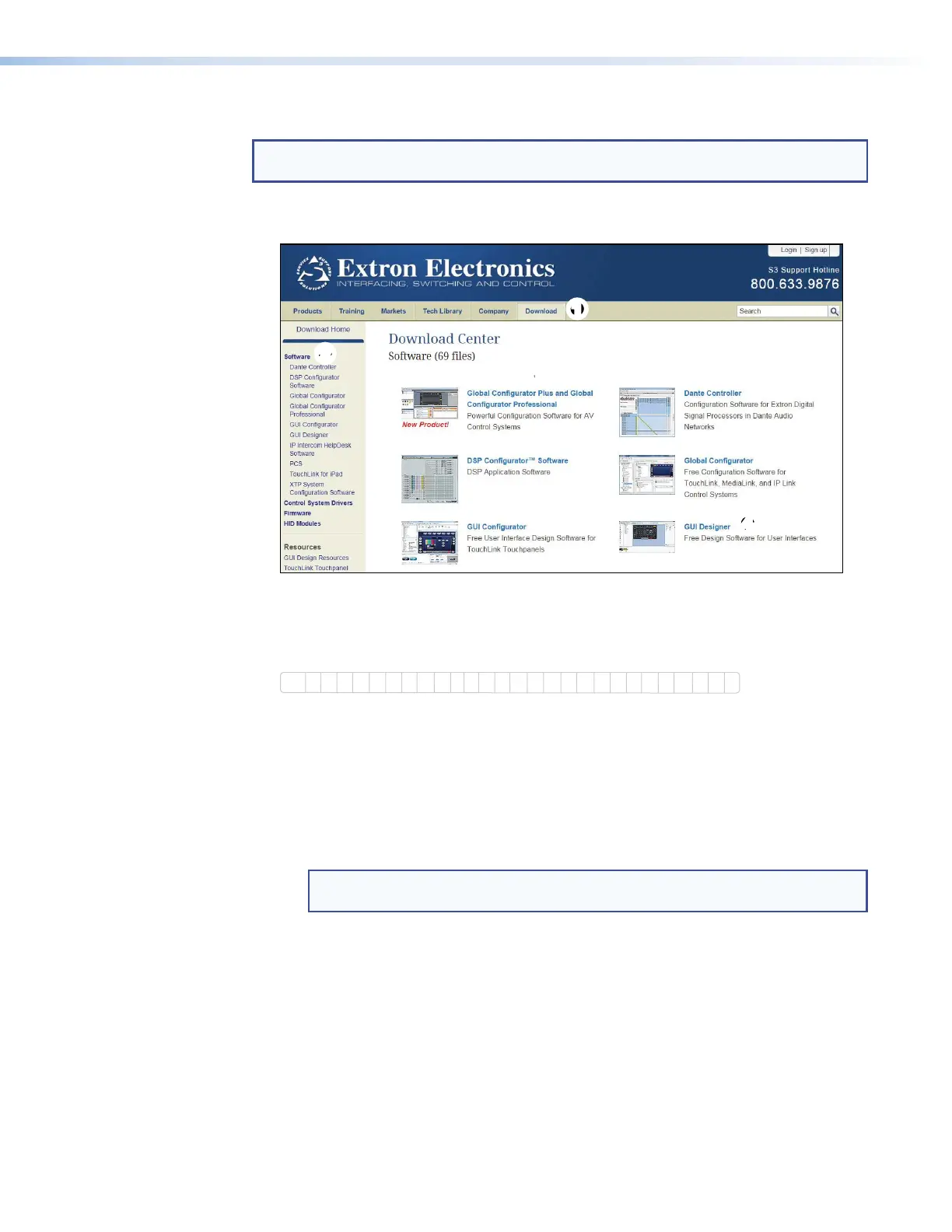
GUI Designer, Global Configurator, and Toolbelt can be downloaded from www.extron.com.
1. Select the Download tab (
1
) and click the Software option (
2
) in the sidebar at the left.
11
2
2
3
3
4
4
Figure 14. Downloading Software
You may see the product immediately, for example Global Configurator (
3
) and GUI
Designer (
4
) are displayed at the top of the page.
2. If the product is not shown, scroll down to the alphabet menu.
ALL #ABC DEFG HIJK MLNPOQ TSRUVWXY Z
Figure 15. Alphabet Software Menu
3. Click the initial letter of the software product
4. Scroll through the search results until you find it.
• GUI Designer — Click the Download button next to the program and follow the on-
screen instructions.
• Global Configurator — Ensure you are downloading Global Configurator Plus and
Professional. Click the Download button next to the program and follow the on-screen
instructions.
NOTE: You need an Extron Insider account to run Global Configurator Plus and
Professional. To obtain one, contact the Extron Sales Department.
• Toolbelt — Click the Download button next to the program and follow the on-screen
instructions.
TLP Pro 1022 Series • Configuration Software 15



 To Next Page