Display
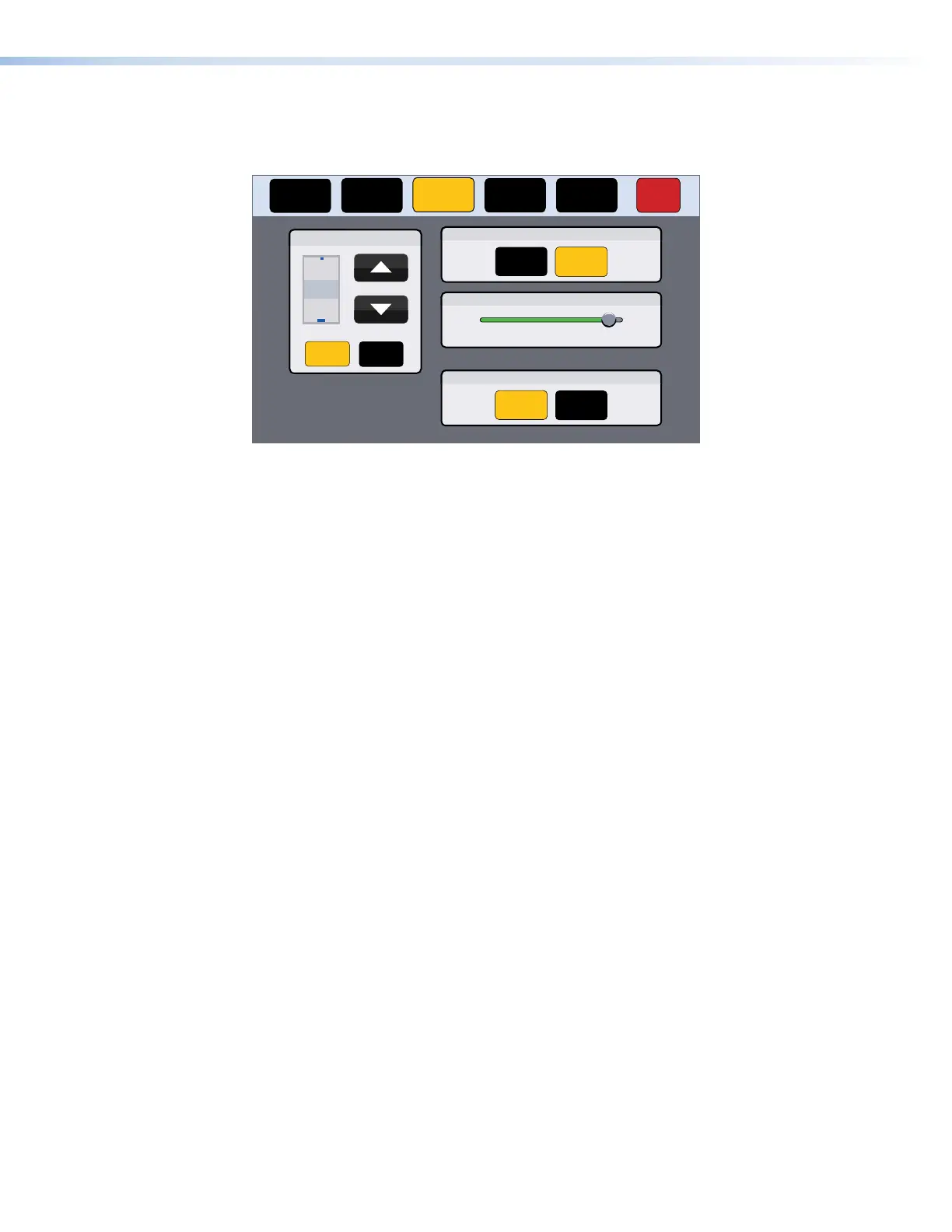
Press the Display button in the navigation panel at the top of the screen to open the Display
screen.
Status
Display Audio Advanced Exit
Network
Auto Brightness
On Off
Wake on Motion
On Off
LCD Brightness
2
3
4
Minutes
Sleep Timer
On Off
050100
Figure 9. Display Screen
The Display screen allows you to set the Sleep Timer, Auto Brightness,
LCDBrightness, and Wake on Motion.
• Sleep Timer — determines how long the panel is inactive before it enters sleep mode,
when the screen goes dark to save power. Toggle between On and Off. If the sleep timer is
On, use the arrows to adjust the value between 1 and 120 minutes.
• Auto Brightness — provides a suitable amount of backlighting that is automatically
calculated from the amount of ambient light detected by the light sensor (see figure 2,
C
on page 4).
• LCD Brightness — allows you to adjust the screen brightness, using the slider control.
• Wake on Motion — activates the panel from Sleep mode when motion is detected near the
unit. Toggle between On and Off.
TLP Pro 1022 Series • On-screen Menus 11



 To Next Page