Cabling the TerraBlock Server
The following explains how to cable the TerraBlock system to clients directly or any
switches in your configuration. Keep the location of the edit rooms in mind when
installing the TerraBlock. (See Appendix D or call Facilis customer support for
additional information on cabling options and specifications).
Fibre Channel Cabling
Up to 6 users may connect directly to the TerraBlock Server with optical Fibre
Channel. Direct client connections are based on the number of Fibre Channel cards
that are installed in your server.
The TerraBlock may also be connected to a switch via single or multiple 4/8/16/32
Gbit connections. The client workstations would also connect to the switch. All
connectors are “LC” type, and the supported cable type is duplex (send/receive)
multimode fibre. The LC connector will plug into an SFP module. The SFP is inserted
in the fibre channel card on the server and client. SFP’s are also used in the fibre
switch for connectivity between the server and clients. All SFP’s are removable and
replaceable.
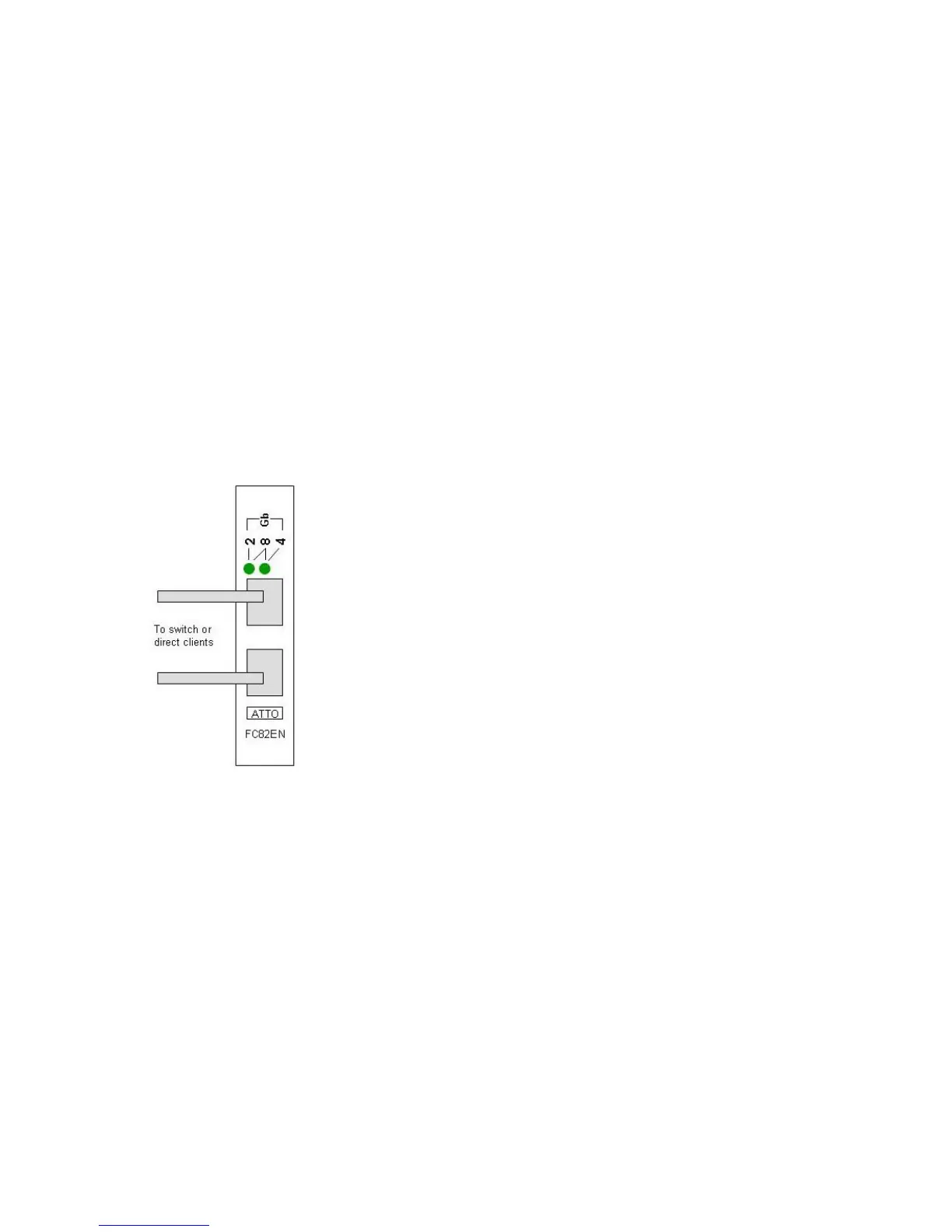
This image represents an 8Gbit dual-channel fibre card.
Only one port is used per-client. If using a switch, a single
or dual connection (shown here) can be run to the switch
for connectivity. Additional free ports on the server may
be used for more direct-connect clients an additional
switch.
If a 4Gbit client or switch is connected, a single LED will be
illuminated; if an 8Gbit client or switch is connected, both
LEDs will be illuminated. At least one LED will be active
when linked.
If the TerraBlock server is attached to a switch through a
single connection, an additional connection to the switch
will provide more balanced performance (recommended).
See Cabling the Fibre Switch in this chapter for more details.
A Fibre Channel cable is comprised of send and receive strands, these must be
mated properly to the send and receive ports on the SFP. If your cable was built as
an LC-to-LC patch cable, the connector should be built to achieve this. If you’re
patching through another cable via a union or patch field, you may have to
determine the send and receive sides. Try each combination of port connection and
connector ends (reversing if necessary) until a link light appears.
ATTO Fibre Channel host bus adapters contain class 1 laser emitting
devices. Keep the transmit port covered whenever a cable is not
connected. It is good practice to keep open ports covered. Avoid
staring into open ports or aperture
Cabling the Fibre Switch
Several QLOGIC switches are supported ranging from 8-16 port 4Gbit models to 8-
20 port 8Gbit models. ATTO 16Gbit switch models are also supported. The diagram


 To Next Page