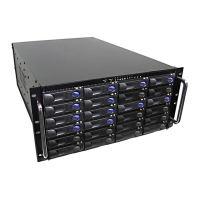
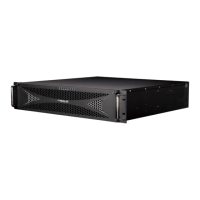
Client machines may mount up to 30 volumes per Terrablock server.
Update Read-Only
This button is used to refresh the data or contents for workstations that have a
Single-user Write volume mounted with Read Only Access. This action will refresh
the files and directories on the Read-Only volumes, and present the latest version of
the data.
Mac OS 10.7.X through 10.12.X: The Update Read Only function will update HFS+
(Mac OS Extended) volumes without ejecting from the Mac desktop. Applications do
not need to be closed to update HFS+ volumes. Other file systems, such as NTFS will
be ejected from the desktop when Update Read-Only is selected.
The user mode menu item “Auto update Read Only Volumes” is an
automated and timed instance of the Update Read-Only button
function, but only updates HFS+ volumes. NTFS volumes must be
updated manually.
Add Users
This button allows an administrator to add users or user groups to a volume. Once a
user or group has been added to a volume, the user, or users belonging to the
group, will then be able to mount and work with that volume. Users are added with
Read-Only permissions by default. Write permission can be selected at the bottom
the of the Add Users dialog box. A User’s permission can be changed at anytime
afterwards. Multiple users can be selected and added to a volume at the same time.
This action may take longer to process if adding a high number of users.
When using Single-user Write volumes, multiple users may be given write
permission to a volume, but only one user can mount the volume with write
access at a time.
Mount Properties
This button will allow a user to adjust the mount settings or properties for a specific
volume. The “Persistent Mount” settings will be set within. For Windows clients,
“Use Drive Letter” settings will be set. Double click the volume in the volumes list
will also produce this dialog box.
Show & Hide Permissions
By default the User/Group Permissions area on the right is hidden. Selecting the
button with expand this area revealing which groups and users have access to the
highlighted volume. The User Permissions area is only viewable by a user with Admin
access. User with Normal access will no longer see this area displayed. See “User
Access Permissions” later is this section for additional information for this area.


 To Next Page