54
Select a Preset Drum Kit and Create a User Drum Kit
Edit the Drum Kit Parameters
Change the drum kit volume, the overall effect of drum
kit will be affected. It means if you increase the volume
of drum kit, all volume of the pads will be increased.
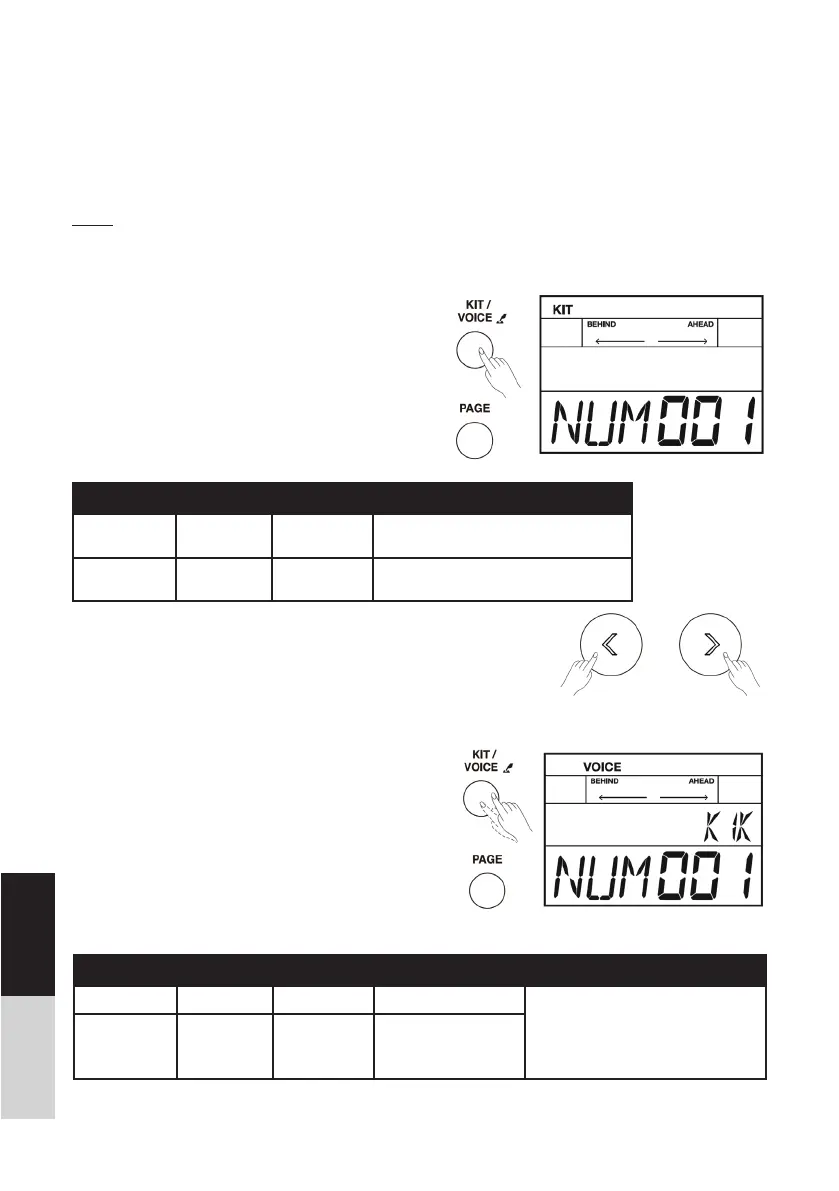
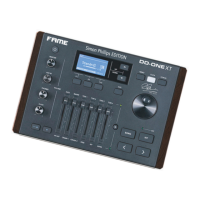
1. Press the [KIT] button, the LCD will display the kit
menu.
2. Repeatedly press the [PAGE] button to select the
item that you want to edit.
3. Press the []/[] button or turn the [DIAL] to
adjust parameter value.
Edit the Voice Parameters
Edit parameters of one pad will not affect others. For
example, if you increased the volume of snare, the
other pads wouldn’t change.
1. Press the [KIT/VOICE] button for 2 seconds and
the LCD will display the voice menu.
2. Strike the pad that you want to edit.
3. Repeatedly press the [PAGE] button to select an
item you want.
DEUTSCHENGLISH
About the Preset and User Drum Kit
From No.1 to 30 are preset drum kits, and the drum kits from No.31 to 40 are user drum kits. You can
edit the parameters of drum kit (from No.1-30), and save them into user drum kits (from No.31-40).
Note:
Please save your own parameter or voice after edited, otherwise, all data will lost.
Parameter Value LCD Display Description
KIT NAME Preset: 1~30
User: 31-40
NUM XXX Drum kit selection.
VOLUME 0~127 VOL XXX Adjust the volume of drum kit; the volu-
me of each pad will be changed.
Parameter Value LCD Display Description Triggers
VOICE NAME 1~408 NUM XXX Select a voice. KIK (KICK), Sn (Snare), SnR (Snare
Rim), T1 (Tom1), T2 (Tom2), T3
(Tom3), T4(Tom4), HH (Hi-hat), C1
(Crash1), C2(Crash2), Rd (Ride), Pd
(Hi-hat Pedal), PS (Hi-hat Splash)
VOLUME 0~127 VOL XXX Adjust the volume
of voice.


 To Next Page