
 To Next Page
S
steven80Aug 5, 2025
What to do if my FAME Drums have no sound?
- JJoseph MasonAug 5, 2025
If your FAME Drums produce no sound, first ensure that the master volume isn't set to “0”. Also, verify that headphones are not plugged into the phones jack.

What to do if my FAME Drums have no sound?
If your FAME Drums produce no sound, first ensure that the master volume isn't set to “0”. Also, verify that headphones are not plugged into the phones jack.
How to fix FAME Drums that cannot power on?
If your FAME Drums won't power on, ensure that the power adapter is properly connected and that the batteries are correctly installed.
Why do my FAME Drums turn off automatically?
If your FAME Drums switch off automatically, make sure the power adapter is firmly connected and the batteries are not loosely installed. The Auto Power Off function might be enabled. To disable it, hold down the [START/STOP] button while turning on the power.
What to do if there is no sound when rhythm is playing on FAME DD6600?
If there is no sound when rhythm is playing on your FAME Drums, ensure that neither the master volume nor the rhythm volume is set to “0”.
High-quality sound with improved quality and realistic sense for ears.
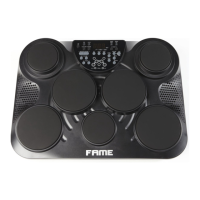
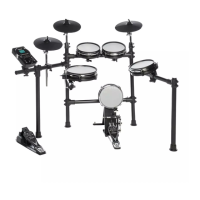
Compact and elegant design, occupying little space when folded.
Enables easy achievement of double bass pedal techniques with adjustable frequency.
Offers three coach modes with dozens of beat practices and automatic scoring.
Features USB MIDI output for connecting to smart devices via a Camera kit.
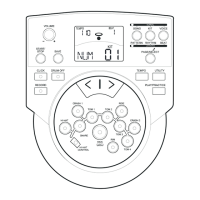
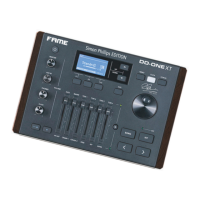
Adjust the output volume level.
Press this button to power on/ off the module.
Shortly press for drum kit mode, press and hold for voice mode.
Adjust the tempo value.
Enter learning mode.
Gradually increasing or decreasing the value of settings.
Use this to select drum kits or quick edit values.
Connect the AC adaptor here.
Connect stereo headphones here.
For connecting an extra audio player.
Connect the PC/USB host with audio devices.
Connect to extra MIDI sequencer.
Connect to your audio system or amplifier.
Displays the current mode, such as KIT, VOICE, SONG.
Displays current beat accuracy and rhythm type.
Displays the currently selected pad name.
Displays current parameter type and value.
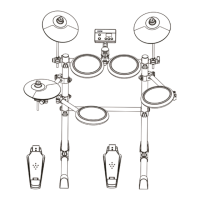
Details the standard configuration and connection of drum pads and pedals.
Instructions for connecting the AC power adapter to the module and outlet.
Steps to safely power on/off the module and adjust volume.
Explains the automatic power-off feature to prevent unnecessary consumption.
How to select and change drum kits and individual voices for pads.
Details the process of changing the voice assigned to a specific pad.
Explains striking snare head/rim and cymbal bow/choke.
Details how pedal positions, striking, and opening affect hi-hat sounds.
Adjusts parameters like volume for the entire drum kit selection.
Modifies parameters such as volume for individual pad voices.
How to select songs and adjust volumes for drum and accompaniment parts.
Enables or disables the drum mute function during song playback.
How to start, stop, and adjust metronome settings like tempo and sound.
Steps to prepare for recording, including selecting a user song and standby mode.
How to start, stop, and manage real-time recording of drum performances.
Introduces the Coach mode's purpose and its three exercise types.
Details on controlling Coach modes, adjusting tempo, and interpreting scoring feedback.
Practice with auto metronome for developing time and tempo sense.
Practice with automatically changing rhythm patterns every two measures.
Practice to improve beat accuracy with metronome and optional scoring.
Enables generating multiple kick sounds with a single pedal press for double bass techniques.
How to adjust the tempo for metronome and song playback.
Adjust pad sensitivity and prevent crosstalk between pads.
Control response curves and prevent accidental re-triggering.
Maps trigger inputs to MIDI note numbers for external control.
Sets whether the module responds to GM drum kits or local kits.
Configures the automatic power-off timer for the module.
Lists package contents and provides safety warnings for assembly.
Step-by-step instructions for assembling the drum stand structure.
Guide on how to attach drum pads, hi-hat, and cymbal holders to the stand.
Instructions for mounting individual drum pads onto the stand.
Steps for mounting cymbal pads and the drum module.
Shows how to connect all drum pads and hi-hat control to the drum module.
Details available drum kits (preset/user) and instrument combinations.
Covers sequencer capabilities, patterns, songs, and tempo range.
Lists connectors, control buttons, power supply, and display type.
Specifies the physical size and weight of the drum module.
Solutions for power-on failures and automatic shut-off problems.
Addresses issues with no sound, no rhythm sound, or no pad sound.
Guidelines for cleaning the device to maintain durability.
Information on recycling packaging, batteries, and the old device.
Explains the meaning of system messages such as REC FUL, FAC SET, EMP, OK, WAT.
Lists the available preset drum kits, numbered from 1 to 30.
Comprehensive list of all available drum voices categorized by instrument type.
Lists the available songs for playing along, numbered 1-80.
Maps General MIDI drum kit sounds to note numbers across different banks.
Lists instruments categorized into Piano, Strings, Lead, Mallet, Organ, Brass, Reed, Ethnic, Guitar, Bass, Pipe, Percussive, and Sound Effects.
Details MIDI transmission, recognition, and control message mappings.
 General
| Number of Pads | 5 |
|---|---|
| Number of Cymbals | 3 |
| Built-in Songs | 20 |
| Sequencer | Yes |
| Display | LCD |
| Power Supply | AC Adapter |
| Type | Electronic Drum Kit |
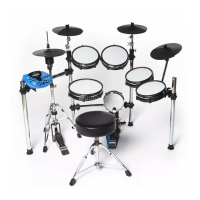
| Configuration | 5-piece kit with cymbals |
| Presets | 30 |
| Effects | Reverb |
| Connectors | MIDI, USB |
| Connectivity | MIDI, USB |