Create a Scan Project
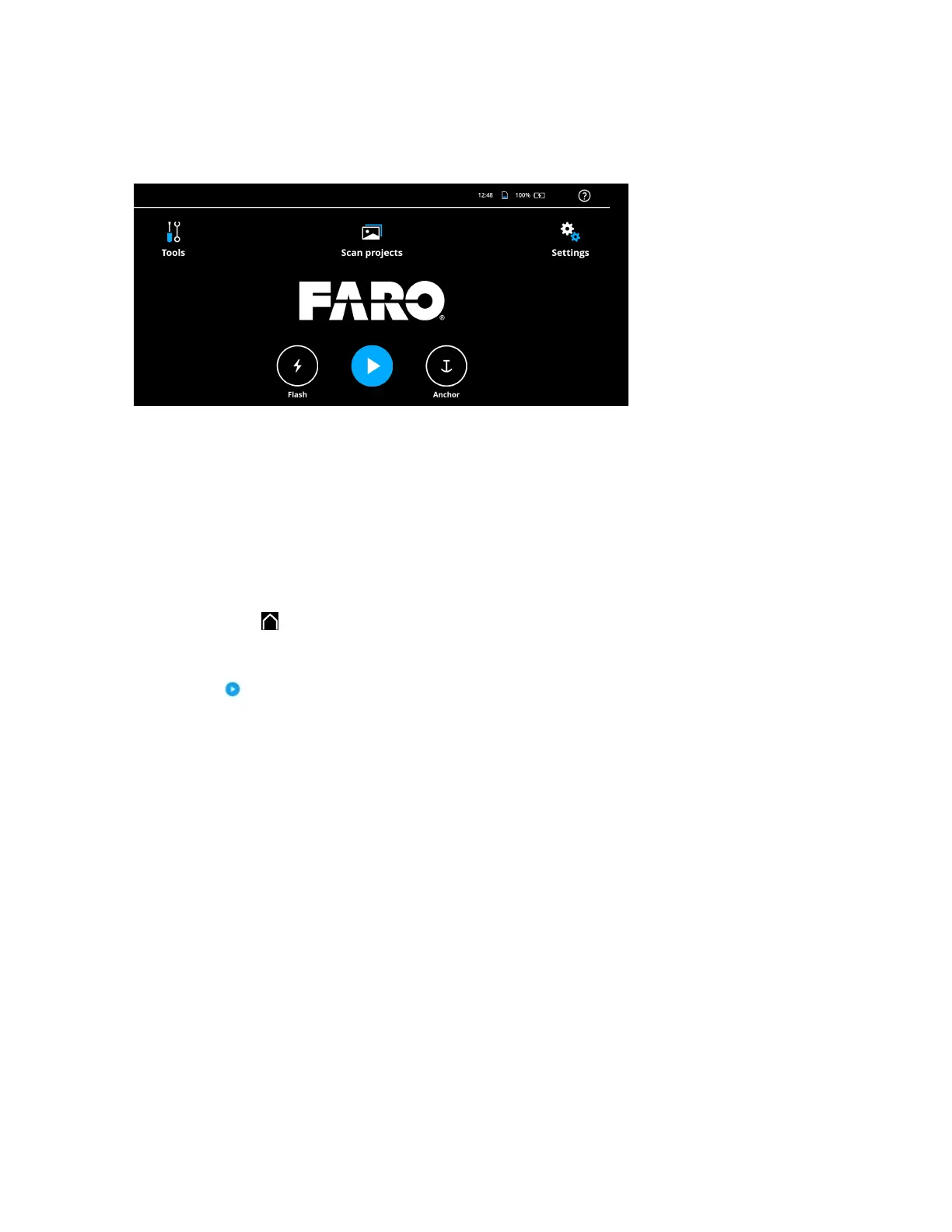
Figure 6-2 App Home Screen
You can just push the center button on the handset or tap the blue button on the app to start scanning, or
you can specifically create the scan project first:
1. Tap Scan Projects.
2. Tap Add Project.
3. Enter a project name.
4. Tap OK. The project is created.
5. Tap home icon ( ) to return to home screen.
Start capturing by one of the following:
• Tap the ( )button in the app.
• Press the center button on top of Freestyle2. (Tip: You can start scanning with this button no matter
what the app currently shows.)
After a few seconds, a window appears with the 3D Point Cloud View. The Freestyle 2 tries to find a
starting point for the scan. To do this, it needs to scan an area with features that it can identify. If you
start to scan an area that is mostly featureless (for example, a white wall), this may be difficult. In this
case, move to an area with more features and continue.
FARO Freestyle 2 User Manual
Chapter 6: Scanning with Freestyle 2
FARO Freestyle 2 (August 2020) Page 32 of 58



 To Next Page