85
Scaling a curved text field
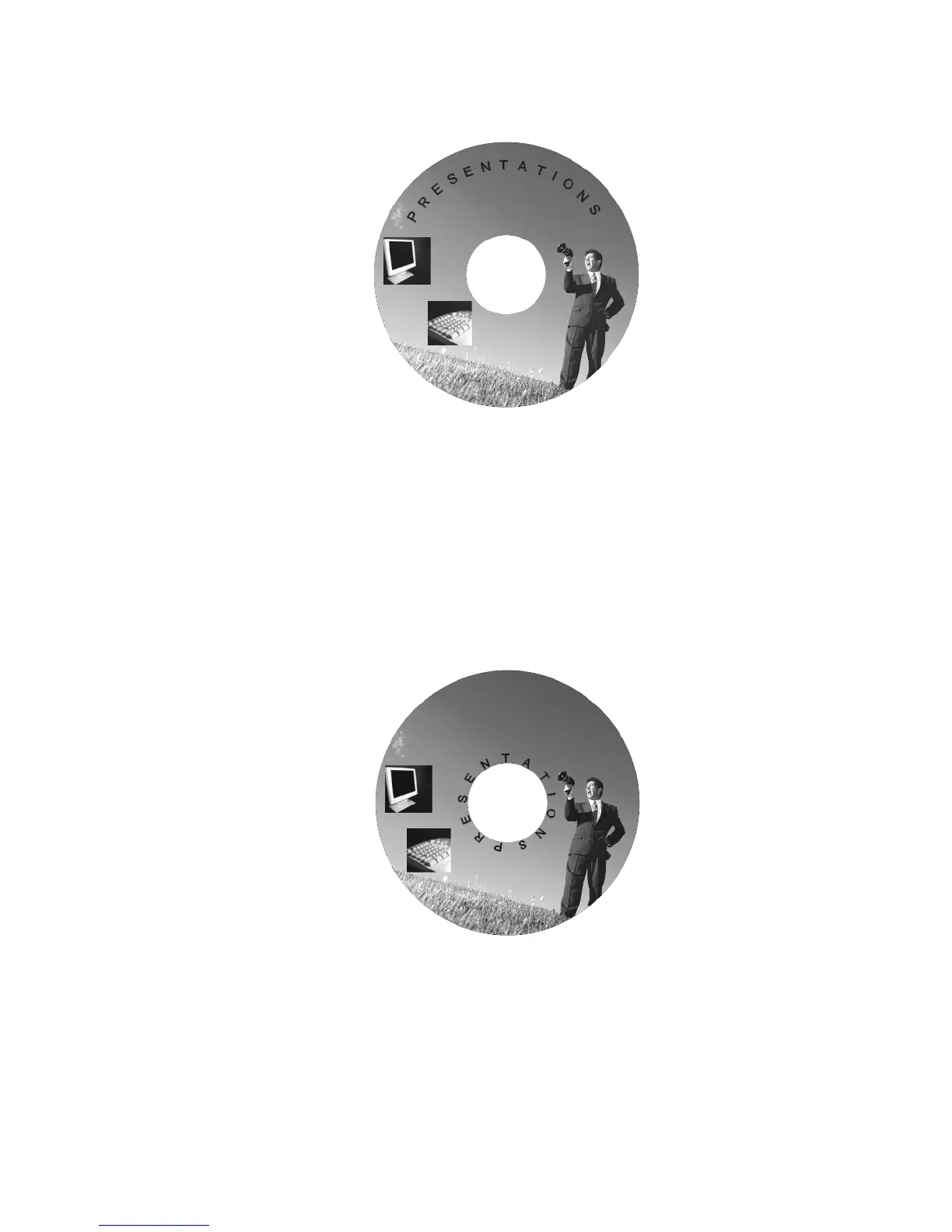
To move the text around the inside of the label, left-click once to select the
curved text field. The mouse pointer changes to the Move/Edit tool.
Left-click once and hold down the mouse button while dragging the mouse
toward the center of the label. The closer you move the text field to the center
of the label, the tighter its fit around the center becomes. You can adjust this
by moving the mouse up or down until the desired curved shape is reached.
Eventually, a complete circle is formed.
Release the mouse button after you’ve moved the text field to its new location
on the label with the curved shape that you want, as shown below:
Moving curved text field to fit center
To change properties for curved text:
Right-click on the curved text box and select Properties.
Select the Text Effect tab. Click the Curved Text box.
The Effect Parameters section appears below the Text Effects options.



 To Next Page