86
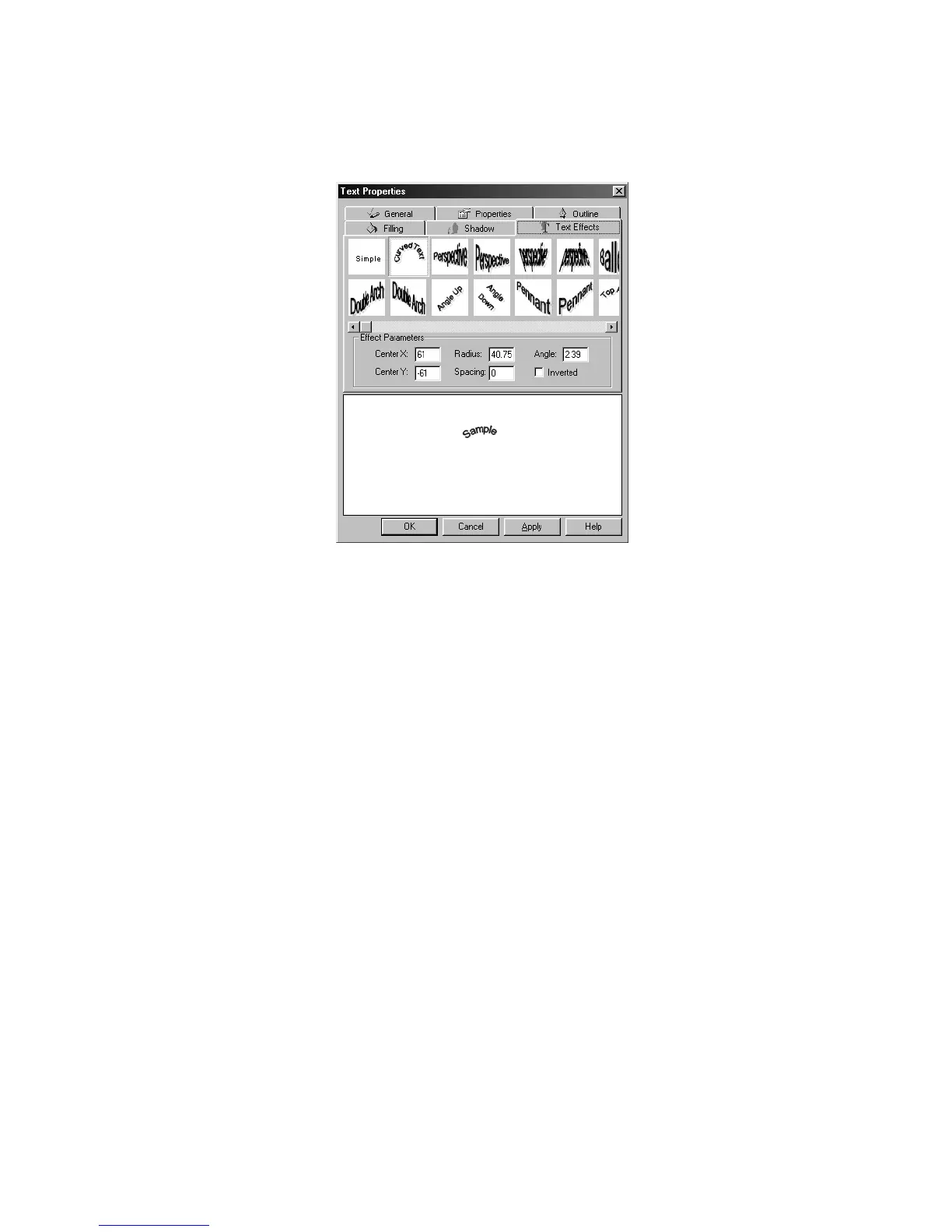
Parameters that can be edited here include horizontal and vertical centering (X
and Y values), radius, spacing, angle rotation and inversion. The Effect
Parameters section is shown below:
Figure 5.28 – Effect Parameters in Text Effects tab
Now, we will insert two text fields onto our CD/DVD label. We will enter the text as
simple text and then apply text effects to both of the fields. To do this, follow the steps
below:
Text Field 1
Select Insert>Tools>Text from the menu.
Left-click and hold the mouse button down. Then drag the mouse diagonally
to insert the text field.
The Text Style/Text Effects Palette will open.
Select the Text Style tab.
Type in the following text: Presentations
Highlight the text in the palette text window.
Select the following font settings: Arial>Bold>18>Black
Click the Text Effects tab.
Select the Bottom Arch effect.
Text Field 2
Select Insert>Tools>Text from the menu.
Left-click and hold the mouse button down. Then drag the mouse diagonally
to insert the text field.
In the Text Style/Text Effects Palette, select the Text Style tab.
Type in the following text: Quarterly Reports
Select the following font settings: Arial>Bold>18>Black
Click the Text Effects tab.



 To Next Page