92
Inserting an ellipse
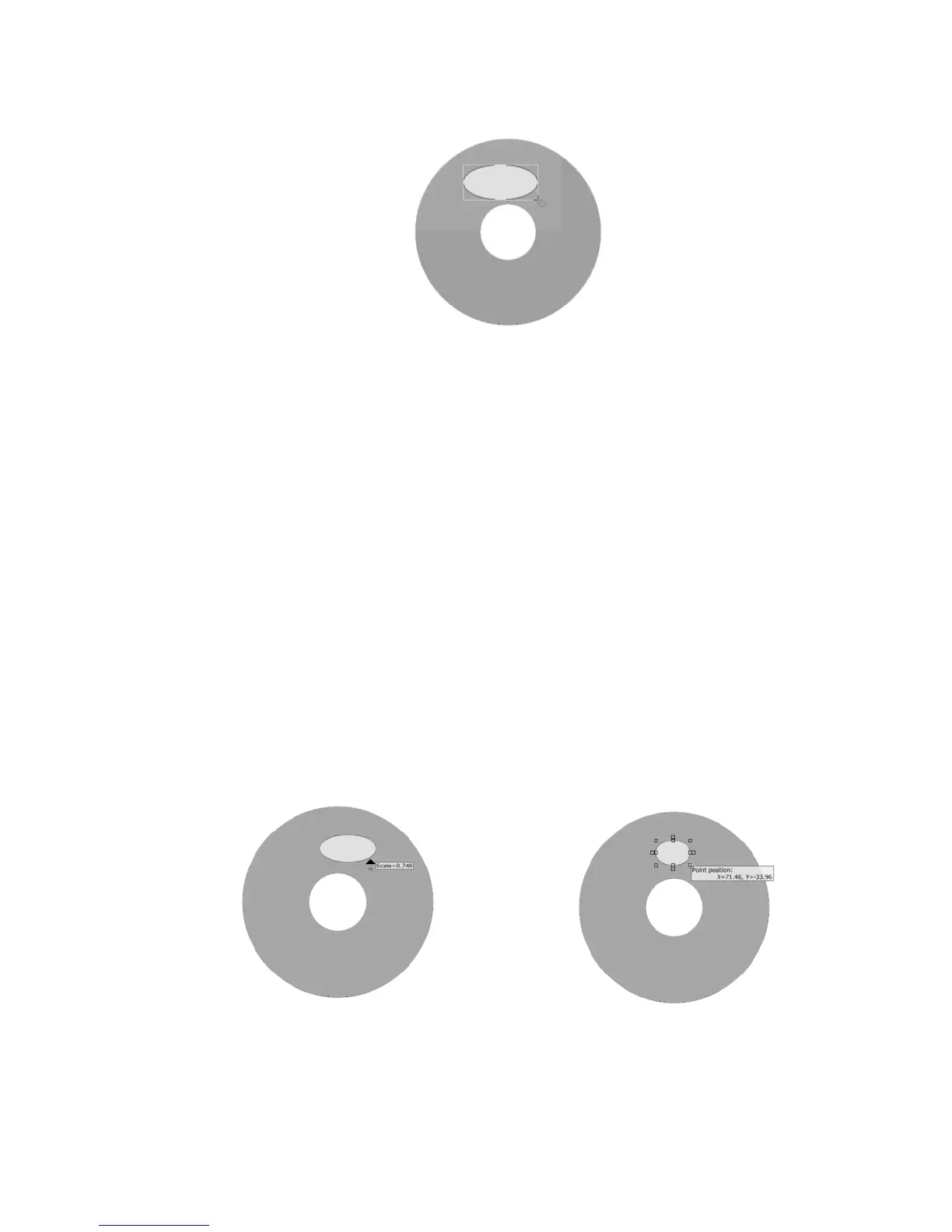
To resize the ellipse:
Left-click once to select the ellipse. The mouse pointer changes to the
Move/Edit tool and sizing handles will be displayed around the border of the
ellipse.
Next, move your mouse to one of the sizing handles. The mouse pointer
changes to a smaller Move/Edit tool.
To scale the ellipse, hold down the Shift key, left-click and hold the mouse
button down while dragging the handle in any direction. Scaling an ellipse
will retain its original proportions. As you scale the ellipse, the percentage
value of its original size will be displayed.
If you do not want to scale the ellipse, left-click and hold the mouse button
down while dragging the handle in any direction. Selecting different handles
will have different stretching or shrinking effects on the ellipse. As you resize
the ellipse, the point position (X and Y values) will be displayed.
The following diagram shows the ellipse after it’s been resized with scaling and
without:
Scaling an ellipse Resizing an ellipse


 To Next Page
 Loading...