27
8.7.2 RESUMING LIVE TV
Press the Pause / Play key on your remote control.
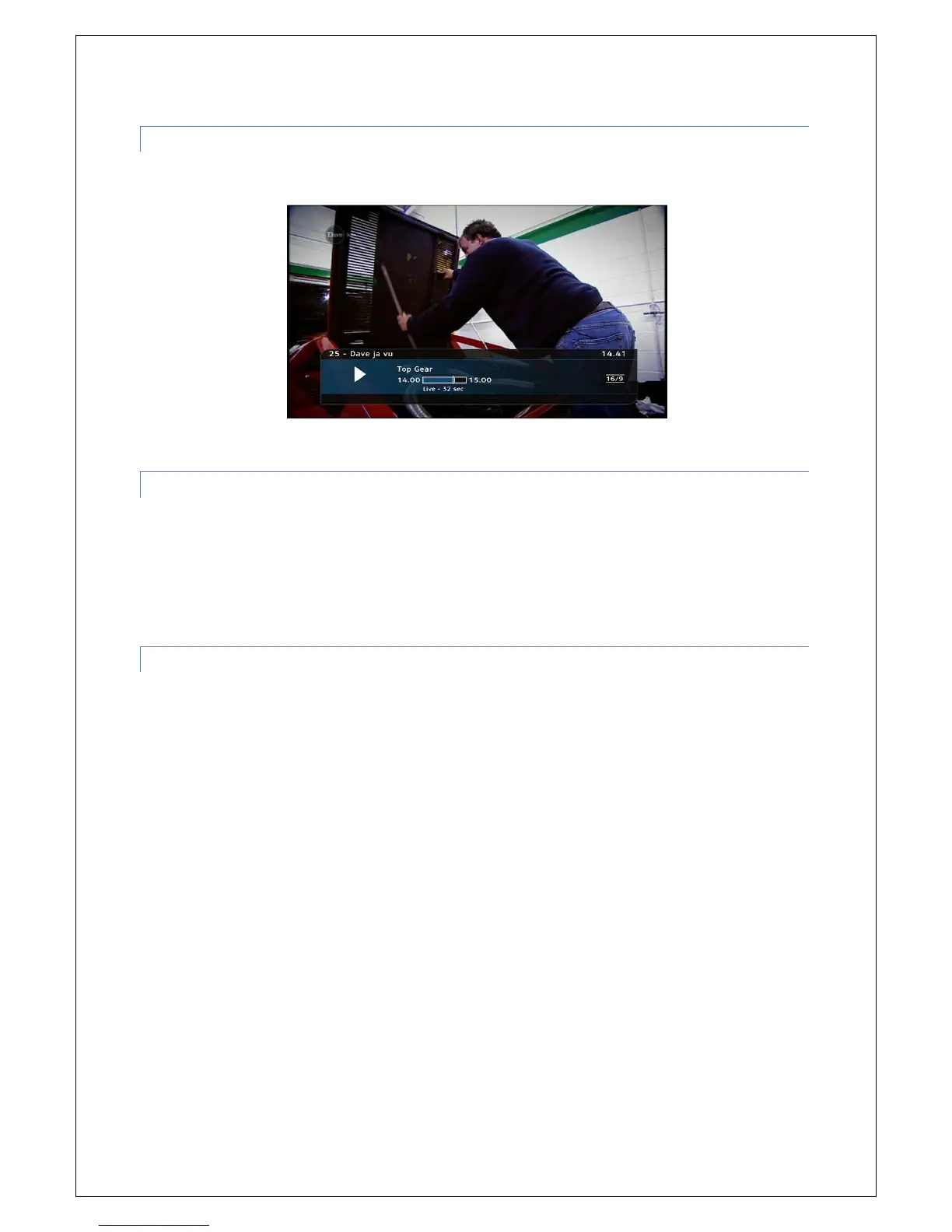
An Information bar will temporarily appear showing how far behind live TV you now are.
8.7.3 REWINDING LIVE TV
Press the rewind button <<. (Note: The FetchTV SmartBox has multiple rewind speeds. To change
the speed of rewind, simply press the rewind button again to cycle through the speeds.)
Once you have reached the required place in your programme, press Play to resume viewing or press
the fast forward button >> to fast forward at various speeds.
8.7.4 OTHER PLAYBACK CONTROLS
When watching a downloaded movie or programme, you can use your remote control to perform the
following functions:
• skip forward 1 minute: tap the right arrow
• Keep the right arrow pressed until you reached the position you wish to start playing at
• Rewind 1 min: tap the left arrow
• Keep the left arrow pressed until you reached the position you wish to start playing at
• Rewind 30secs: tap the down facing arrow
• Skip forward 30s: tap the up arrow
When you are watching live TV or a TV recording, you can use your remote control to perform the
following functions:
• Fast forward an hour: press and hold the right facing arrow
• Rewind an hour: press and hold the left facing arrow
• Rewind 30secs: tap the down facing arrow
• Fast forward 30secs: tap the upwards facing arrow
• Forward skip 1 hour: keep the right arrow pressed
• Rewind 1 hour: keep the left arrow pressed
If you have paused live TV or a recording, you can press the up arrow to playback at half speed (slow
motion).


 To Next Page