36
NOTE: The FetchTV SmartBox is a personal recording device and programmes recorded on it are only
for your personal use. Retransmission, duplicating or sharing of content is a breach of copyright and
is illegal.
Current licensing for HD content means that HD broadcast TV can be exported and stored on an
external hard drive or device, but can only be played back on the SmartBox on which it was
recordered.
Hint: Make sure that there is enough space on your target device before exporting a programme.
9.13 DIGITAL RECORDER MANAGEMENT
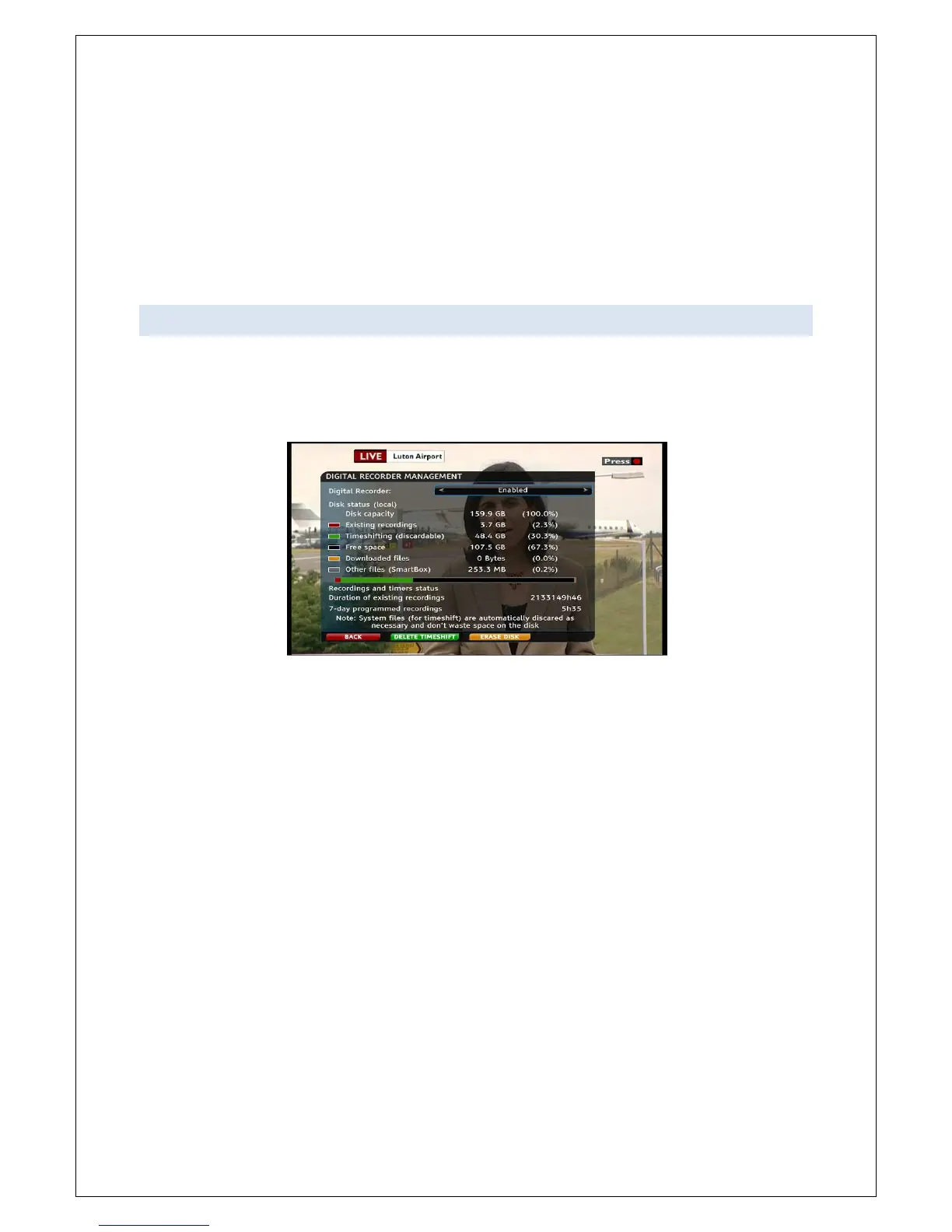
To manage the hard disk of your FetchTV SmartBox, press MENU > DIAGNOSTICS > DIGITAL
RECORDER. You will see an information screen showing the usage of your hard disk. You can delete
time-shifted files by pressing the green button (these are the files stored for rewinding live TV) or
erase everything on the disk, including your recordings, by pressing the yellow button.
Please note: you do not need to delete the timeshift files as the SmartBox automatically discards the
oldest timeshift programmes to make space for live programmes. Your recordings are NOT affected
by this and will always be preserved until you delete them yourself.
If you wish to use the DELETE TIMESHIFT option, please note that it is not instantaneous. The
timeshift (green) buffer will be gradually deleted over the next hour or so, depending on the disk size.
Press MENU to exit this dialogue box.


 To Next Page