INSTRUCTION MANUAL FIT REMOTE DISPLAY PINION
7.4 ESHIFT SETTINGS
7.4.1 PINION MGU / ESHIFT
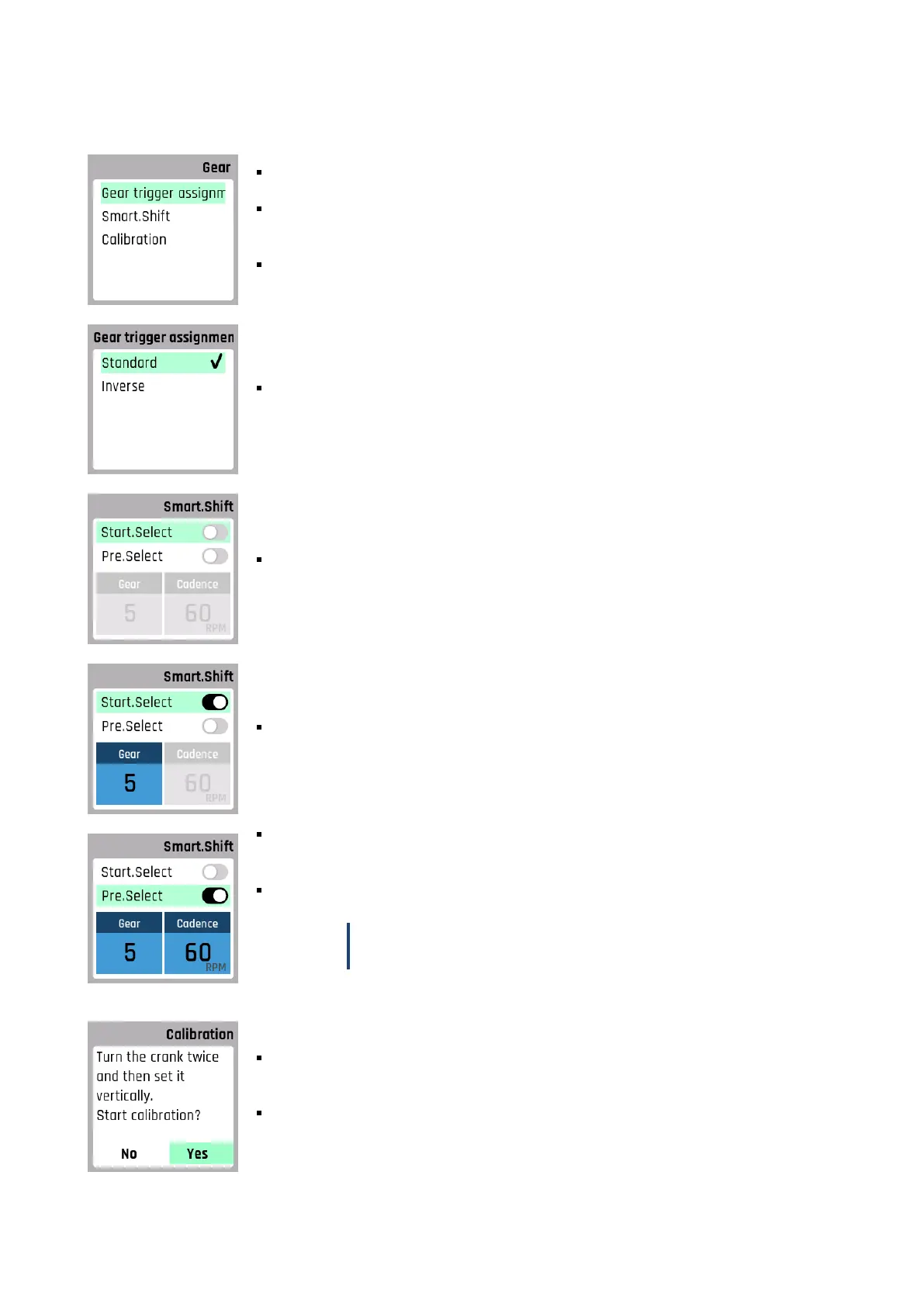
Gear assignment – Select the gear direction for the up- / down button on the FIT remote
EShift or Pinion TE1 gear lever or similar.
Smart.Shift – Your MGU has Pinion Smart.Shift technology. This shifts the internal gear-
box electrically in fractions of a second. Here you can choose between different shift set-
tings.
Calibration – Calibration of the gears (to be performed after a corresponding error mes-
sage).
Here you can change the button assignment of the shifting unit on the handlebar for shift-
ing up and down to suit your preferences.
Set the desired gear, which is set automatically when you stop. To do this, Start.Select or
Pre.Select must be enabled.
Activating Start.Select allows you to set the gear that is automatically engaged when you
stop. This enables energy saving when starting off.
As you roll, Pre.Select automatically switches to the gear that matches your speed. So, for
example, you are always in the right gear on flowing trail sections, even without pedaling
or manual shifting. When stopping, Pre.Select takes the gear specified here into account.
Enter your target pedaling frequency here.
NOTICE
Pre.Select never switches to a gear lower than the one you set here.
If, for example, the cranks were disassembled, or in the unlikely event that the system
loses values, this can affect shifting or riding behavior. This is where you can start the
calibration. You will be guided through the calibration steps on the display.
Follow the instructions on the display and start calibration.
Do not load the pedals during calibration.
FIT_Manual_Remote_Display_Pinion_V3_en | Version 03 | 24.10.2023 30



 To Next Page