7
GETTING STARTED
IMPORTANT: PLEASE ENSURE THAT YOU RUN THE INSTALLER
BEFORE CONNECTING THE FOCUSRITE FORTE TO YOUR COMPUTER.
Software Installation
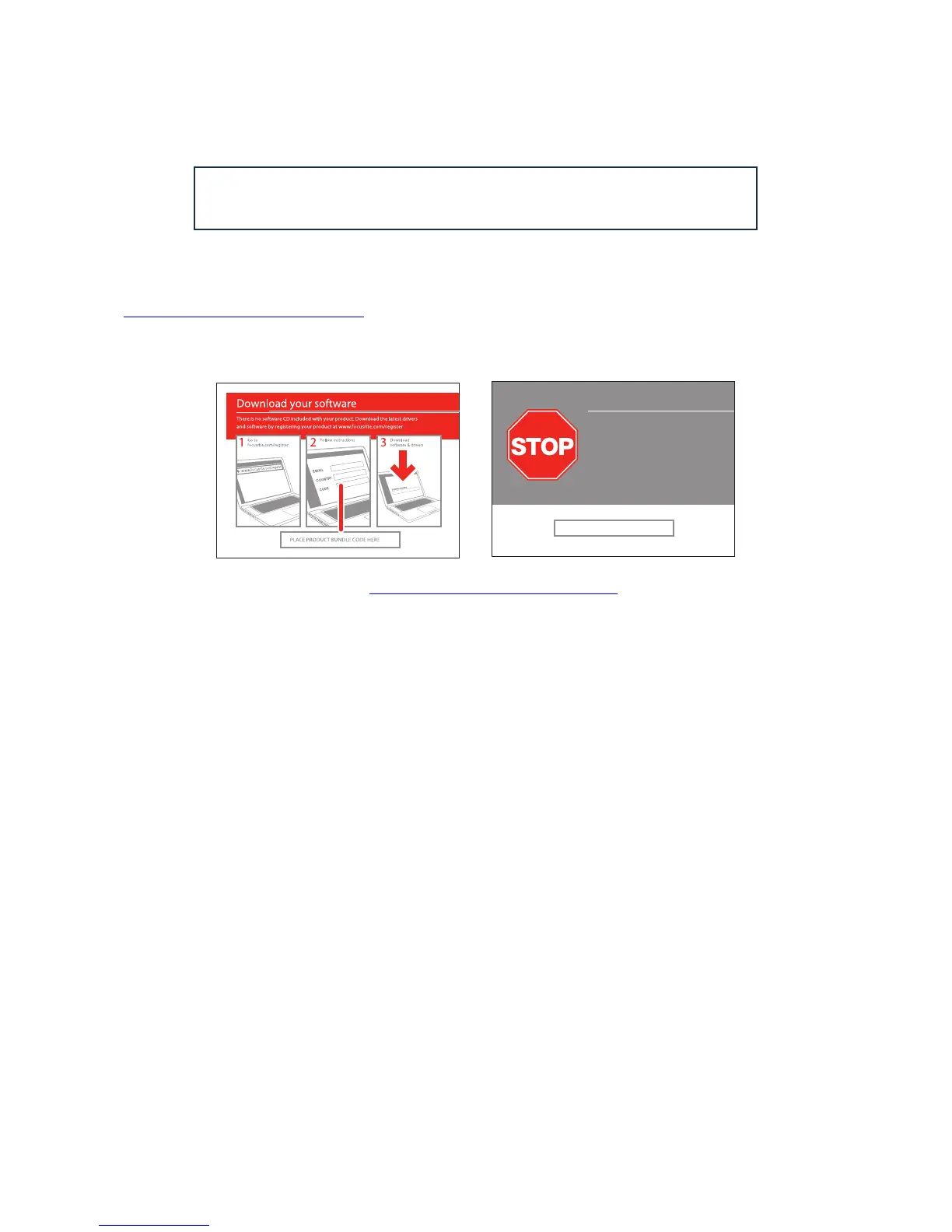
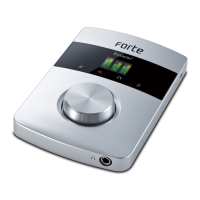
All software required by the Focusrite Forte is available for download from the Focusrite website
http://www.focusrite.com/register. The Software Activation card provided with Forte contains
validation codes which you will need to enter in the downloads area. This procedure ensures that
you will have the most up-to-date software versions.
Can’t get started?
If you have any trouble with this product
do not go back to the place of purchase.
Contact our support team on:
US:
UK &
International:
Online:
PLACE SERIAL NUMBER STICKER HERE
1-855-24-FOCUS (1-855-243-6287)
Support available Monday - Friday 8am – 6pm (PST)
+44 1494 462246
Support available Monday - Friday 9:30am – 6pm (GMT/BST)
www.focusrite.com/support
www.novationmusic.com/support
FA0736-01
1. Using your usual browser, go to http://www.focusrite.com/register/.
2. Select “Forte” from the product range.
3. When prompted, enter your details and the Bundle Codes from the Software Activation Card into
the appropriate fields. Follow the on-screen instructions to initiate the downloads. Save the files to
a suitable location on your computer.
4. When all downloads are complete, navigate to the saved files and click on the filenames to start
the installation. Follow all on-screen instructions carefully from this point.
5. When the installation is complete, you will be asked to restart your computer.
6. After restart, connect Forte to your computer with the USB cable supplied.
Mac OS only:
Your OS should automatically switch the computer’s default audio outputs to be the USB port to
which Forte is connected. To verify this, go to System Preferences > Sound, and ensure that the
input and output are set to Forte. For more detailed setup options on a Mac, open Applications >
Utilities > Audio MIDI Setup.
Windows only:
Your OS should automatically switch the computer’s default audio outputs to be the USB port to
which Forte is connected. To verify this, go to Start > Control Panel > Hardware and Sound >
Sound > Manage Audio Devices and ensure that ‘Default Playback’ and ‘Recording’ are set to
‘Forte’.




 To Next Page