38
Situation 2 – Single Pro Tools system with both RedNet 5s and other Pro Tools interfaces
Pro Tools|HD I/O audio interfaces may be used as audio I/O on the same Pro Tools system
as RedNet 5s. Choose the audio interface you wish to be the clock source. This may be either a
RedNet 5 or a Pro Tools audio interface.
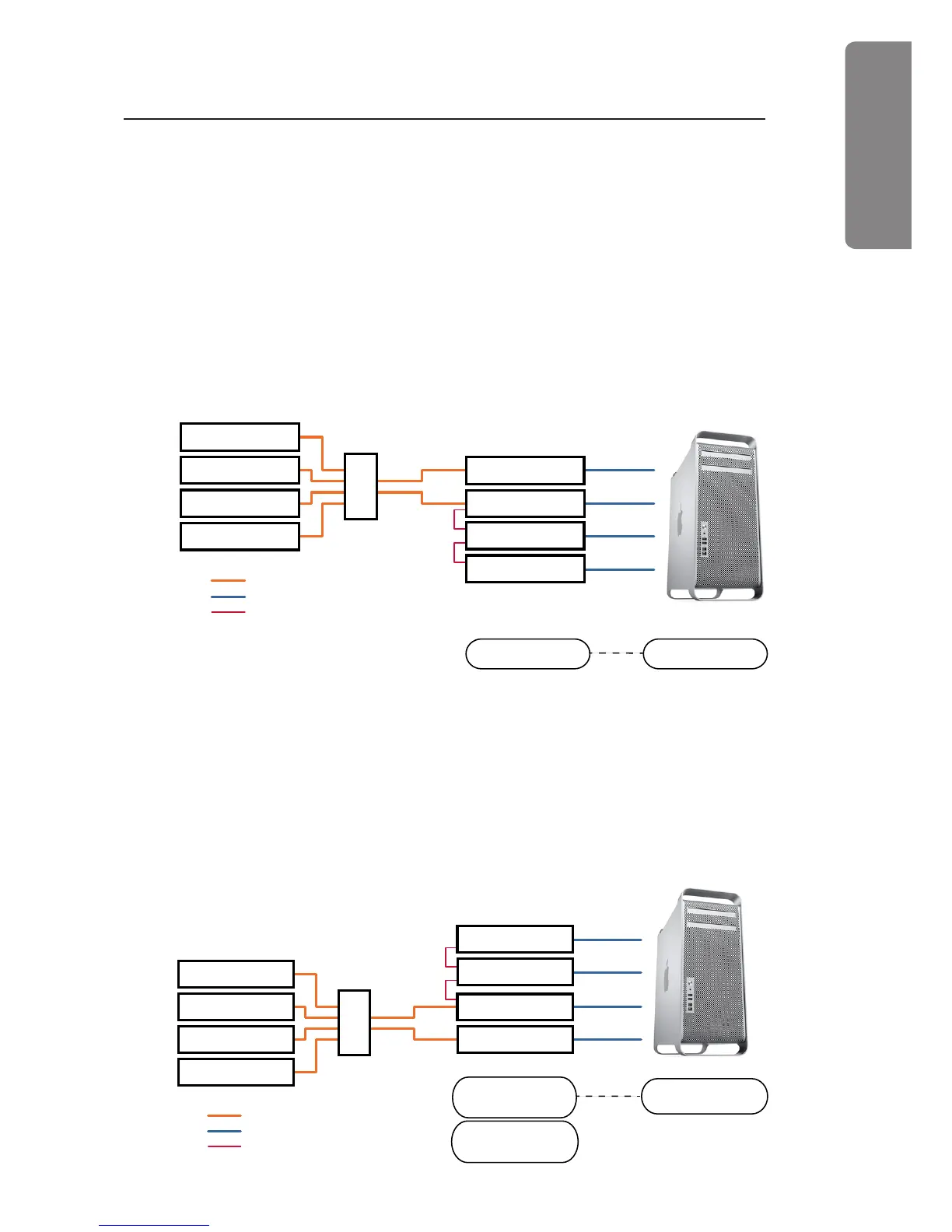
If a RedNet 5 is to be the clock source:
• It is recommended that the same Rednet 5 is set in RedNet Control as the RedNet network
master .
• Connect a BNC cable between the LOOP SYNC OUT of any of the RedNet 5s to the LOOP SYNC
IN of one of the Pro Tools audio interfaces.
• Connect additional BNC cables between the LOOP SYNC OUT of the ‘first’ Pro Tools|HD I/O
audio interface and the other Pro Tools interfaces, in the usual ‘daisy-chain’ manner.
RedNet 5
Gigabit
Switch
RedNet 5
Set the same RedNet 5 as
Network Master
Set a RedNet 5 as
Pro Tools clock source
Ethernet cable
Pro Tools HD
DigiLink cable
Pro Tools HD I/O
Pro Tools HD I/O
Sync
Other RedNet
Interface
Other RedNet
Interface
Other RedNet
Interface
Other RedNet
Interface
LOOP SYNC OUT
LOOP SYNC OUT
LOOP SYNC IN
LOOP SYNC IN
If a Pro Tools|HD I/O audio interface is to be the clock source:
• Connect a BNC cable between the LOOP SYNC OUT of one of the Pro Tools interfaces to the
LOOP SYNC IN of one RedNet 5. No daisy-chaining is required, as any other RedNet 5s will
be synchronised via their Ethernet connections.
• In RedNet Control, set the RedNet 5 in Step 1 as the network master.
• Also in RedNet Control, set the clock source for this same unit to “Loop Sync”.
RedNet 5
Gigabit
Switch
RedNet 5
Set the RedNet 5 with
LOOP SYNC IN connected,
as Network Master
Set a Pro Tools interface
as a Pro Tools clock source
Ethernet cable
Pro Tools HD
DigiLink cable
Pro Tools HD I/O
Pro Tools HD I/O
Sync
Set the clock source for
the same RedNet 5 to
“LOOP SYNC”
Other RedNet
Interface
Other RedNet
Interface
Other RedNet
Interface
Other RedNet
Interface
LOOP SYNC IN
LOOP SYNC IN
LOOP SYNC OUT
LOOP SYNC OUT




 To Next Page