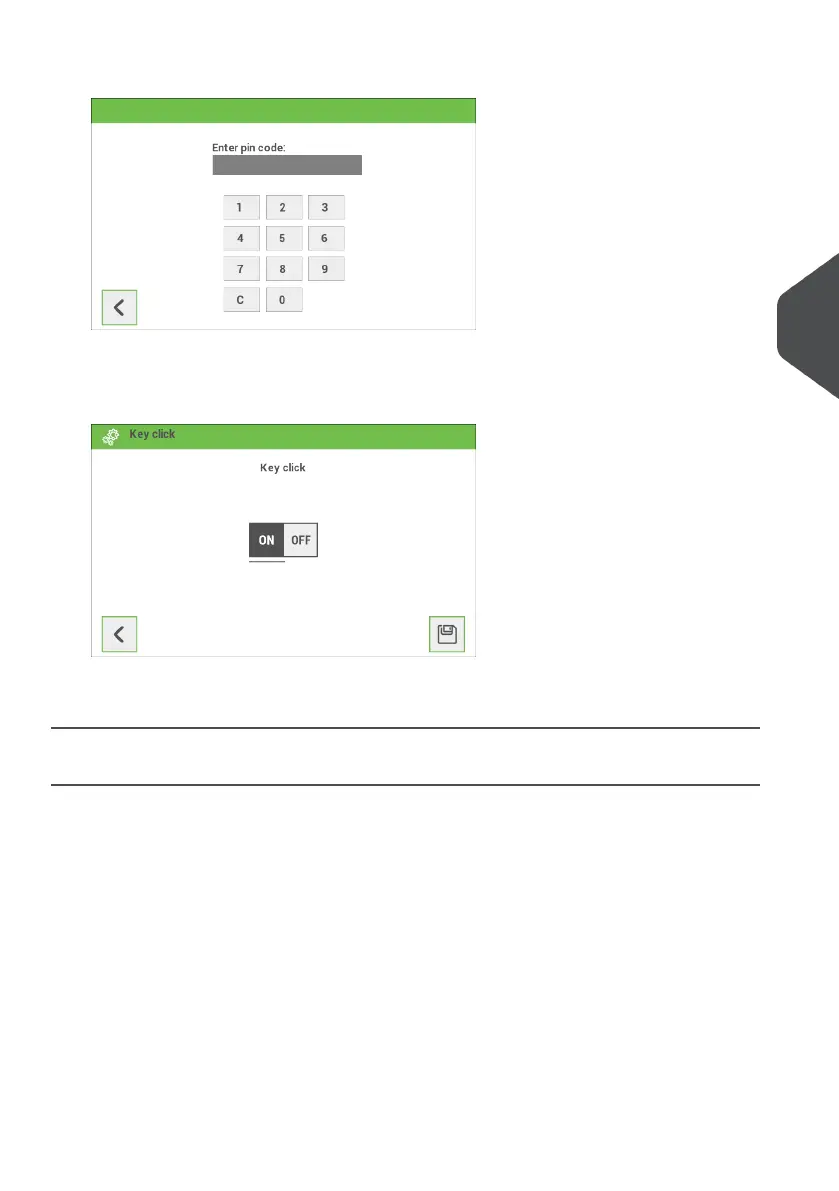
3. Tap [Supervisor menu] to open the login screen for accessing the Supervisor menu.
4. Tap [Key click] to open the "Key click" setting screen. Tap "On" to switch the key
click sound on or tap "Off" to switch the key click sound off. Save the setting by tapping
the disk symbol button.
For more information regarding the Supervisor menu refer to "Open the Supervisor menu
on page 33".
Open the Supervisor menu
In the Supervisor menu it is possible to do the following:
• customize the envelope height, see "Custom Envelope on page 35";
• adjust the stop position, see "Adjust stop position on page 36";
• adjust the moistening position, see "Adjust moistening position on page 37";
• edit the WiFi settings, see "WiFi Settings on page 37";
• calibrate FE1/2 clutches, see "Calibrate FE1/2 clutches on page 39";
• edit PopUp options, see "PopUp options on page 39";
• view Versions, see "Versions on page 40".
If you want to view or edit any of the Supervisor settings proceed as follows:
From the home screen open the settings menu bar and tap the [Settings] symbol.1.
5
English
33
| Page 33 | Jan-15-2019 03:21 | Settings menu


 To Next Page