20
w
w
w
w
w
w
w
w
w
w
w
w
w
w
w
w
ww.foscam.
ww.foscam.
ww.foscam.
ww.foscam.
ww.foscam.
ww.foscam.
ww.foscam.
ww.foscam.
us
us
us
us
us
us
us
us
Foscam
Foscam
Foscam
Foscam Digital
Digital
Digital
Digital Technologies
Technologies
Technologies
Technologies LLC
LLC
LLC
LLC
Telephone:
Telephone:
Telephone:
Telephone: 1-800-930-0949
1-800-930-0949
1-800-930-0949
1-800-930-0949
20
20
20
20
3.5
3.5
3.5
3.5 Multi-Device
Multi-Device
Multi-Device
Multi-Device Settings
Settings
Settings
Settings
If you want to view multi-surveillance screens on one window, you need to login one camera, and
set it as the main device, and do Multi-Device Settings, add other cameras to the first one
camera. Before you do multi-cams settings, you need to assign different port such as 81, 82, 83,
84, 85, 86, 87, 88 to the cameras if there is 8 cams installed.
The firmware within the camera can support a maximum of 9 devices monitoring all at the same
time.
3.5.1
3.5.1
3.5.1
3.5.1 Add
Add
Add
Add cameras
cameras
cameras
cameras in
in
in
in LAN
LAN
LAN
LAN
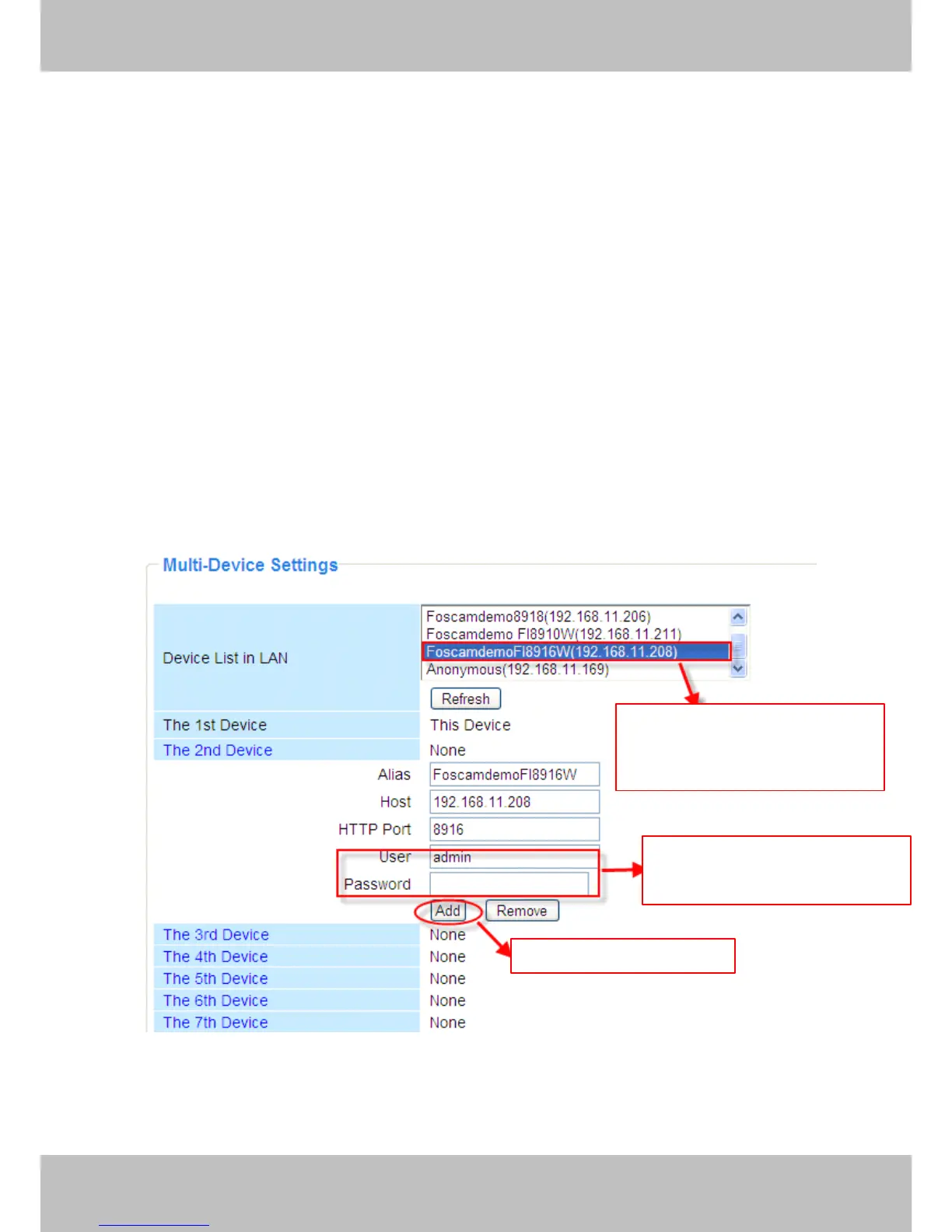
In Multi-Device Settings page, you can see all devices searched in LAN. The 1st Device is th e
default one . You can add more cameras in the list in LAN for monitoring. Th e camera ’ s software
supports up to 9 IP Cameras online simultaneously. Click The
The
The
The 2
2
2
2 nd
nd
nd
nd Device
Device
Device
Device and click the item in
the Device
Device
Device
Device List
List
List
List in
in
in
in L
L
L
L AN
AN
AN
AN , the Alias, Host and Http Port will be fill ed in the boxes below
automatically. Enter the correct username and password then click A
A
A
A dd
dd
dd
dd . Add more cameras in
the same way. After all cameras have been added, choose Submit
Submit
Submit
Submit .
Figure 3.7a
1
1
1
1 Click
Click
Click
Click it,
it,
it,
it, alias,
alias,
alias,
alias, host
host
host
host and
and
and
and HTTP
HTTP
HTTP
HTTP
Port
Port
Port
Port will
will
will
will be
be
be
be filled
filled
filled
filled in
in
in
in the
the
the
the following
following
following
following
boxes
boxes
boxes
boxes automatically
automatically
automatically
automatically
2
2
2
2 Enter
Enter
Enter
Enter the
the
the
the User
User
User
User name
name
name
name and
and
and
and
password
password
password
password of
of
of
of the
the
the
the 2
2
2
2 nd
nd
nd
nd camera
camera
camera
camera
3
3
3
3 Click
Click
Click
Click Add
Add
Add
Add to
to
to
to take
take
take
take effect
effect
effect
effect


 To Next Page