73
w
w
w
w
w
w
w
w
w
w
w
w
w
w
w
w
ww.foscam.
ww.foscam.
ww.foscam.
ww.foscam.
ww.foscam.
ww.foscam.
ww.foscam.
ww.foscam.
us
us
us
us
us
us
us
us
Foscam
Foscam
Foscam
Foscam Digital
Digital
Digital
Digital Technologies
Technologies
Technologies
Technologies LLC
LLC
LLC
LLC
Telephone:
Telephone:
Telephone:
Telephone: 1-800-930-0949
1-800-930-0949
1-800-930-0949
1-800-930-0949
73
73
73
73
5
5
5
5 APPEND
APPEND
APPEND
APPEND I
I
I
I X
X
X
X
5.1
5.1
5.1
5.1 Frequently
Frequently
Frequently
Frequently Asked
Asked
Asked
Asked Questions
Questions
Questions
Questions
NOTE:
NOTE:
NOTE:
NOTE: Always verify network connections are working by checking the status of the indicators
on the network server, hub and network card.
5.1.1
5.1.1
5.1.1
5.1.1 I
I
I
I have
have
have
have forgoten
forgoten
forgoten
forgoten the
the
the
the administrator
administrator
administrator
administrator username
username
username
username and/or
and/or
and/or
and/or password
password
password
password
To reset the administrator username and password, p ress and hold down the RESET BUTTON
for 10 seconds. Upon r eleas ing the reset button , the username and password will return to the
factory default administrator username and password. Please power on the camera before reset
Default administrator username: admin
admin
admin
admin
Default administrator password: No password
5.1.2
5.1.2
5.1.2
5.1.2 Subnet
Subnet
Subnet
Subnet doesn
doesn
doesn
doesn ’
’
’
’ t
t
t
t match
match
match
match ,
,
,
, dbclick
dbclick
dbclick
dbclick to
to
to
to change
change
change
change
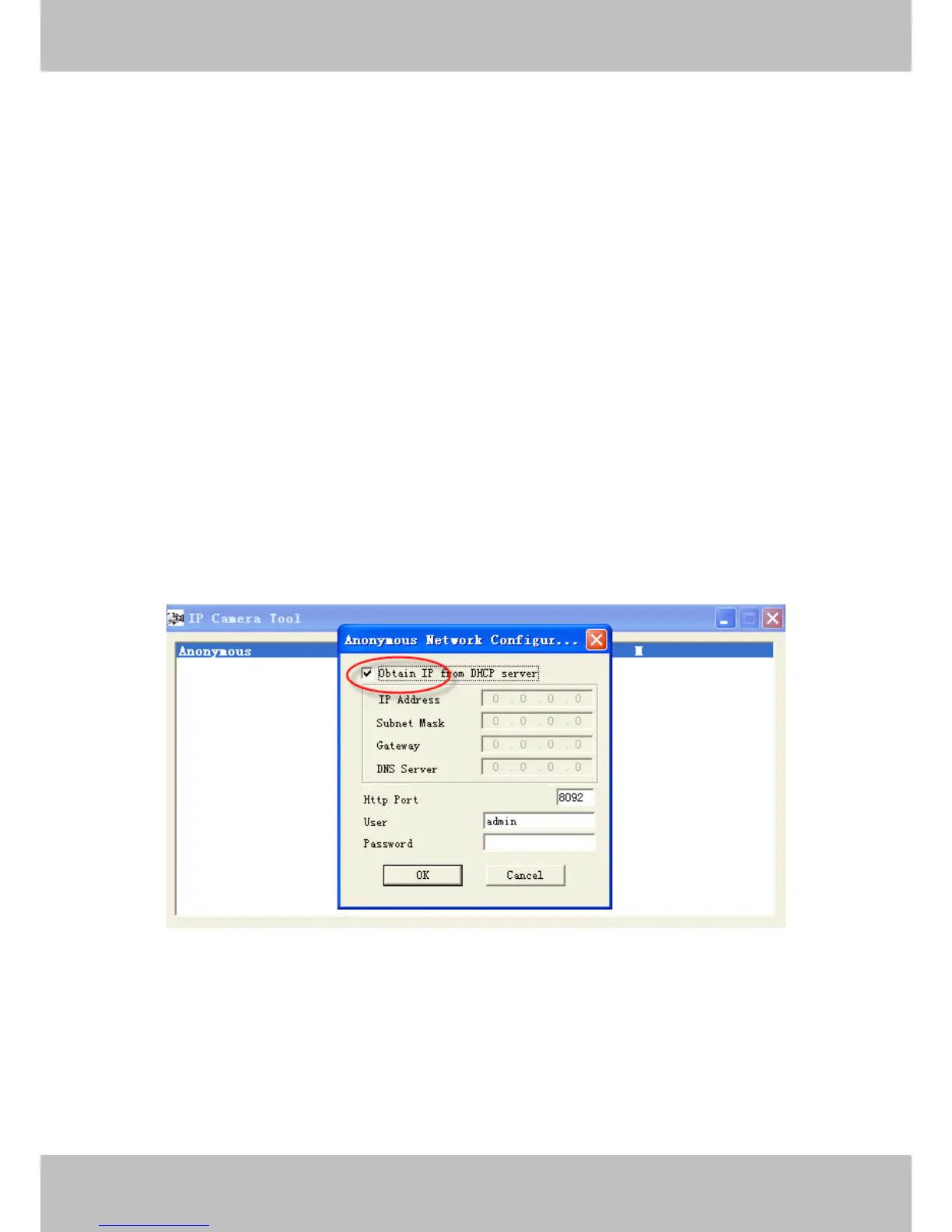
If the IP Camera
Tool
shows the error “ Subnet doesn ’ t match , dbclick to change! ” , select Obtain
Obtain
Obtain
Obtain
IP
IP
IP
IP from
from
from
from DHCP
DHCP
DHCP
DHCP server
server
server
server .
If this error still exists after obtain ing an IP from the DHCP server, check the local area
connection of your computer and verify the subnet and gateway of the camera which should be
the same subnet of your computer .


 To Next Page