Foundry Hardware Installation Guide for the FES, FESX, and FWSX
3 - 10 © 2006 Foundry Networks, Inc. June 2006
Power Status LEDs” on page 3-10 and “Hardware Specifications” on page 7-1.
Observing the Power Status LEDs
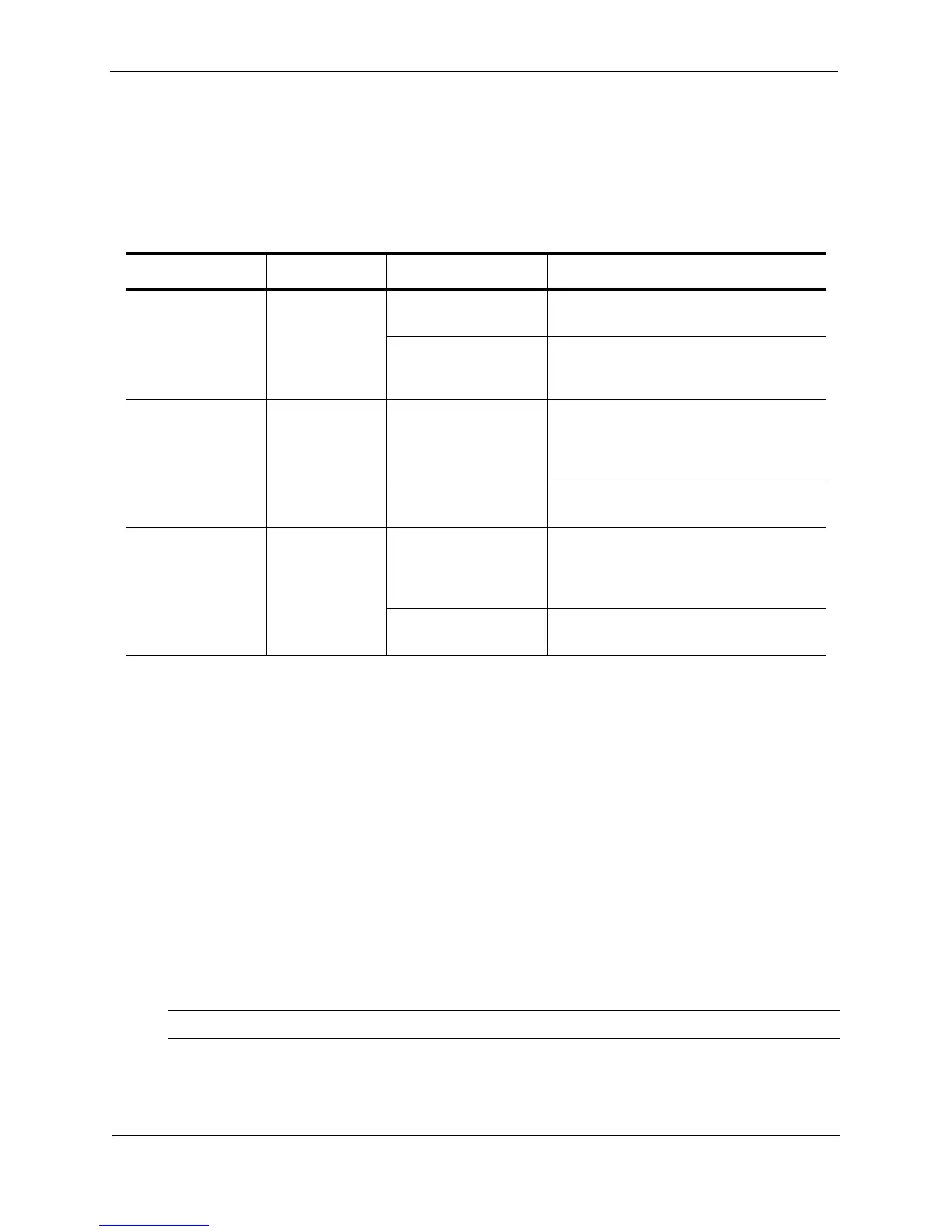
Table 3.3 lists the LEDs that show power status. The power supplies themselves do not have LEDs.
The software regularly polls the hardware for power status information. You can display the status information
from any management session. In addition, the software automatically generates a Syslog message and SNMP
trap if a status change occurs.
Attaching a PC or Terminal
To assign an IP address, you must have access to the Command Line Interface (CLI). The CLI is a text-based
interface that can be accessed through a direct serial connection to the device and through Telnet connections.
The CLI is described in detail in the Foundry Switch and Router Command Line Interface Reference.
You need to assign an IP address using the CLI. You can access the CLI by attaching a serial cable to the
Console port. After you assign an IP address, you can access the system through Telnet, the Web management
interface, or IronView Network Manager.
To attach a management station using the serial port:
1. Connect a PC or terminal to the serial port of the system using a straight-through cable. The serial port has a
male DB-9 connector.
NOTE: You need to run a terminal emulation program on the PC.
2. Open the terminal emulation program and set the session parameters as follows:
• Baud: 9600 bps
• Data bits: 8
Table 3.3: LEDs for Power
LED Position State Meaning
Power Left side of front
panel
On The device is powered on and has enough
power to operate.
Off The device is not powered on, or has
been powered on but does not have
sufficient power to operate.
PS1 Left side of front
panel
On Power supply 1 is installed and is
functioning normally. Power supply 1 is
located in the right-hand bay (when you
are facing the rear of the device).
Off Power supply 1 is not installed or is not
providing power.
PS2 Left side of front
panel
On Power supply 2 is installed and is
functioning normally. Power supply 2 is
located in the left-hand bay (when you are
facing the rear of the device).
Off Power supply 2 is not installed or is not
providing power.


 To Next Page