Business iQ (BiQ) Self Help Troubleshooting Guide
Printed: 5 July 2021
© FOXTEL Management Pty Ltd 2020 14
17. Cannot Cast
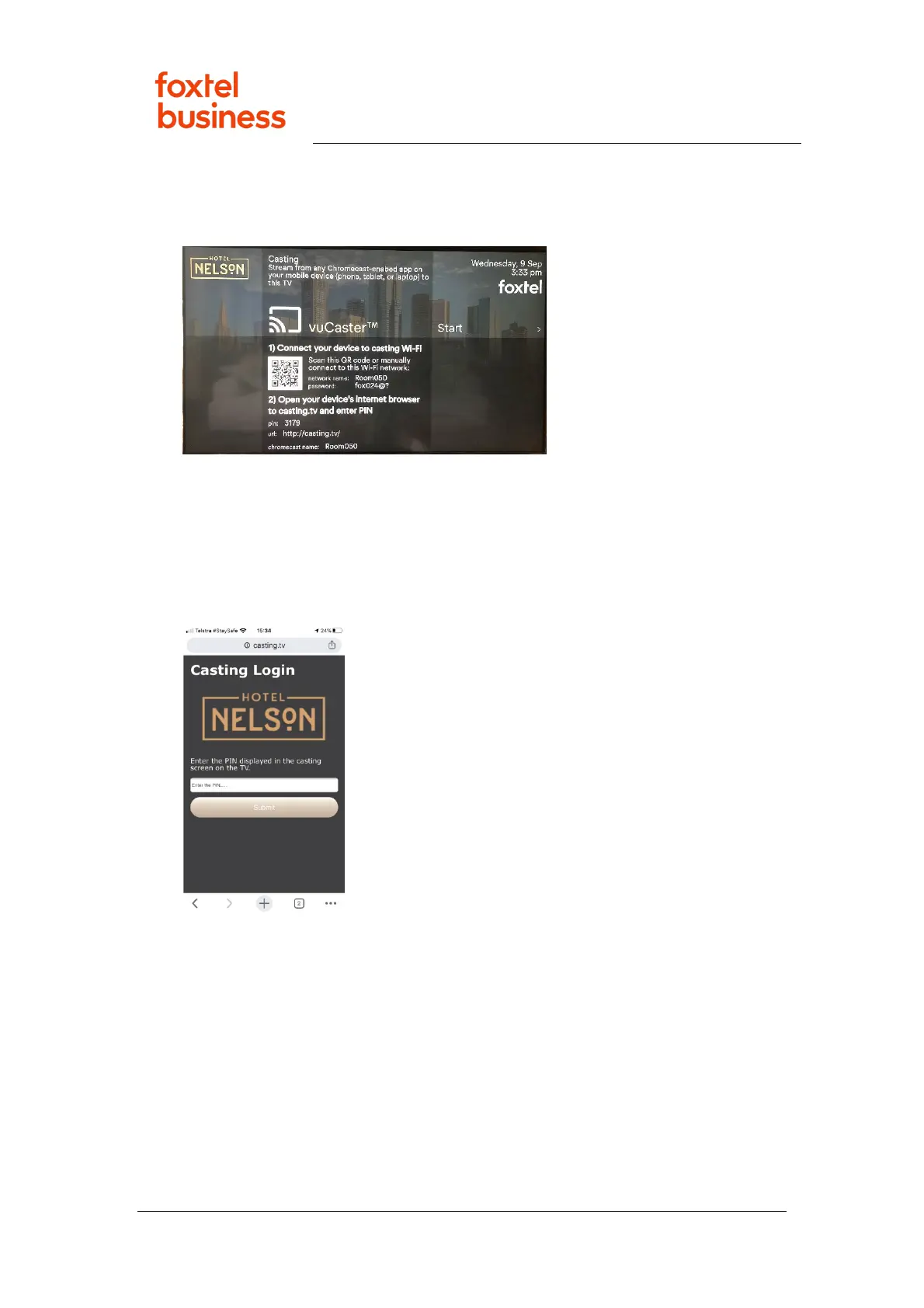
1. Press Menu/Home key on remote control, navigate right to Casting and press
the OK key to display a screen similar to below.
2. On a mobile device (smartphone, tablet or laptop) use the camera or an
application to scan the QR code on the TV screen to join the Wifi network
generated by the box (e.g. Room050 in the image above), or manually join the
Wifi network using the credentials displayed in the TV screen. Is the mobile
device connected to the box Wifi network?
• Yes – Continue below.
• No – Go to Escalate to Foxtel Commercial.
3. Open casting.tv page in the Web browser on the mobile device.
4. Is the casting.tv page open and prompting for a PIN (similar to image above)?
• Yes – Continue below.
• No – Go to Escalate to Foxtel Commercial.
5. Enter the one-time PIN code from TV screen (e.g. it is 3179 in the example
image above in step 1) into the casting.tv page on the mobile and click the
Submit button. Does the casting.tv page report successful PIN entry?
• Yes – Continue below.
• No – Go to Escalate to Foxtel Commercial.
6. If not automatic, press the OK key on the remote control and wait a minute for
the Chromecast to power up. Does the TV screen switch to display Google
(Chromecast) wallpaper images?
• Yes – Continue below.


 To Next Page