Business iQ (BiQ) Self Help Troubleshooting Guide
Printed: 5 July 2021
© FOXTEL Management Pty Ltd 2020 18
• Yes – Continue below.
• No – Cannot change settings in EzVu if a box is Down. Go to Box Down in
EzVu.
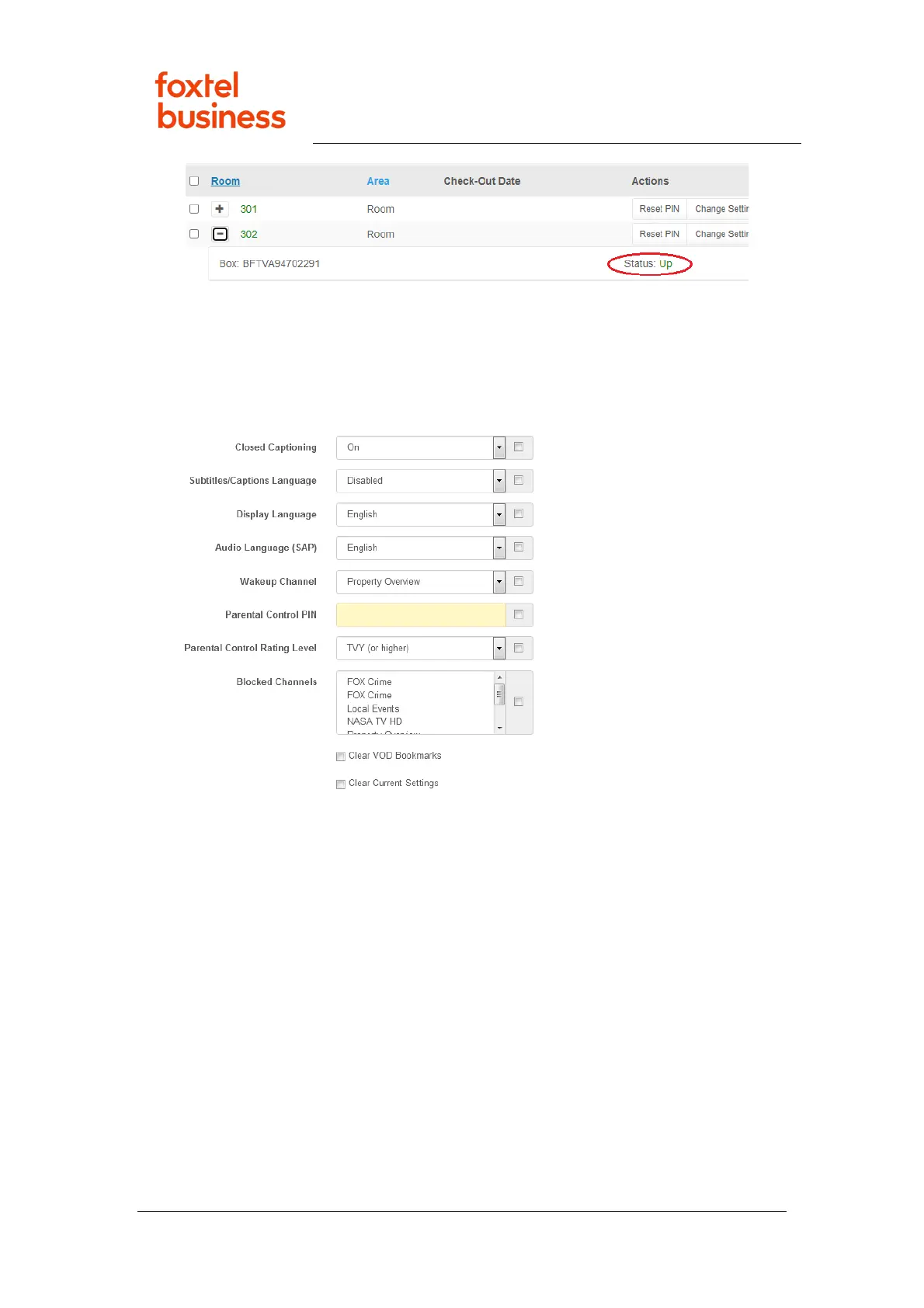
7. Select “Change Setting” on the desired room.
8. Enter value for desired setting and click check-box to right. The settings that
can be changed are shown below.
9. Click “Apply” to submit change. Issue resolved.
26. Creating an EzVu Account
1. Login to EzVu (e.g. perform steps in How to Login to EzVu) with the logon
credentials of a Primary Admin or Co-Admin user.
2. For the property’s location, select “Config” > “Users” from the EzVu menu.
3. Click “Create User” and complete form as appropriate. Go to EzVu Help for
detailed guide on how to use EzVu.
27. How to Login to EzVu
1. Has an EzVu account been created?
• Yes – Continue below.
No – Request property’s EzVu Primary Admin or Co-Admin user a create
new account for the user. Then ask new user to check their Inbox and Junk
Mail for email with further instructions. Note: At the time of this document


 To Next Page