Business iQ (BiQ) Self Help Troubleshooting Guide
Printed: 5 July 2021
© FOXTEL Management Pty Ltd 2020 15
• No – Go to Escalate to Foxtel Commercial.
7. Open the YouTube application on the mobile device, select within the
application and select the Chromecast for the room (e.g. Room050 in example
above). It may take several minutes for the Chromecast for the room to appear.
Does YouTube appear on the TV screen?
• Yes – Continue below.
• No – Go to
8. Play a YouTube video on the mobile device. Does the YouTube video play on
the TV screen?
• Yes – Chromecast is operating correctly. Continue below.
• No – Go to Escalate to Foxtel Commercial.
9. If the issue is with another Chromecast enabled application (e.g. Netflix) follow
similar steps as for YouTube; open that application, select , select the
Chromecast for the room and cast content from the application to the TV. Does
the content display on the TV screen?
• Yes – Chromecast is operating correctly. Continue below.
• No – Go to Escalate to Foxtel Commercial and inform Foxtel that YouTube
can cast and the name of the application and version number that cannot
cast.
18. Re-Boot Box
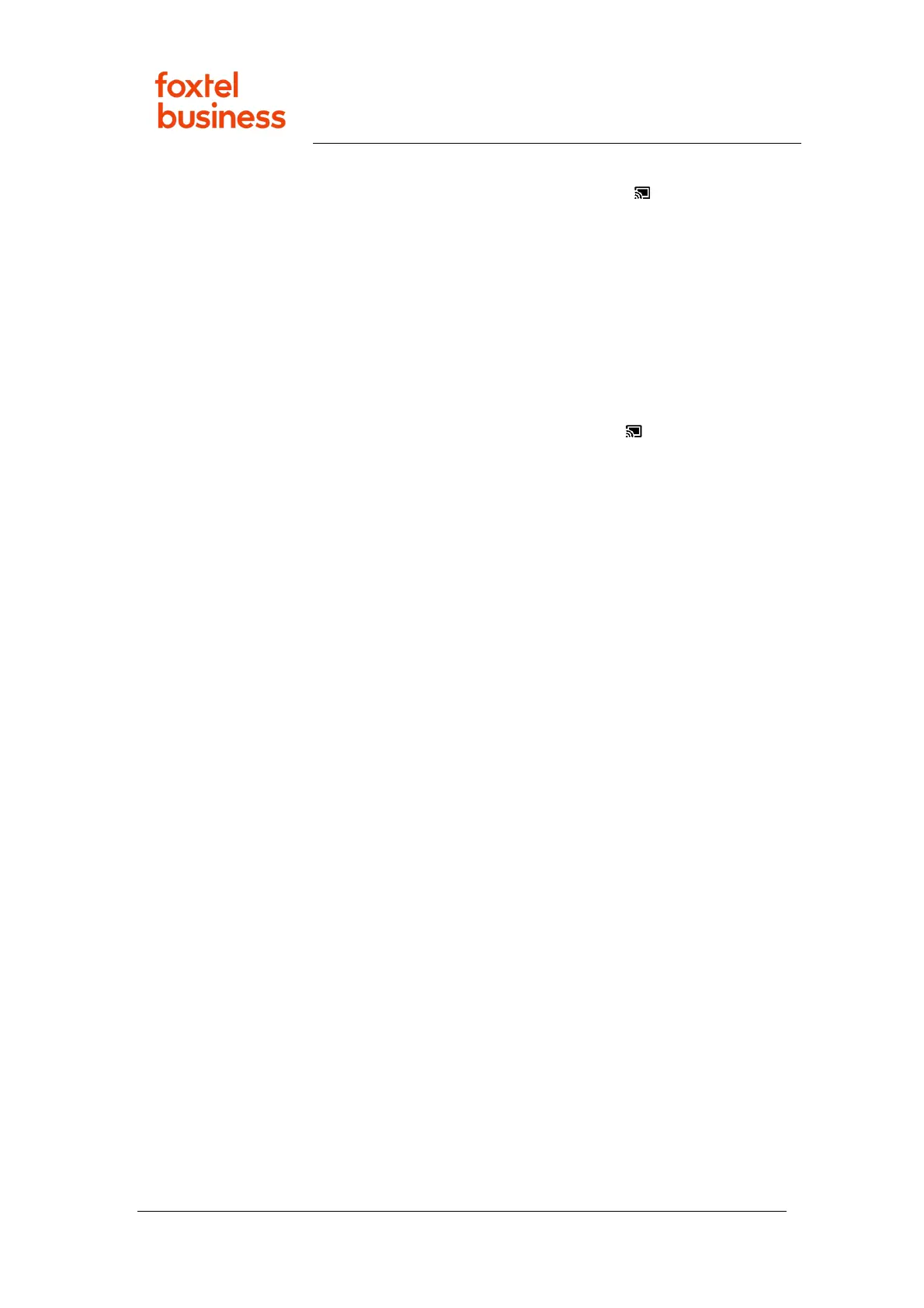
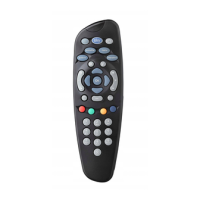
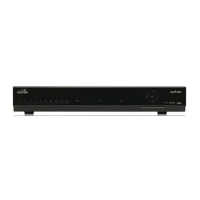
1. Are you physically in front of the box?
• Yes – Go to Power-Cycle Box.
• No - Go to Re-Boot Box Remotely from EzVu.
19. Power-Cycle Box
1. Switch off the power to the box at the wall socket (or remove the box plug from
the power point), wait 10 seconds and then switch it back on again. Does the
box boot (may take up to 10 mins)?
• Yes – Continue below.
• No - Go to Box Down in EzVu.
2. Does the power-cycle solve the issue?
• Yes – Issue resolved.
• No - Go to Escalate to Foxtel Commercial.
20. Re-Boot Box Remotely from EzVu
1. Login to EzVu (refer to How to Login to EzVu).
2. For the property’s location, select “Rooms” from the EzVu menu and find the
room assigned to the box. Click the “+” next to this room to view the box(es) in
the room.
3. Does the box requiring re-boot have a Status of Up (as in image below)?


 To Next Page