4
Downloading the free INSTAX MINI LINK App
onto your Smartphone
Please install the free INSTAX MINI LINK Smartphone App on your
Smartphone before using the printer.
After downloading is complete, you have to pair your Smartphone
and the printer.
• If you are using an Android OS Smartphone, please search for
the INSTAX MINI LINK Smartphone App in the Google Play Store
and install it.
*Requirements for Android OS Smartphones: Android Ver. 10.0
or higher with Google Play Store installed
• If you are using an iOS Smartphone, please search for the
INSTAX MINI LINK Smartphone App in the App Store and install
it.
*Requirements for iOS Smartphones: iOS Ver. 16.0 or higher
• Depending on your Smartphone model, you may not be able to
use the INSTAX MINI LINK Smartphone App even if you have
installed it and your Smartphone meets the above
requirements.
Access the INSTAX MINI LINK App download site for the latest
information on system requirements�
iOS
Android OS
Scan to download the INSTAX MINI LINK Smartphone
App
The text QR Code itself is a registered trademark and wordmark of
Denso Wave Incorporated.
Charging the Battery
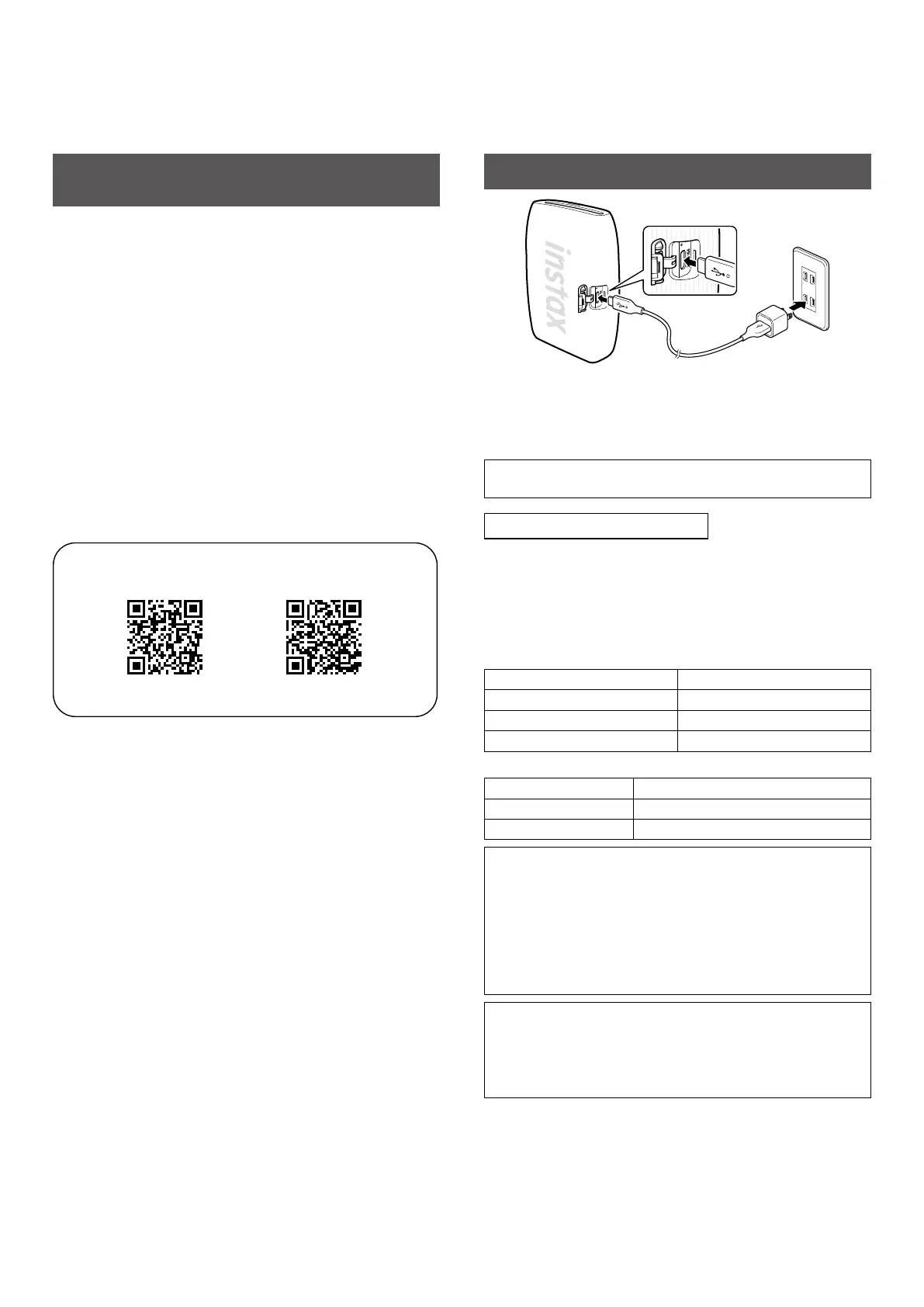
Connect the printer with a USB AC adapter (sold separately) using
the supplied USB Type C cable, then connect the USB AC adapter
to an indoor power outlet. A USB AC adapter is not included with
the INSTAX MINI LINK 3 Smartphone printer (though it may have
been supplied with your Smartphone).
• You can print an image while charging is in progress.
• Charging time is approximately 1.5 to 2 hours.
LED charging status indicator
Check the charging status with your Smartphone when paired
with the free INSTAX MINI LINK App.
For instructions on how to download the App, please see the
“Downloading the free INSTAX MINI LINK App onto your
Smartphone” section on page 4.
When the printer is turned on
Indication Charging status
White LED (pulsing) Not charging
Green LED (flashing) Charging
Green LED (not flashing) Charging complete
When the printer is turned off
Indication Charging status
LED turned off Not charging/charging complete
Green LED (flashing) Charging
Charging from a PC:
• Connect the printer and PC directly. Do not connect via a USB
hub or keyboard.
• If the PC goes into sleep mode while charging, charging is
discontinued. To continue charging, exit sleep mode and then
reconnect the
USB Type C cable
.
• The battery may not be able to charge depending on the
specifications and settings or conditions of the PC.
Notes
• The battery has not been fully charged at the factory. Be sure
to charge the battery before using the printer.
• The battery cannot be removed.
• For notes about the battery, see “Printer Care”. (p. 16)



 To Next Page