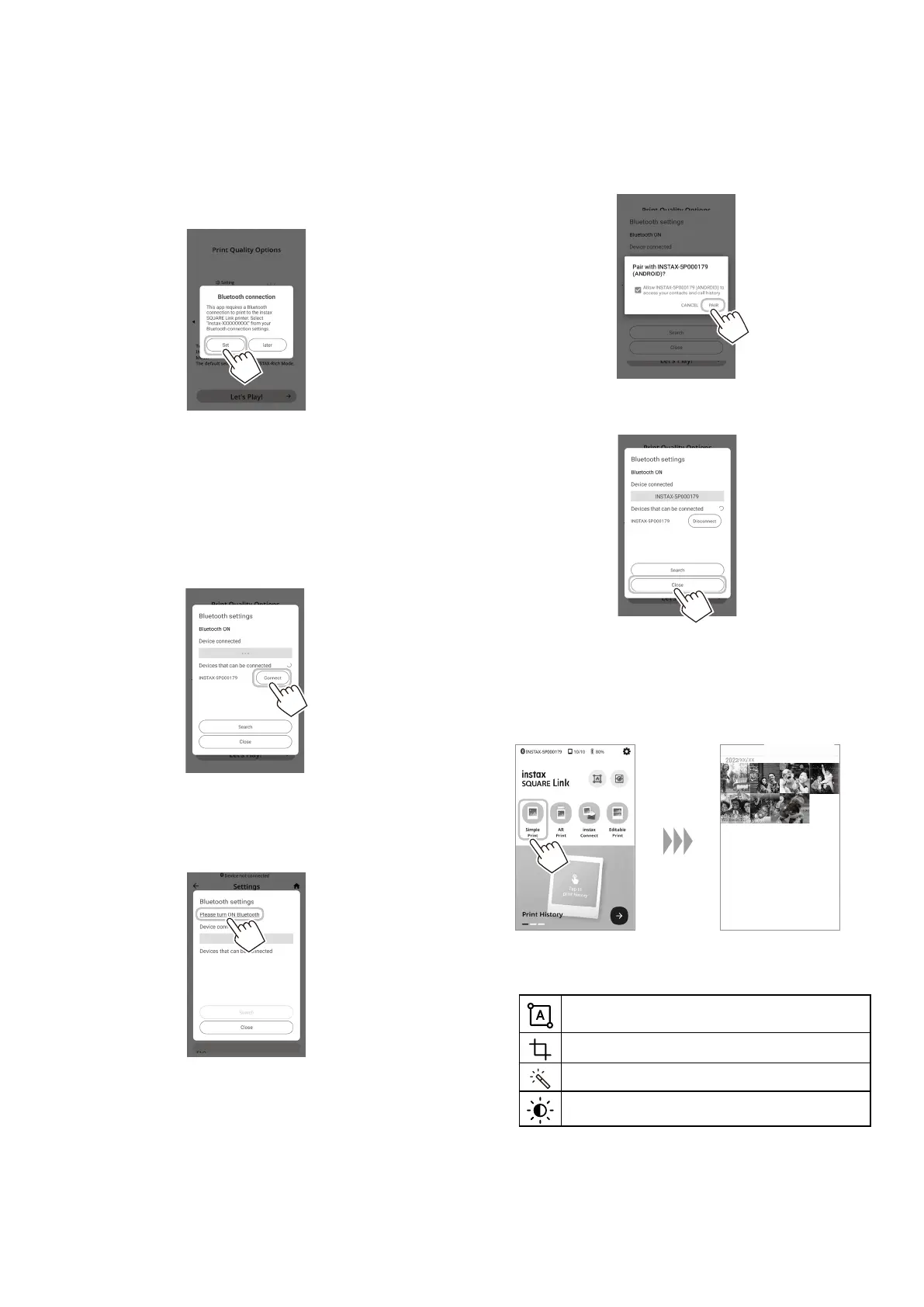
8
6
Set up the Bluetooth connection between your
Smartphone and the printer�
[Bluetooth connection] can also be set in the process of
printing.
7
When a printer is detected, tap [Connect]�
If multiple printers are detected, select the printer you
would like to connect to from the list.
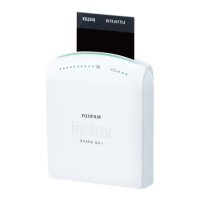
Locate the printer’s identifier (device name) on the bottom
of the printer.
Make sure the printer is on during this step. If not, turn the
printer on by pressing and holding the Power button for 1
second.
Note
If your Bluetooth settings are switched off, tap [Please turn
on Bluetooth] to put the Bluetooth settings on.
8
When the message is displayed, check the box and
tap [PAIR]�
9
When a printer is connected, tap [Close]�
10
You are now ready to use the printer� To select an
image to print, tap the [Simple Print] button on the
home screen and select an image from the photos
on your Smartphone�
To edit your image for printing, click on the below editing
options on the bottom of the screen before printing�
Enters text or attaches a sticker to the printed
image.
Zooms in/out or rotates the printed image.
Applies a filter on the printed image.
Adjusts the brightness of the printed image.



 To Next Page