192
Installation on a Mac OS X
1 Turn your Macintosh on and start up Mac
OS X. Do not launch any other applications.
2 When the bundled CD-ROM is loaded into
the CD-ROM drive, the “FinePix” icon
appears. Double-click the “FinePix” icon to
open the “FinePix” volume window.
3 Double-click on “Installer for MacOSX”.
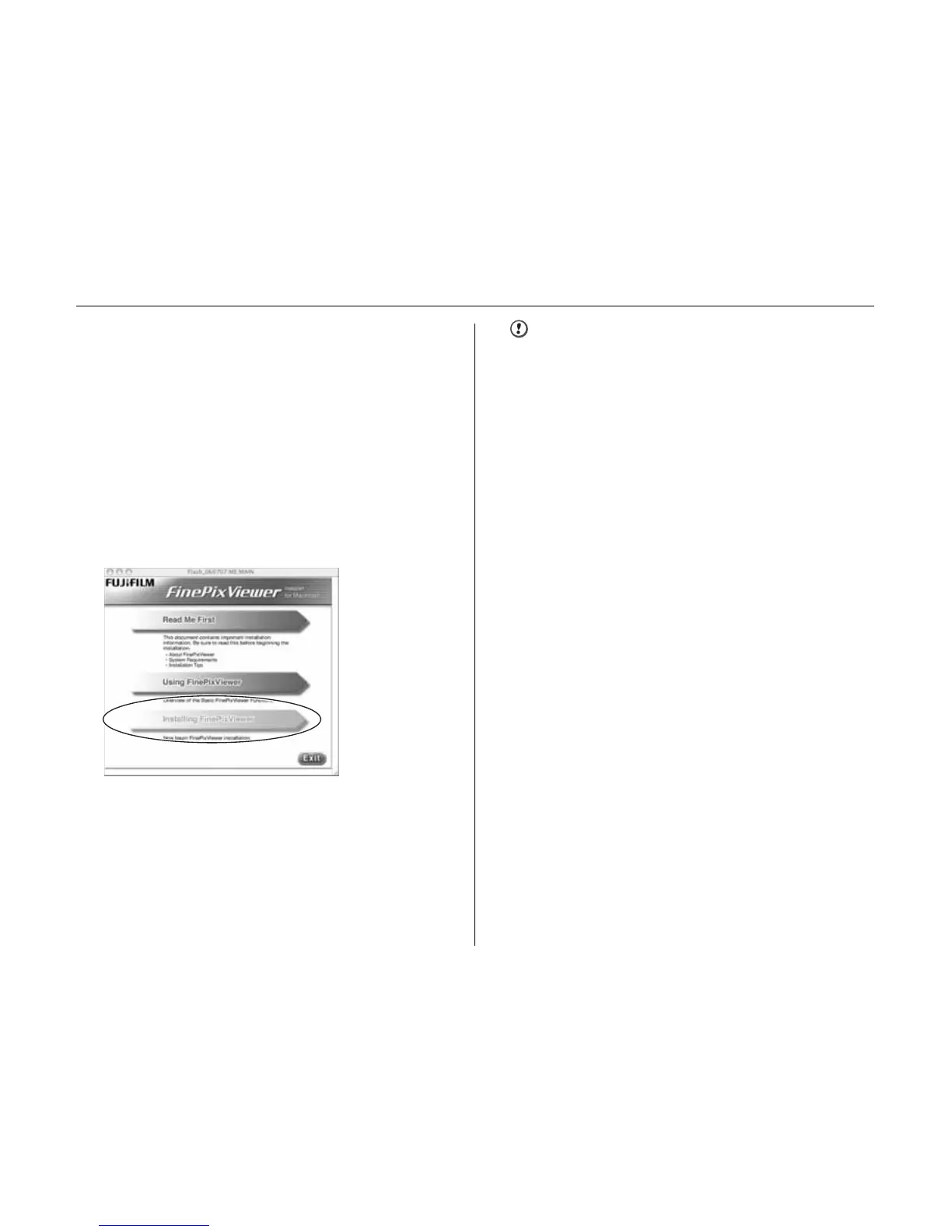
4 The Installer setup dialog appears. Click the
[Installing FinePixViewer] button.
CAUTION
For more information on what is installed, click the [Read
Me First] button and [Using FinePixViewer] button.
5 The “Authenticate” dialog appears.
Enter the name and password for the
administrator account and then click the
[OK] button.*
*
The administrator account is the user account used for
Mac OS X installation and you can confirm the user
account in the Accounts dialog in the System
Preferences.
6 The “License” dialog appears. Read the
agreement carefully and then, if you agree
to the terms of the Agreement, click the
[Accept] button.
7 The “Read me” dialog appears. Click the
[Continue] button.
8 The “FinePixInstallOSX” window appears.
Click the [Install] button to install
FinePixViewer.




 To Next Page