Working with the notebook
30 A26391-K147-Z120-1-7619
Handling CD/DVDs
From this point all different optical data storage media will be referred to as CD/DVDs; the writeable
optical data storage media are called blanks.
!
Observe the following when handling CD/DVDs:
• Avoid touching the surface of a CD/DVD. Handle CDs/DVDs only by their edges!
• Always store CDs/DVDs in their cases. Thus you avoid dust contamination,
scratches, bending or other damage.
• Protect your CDs/DVDs from dust, mechanical vibration and direct sunlight!
• Avoid storing a CD/DVD in areas subject to high temperatures or humidity.
i
To utilise the optimum writing speed, use CD blanks marked "Multispeed" or "High
Speed".
Use only DVD blanks of the type DVD+RW. Other types of DVD blanks are not supported
by your optical drive.
Inserting or removing a CD/DVD
The notebook must be switched on.
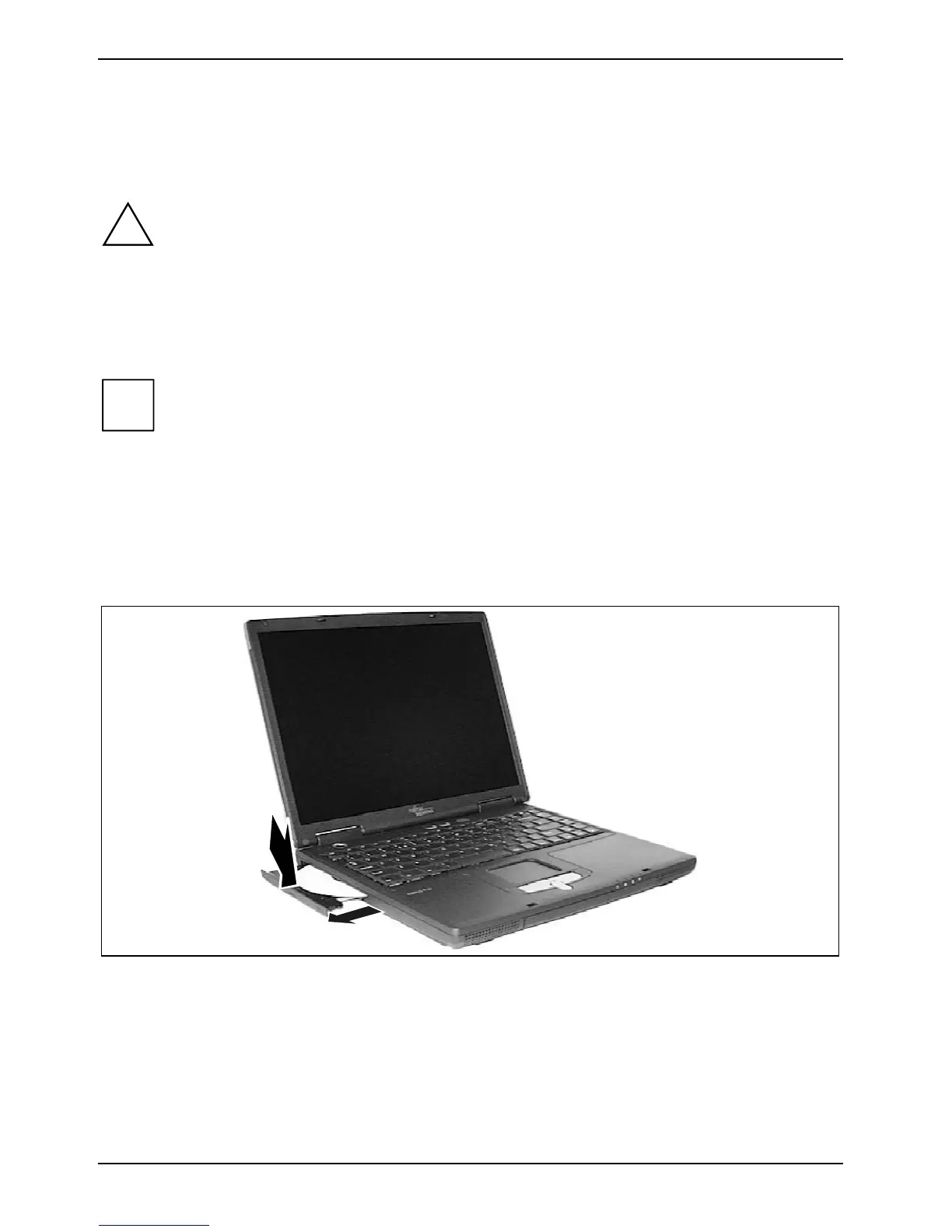
► Push the insert/eject button.
The drive tray will open.
1
2
► Pull the drive tray all the way out (1).
► Place the CD/DVD in the drive tray with the label facing upwards (2).
or
► Take out an inserted CD/DVD.
► Push in the drive tray until you feel it lock into place.





 To Next Page