EasyManua.ls Logo

Fujitsu B24W-7 - User Manual

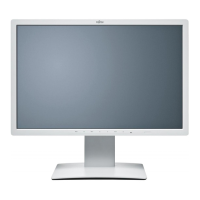
Fujitsu B24W-7
43 pages
Print Icon
To Next Page IconTo Next Page
Loading...
Display
Operating Manual
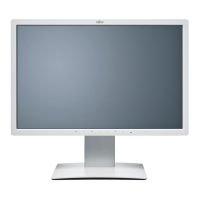
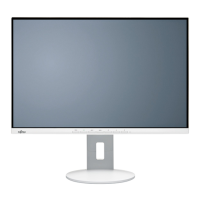
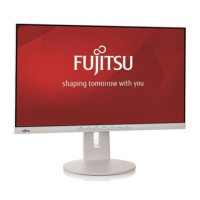
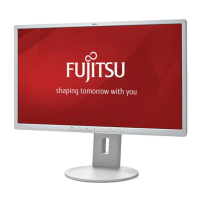
FUJITSU Display B24W-7 LED

Questions and Answers

  • R
    Reginald BarronAug 16, 2025
    What to do if my Fujitsu B24W-7 Monitor says 'No Signal'?
    • C
      cindy18Aug 16, 2025
      If your Fujitsu Monitor displays the message 'No Signal', first check whether the data cable for the monitor is correctly attached to the monitor port on the computer. Also, check whether the computer is switched on.
  • O
    obrienloriAug 19, 2025
    What to do if my Fujitsu B24W-7 has no screen display but the power indicator is lit?
    • R
      robertramirezAug 19, 2025
      If there is no screen display and the power indicator is lit on your Fujitsu Monitor, verify that the computer is switched on. Also, ensure that the data cable for the monitor is correctly attached to the monitor port on the computer. If it's still not working, press any key on the computer keyboard in case the computer is in power saving mode. You can also try altering the brightness and/or contrast until you get a picture.
  • R
    Robert WilliamsAug 22, 2025
    How to troubleshoot a Fujitsu B24W-7 with no screen display and the power indicator not lighting up?
    • K
      Karl SampsonAug 22, 2025
      If your Fujitsu Monitor has no screen display and the power indicator does not light up, check whether the power cable on the monitor is connected correctly and whether the computer is switched on.
  • T
    Tracey KnightAug 25, 2025
    Why is the picture shaking on my Fujitsu B24W-7 Monitor?
    • L
      Lisa SolomonAug 26, 2025
      If the picture on your Fujitsu Monitor is shaking, check whether the data cable for the monitor is correctly attached to the monitor port on the computer. You can also press the AUTO button to conduct the auto-adjustment of the screen.
  • L
    lesliefloydAug 28, 2025
    How to fix incorrect picture position on Fujitsu Monitor?
    • C
      Courtney HouseAug 28, 2025
      If the picture position on your Fujitsu Monitor is not correct and it recognises an undefined mode, press the AUTO button to conduct the auto-adjustment of the screen.
  • J
    Jason LeonardAug 31, 2025
    What to do if the picture is wrongly adjusted on my Fujitsu B24W-7?
    • H
      Harold HughesAug 31, 2025
      If your Fujitsu Monitor is wrongly adjusted, run the Factory Recall function in the OSD menu. The Auto Processing message appears.
  • E
    elliskatherineSep 3, 2025
    How to fix picture disturbances (vertical lines) on Fujitsu Monitor?
    • T
      Thomas RamirezSep 3, 2025
      If you see picture disturbances in the form of vertical lines on your Fujitsu Monitor, press the AUTO button to conduct the auto-adjustment of the screen.
  • R
    Robert ThompsonSep 6, 2025
    How to resolve picture disturbances (horizontal lines, picture noise) on a Fujitsu Monitor?
    • R
      Ray BriggsSep 6, 2025
      If you are seeing picture disturbances like horizontal lines or picture noise on your Fujitsu Monitor, press the AUTO button to conduct the auto-adjustment of the screen.
  • D
    David GreenSep 9, 2025
    What does 'Frequency out of range' mean on my Fujitsu B24W-7 Monitor?
    • A
      Andrew CollinsSep 9, 2025
      If your Fujitsu Monitor displays the message: 'Frequency out of range: ## kHz / ## Hz Please change the display mode to 1920 x 1200 with 60 Hz', adjust the video frequency range using the computer software, referring to the documentation for the computer or graphics card. Alternatively, select a valid screen resolution using the computer software, referring to the documentation for the computer or graphics card.
  • F
    Felicia ReynoldsSep 12, 2025
    Why is the screen becoming darker on my Fujitsu Monitor?
    • C
      Colleen HallSep 12, 2025
      If the screen of your Fujitsu Monitor becomes darker, the background lighting may have a limited lifetime and will have to be replaced. You can also contact our Service Desk.

Summary

Introduction to Your Display

LCD Screen Features

Overview of the monitor's advanced features and capabilities.

Target Audience and Documentation Conventions

Information for the intended audience, usage advice, and document notation.

Further Information

Details on setting resolution, refresh rates, and other technical aspects.

Important Notes and Safety

Safety Instructions

Critical safety guidelines for device installation and operation.

Handling and Environment

Guidelines for power cables, transporting, cleaning, and disposal.

CE Marking and Disposal

Information on EU compliance and environmentally responsible disposal.

Getting Started

Unpacking and Setup

Steps for unpacking, checking delivery, and initial device setup.

Ergonomic Workstation Configuration

Guidance on positioning the monitor and workstation for optimal ergonomics.

Base and Monitor Adjustments

Procedures for mounting the base, removing it, and adjusting monitor position.

Connecting Cables

Instructions for connecting cables to the monitor and computer.

Operation and Settings

Powering On;Off and Power Management

Procedures for switching the device on/off and managing power saving modes.

Control Panel and OSD Navigation

Using control buttons and the OSD menu for settings.

Display and Colour Adjustments

Settings for input signal, volume, brightness, contrast, and colour.

Advanced Settings and Information

Accessing advanced functions, OSD configuration, and displaying system info.

Ergonomic Colour Adjustment

Troubleshooting

ISO 9241-307 Explanations

Pixel Fault Tolerance

Explains pixel and subpixel definitions and fault tolerances per ISO standard.

Technical Specifications

Environmental and Interface Specs

Details environmental conditions, VESA-DDC, and operating modes.

Port Pinouts

Pin configurations for SUB D, DVI-D, and DisplayPort connectors.

Fujitsu B24W-7 Specifications

General IconGeneral
Screen Size24 inches
Resolution1920 x 1200
Panel TypeIPS
Aspect Ratio16:10
Brightness250 cd/m²
Contrast Ratio1000:1
Response Time5 ms
Color Support16.7 million colors
ConnectivityDVI, HDMI, DisplayPort, VGA
Viewing Angles178° horizontal, 178° vertical

Related product manuals