EasyManua.ls Logo

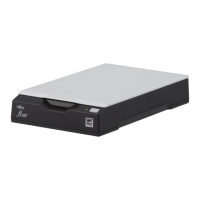
Fujitsu fi-60F - User Manual

Fujitsu fi-60F
56 pages
Print Icon
To Next Page IconTo Next Page
Loading...
Operator's Guide
fi-60F Image Scanner
P3PC-1112-07ENZ0

Other manuals for Fujitsu fi-60F

Questions and Answers

  • A
    Allison SimpsonAug 18, 2025
    Why Fujitsu Scanner does not turn on?
    • D
      Dominique SimpsonAug 18, 2025
      If your Fujitsu Scanner isn't powering on, ensure the AC and USB cables, along with the AC adapter, are correctly connected. Try disconnecting and reconnecting these components. Verify you are using the AC adapter and cables supplied with the scanner. Also, ensure the scanner driver is correctly installed.
  • L
    Latoya MartinezAug 20, 2025
    What to do if Fujitsu Scanner scanning does not start?
    • L
      loganbrianAug 20, 2025
      If your Fujitsu Scanner isn't starting the scanning process, first unlock the shipping lock. Check that the USB cable is correctly connected. Try using a new USB cable and connecting it directly into PC USB Port. If none of these work, the scanner operation might actually be normal.
  • M
    Michael KhanAug 22, 2025
    What to do if my Fujitsu Scanner scanning does not start?
    • T
      Timothy ThompsonAug 23, 2025
      First, unlock the shipping lock. Next, ensure the USB cable is correctly connected, and if the issue persists, try using a new USB cable. Also, connect directly into PC USB Port. If the problem continues, the scanner operation is normal.
  • H
    hbriggsAug 25, 2025
    Why are images distorted or blurred with Fujitsu fi-60F?
    • J
      Jennifer HarrisAug 26, 2025
      If your Fujitsu Scanner is producing distorted or blurred images, start by cleaning any dirty areas as described in the Operator's Guide, section "2. Daily Care". Ensure the scanner remains still during operation, free from any vibrations. Place the scanner on a flat, level surface. Also, make sure the document is flat and held down slightly with the document cover.
  • D
    Desiree GutierrezAug 28, 2025
    What to do if Fujitsu fi-60F automatic paper size detection is failed?
    • T
      Thomas HayesAug 28, 2025
      If your Fujitsu Scanner fails to automatically detect paper size, start by cleaning any dirty areas as instructed in the Operator's Guide, section "2. Daily Care". Ensure the document cover is closed properly and scan again. If the document has a non-rectangular shape or folded corners, specify the scan area manually in the driver settings. Also, if the document has dark-colored edges, manually specify the scan area in the driver setting window.
  • K
    Katie SmithAug 30, 2025
    Why does Fujitsu fi-60F Scanner image become black in Black & White mode?
    • L
      Lisa GilbertAug 30, 2025
      If your Fujitsu Scanner produces a completely black image when scanning in Black & White mode, begin by cleaning any dirty areas, referring to the Operator's Guide, section "2. Daily Care". Then, try adjusting the Threshold and/or Brightness settings. As an alternative, place a piece of white paper behind the document and attempt the scan again.
  • G
    gilbertpierceSep 2, 2025
    How to adjust shadow on leading edge of Fujitsu Scanner image?
    • E
      Emily BrownSep 2, 2025
      To adjust the shadow on the leading edge of a scanned image with your Fujitsu Scanner, adjust the [Sub-scan Setting] on [Scanners and Cameras] in the control panel.
  • T
    Timothy CrawfordSep 4, 2025
    How to fix Fujitsu fi-60F when it does not turn on?
    • K
      Kimberly MatthewsSep 4, 2025
      First, ensure the AC and USB cables, including the AC adapter, are correctly connected. If the scanner still doesn't power on, disconnect and reconnect the AC cable, AC adapter, and USB cable. Make sure you are using the AC adapter and cables supplied with your Fujitsu scanner. Also, verify that the scanner driver is correctly installed.
  • N
    Nathan JohnsonSep 7, 2025
    Why are the images from my Fujitsu fi-60F distorted or blurred?
    • R
      Rebecca RobertsSep 7, 2025
      Distorted or blurred images may occur if the scanner is vibrating during scanning, or if it is not placed on a flat, level surface. Also, the document may not be placed flat. Clean the dirty locations as instructed in the Operator's Guide "2. Daily Care". To resolve this, ensure the scanner is stable, the document is flat and held down slightly with the document cover, and the scanner's glass is clean.
  • C
    catherinerobinsonSep 9, 2025
    Why is the image black when scanning in Black & White mode with my Fujitsu fi-60F?
    • M
      Marcia AllenSep 9, 2025
      If your scanned image appears black when scanning in Black & White mode, it may be due to dirty components. Clean the dirty locations as instructed in the Operator's Guide "2. Daily Care". Also, adjust the Threshold and/or Brightness. If there are any contents such as characters on the backside of the document, they may be seen through. Place a piece of white paper behind the document and scan again. When using "Automatic Size and Skew detection", place a piece of white paper of the same size as the document behind the document.

Summary

Important Notes and Liability Disclaimers

Safety Precautions for Scanner Operation

Chapter 1: Basic Scanner Operations

1.1 Turning the Scanner ON

Details the power-on/off procedure and the scanner's power save mode functionality.

1.3 How to Use the Scanner Driver

Guides users through the TWAIN and ISIS scanner driver interfaces for scanning.

1.4 Correcting Skewed Documents

Explains how to enable automatic detection and correction of skewed document images.

1.5 Excluding a Color in the Image (Dropout Color)

Describes how to remove specific colors from scanned images via driver settings.

Chapter 2: Daily Care and Maintenance

Chapter 3: Troubleshooting Scanner Issues

3.1 Remedying Typical Troubles

Offers solutions to common scanner problems using guided troubleshooting flowcharts.

3.2 Items to Check Before Contacting Support

Lists essential information and checks to perform before contacting customer support.

Fujitsu fi-60F Specifications

General IconGeneral
Optical Resolution600 dpi
ConnectivityUSB 2.0
Color Depth24-bit color
Scanning MethodContact Image Sensor (CIS)
Maximum Document SizeA4
Scanning Area216 x 297 mm
Power Consumption1.5 W (standby)

Related product manuals