Index
Introduction
Chapter 3 How to Use the Operator Panel
Appendix
Glossary
Contents
TOP
56
How to Load
Documents
How to Use
the Operator
Panel
Various Ways
to Scan
Daily Care
Troubleshooting
Operational
Settings
Replacing
Consumables
Scanner
Overview
6 Load the documents on the hopper, start up a scanning
application, and perform a scan.
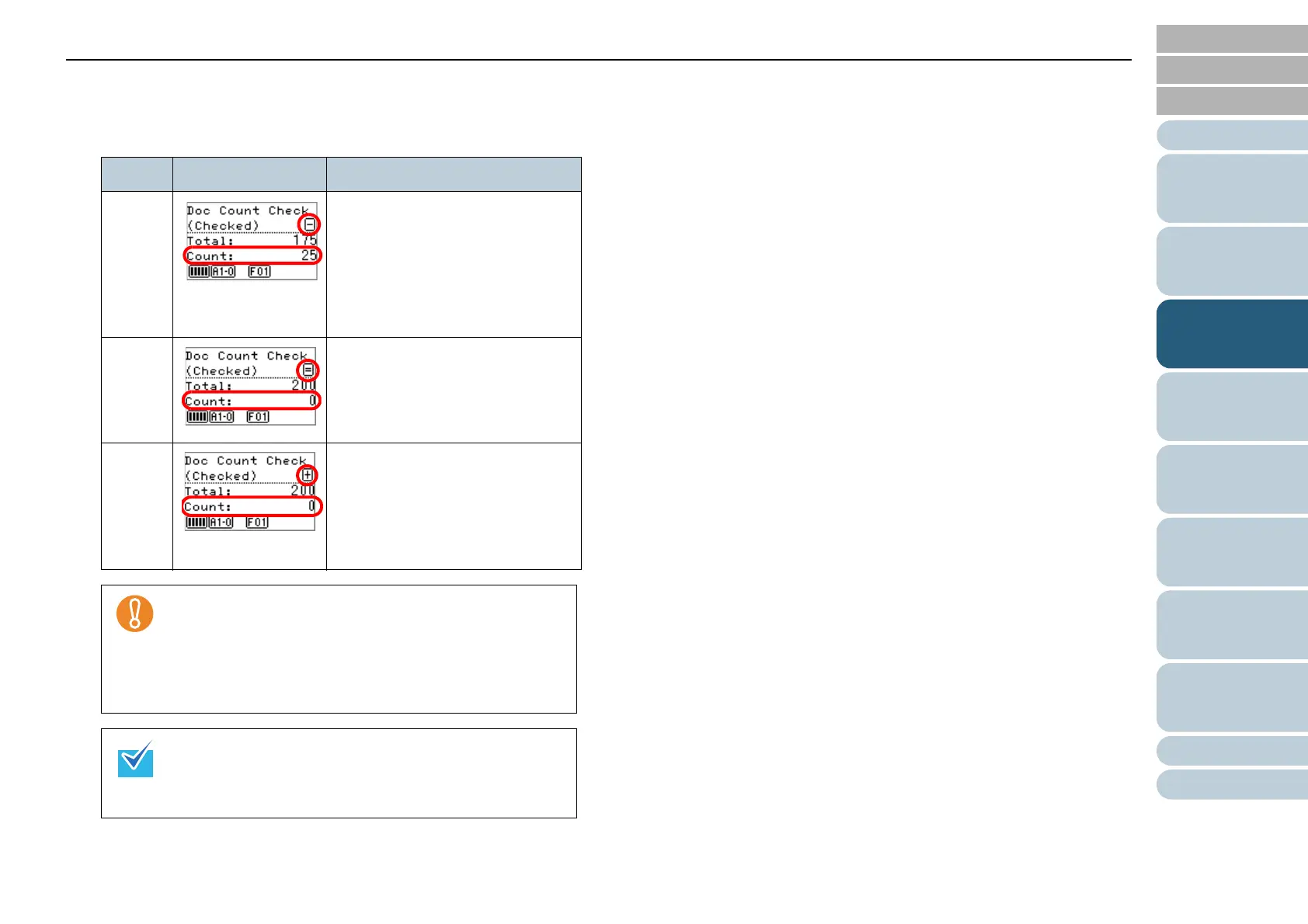
Depending on the number of sheets scanned, it will be displayed
as follows:
Sheets Display Description
75
sheets
Since the count has been set to
100 in step 4, it is -25 sheets.
[-] appears in the top right and
[Count] indicates “25”.
If you load additional documents
at this point, you can scan up to
25 sheets.
100
sheets
Since the count has been set to
100 in step 4, it is +/- 0.
[=] appears in the top right and
[Count] indicates “0”.
110
sheets
Since the count has been set to
100 in step 4, it is +10 sheets.
[+] appears in the top right and
[Count] indicates “0”. Scanning
stops once 100 sheets have been
scanned.
Documents may not be counted correctly if a multifeed
occurs during scanning.
In the following cases, the scanning returns to normal
from Doc Count Check mode:
- When you only scan the specified pages
- When you scan using a Job Separator
When you press the [Counter Reset] button, the
screen returns to [Doc Count Check Mode] in step 5.
When you press the [Stop] button, it exits [Doc Count
Check Mode] and returns to the [Ready] screen.



 To Next Page