43
EN
Introduction Connections
Basic Setup /
DVB Operations
Recording Playback Editing Function Setup Others
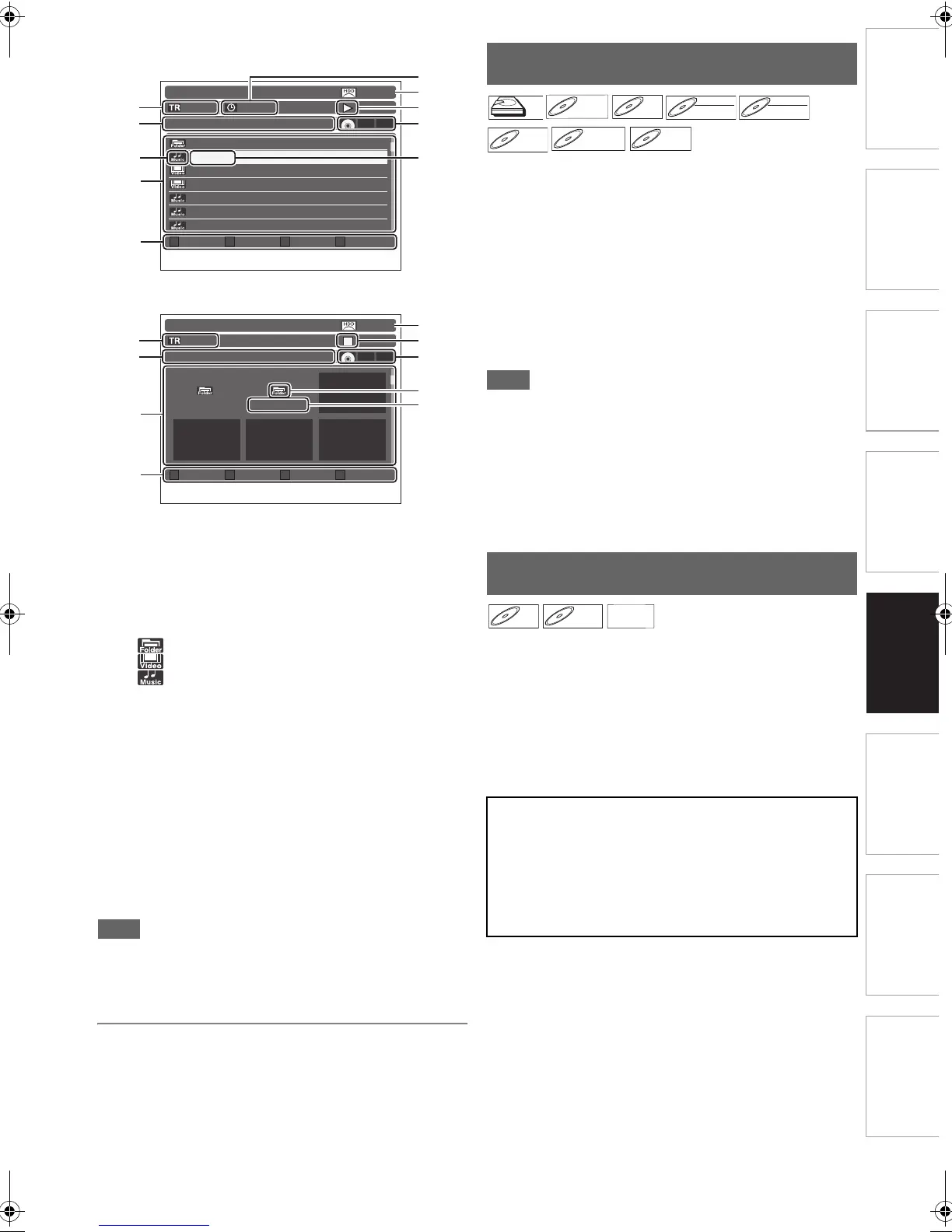
<Video / Music File List>
<Picture File List>
1 Current file (track) number
*1
/ total number of
files (tracks)
2 Directory (Displays the folder name you are in.
Displays the device name if you are in the top
hierarchy.)
3 File (track) list:
a) Icons
Folder
Video file
Music file
b) Folder/file (track) name
4 Operable buttons:
• “Media Mode” appears only when a media with mixed
files type is inserted. It calls up the “Media Mode” (file
type) selection screen.
5 Time lapse of the current file (track)
*1
6 Possible recording capacity left (Available only
with HDD)
7 Operation status
8 Refer to 4, 6, 7 of “In Playback or Stop Mode” on
page 13.
*1 Only for video and music files
• AVCHD files do not have title/file list.
•Use [ENTER\OK] and [RETURN\BACK] to go in and out of
a folder.
•Press [TOP MENU] to exit the file list.
1 Press [TOP MENU] to call up the title list.
2 Select the desired title, then press [ENTER\OK].
• Title list menu will appear.
3 Select “Resume Playback” or “Play From
Start”, then press [ENTER\OK].
To stop the playback:
Press [STOP C].
To eject the disc:
Press [OPEN\CLOSE A] to open the disc tray, then
remove the disc. Press [OPEN\CLOSE A] to close the
disc tray before turning off the unit.
• For DVD-R (video mode), DVD-RW (video mode), and
DVD+R discs that are already finalised, a Title menu will be
displayed.
• After you finalise the DVD+RW, you can call up the Title list
by pressing [TOP MENU], or you can call up the title menu
by pressing [POP MENU\MENU].
• You can also start playback by pressing [PLAY B] instead of
[ENTER\OK] at step
2.
• Some discs may start playback automatically.
1 Insert the media.
• Playback will start automatically. If not press [PLAY B]
to start automatically.
• Some discs may show a title or a disc menu. In this
case, refer to “Using Title / Disc / Pop-up Menu” on
page 45.
To stop the playback:
Press [STOP C].
Dubbing HDD BD/DVD
Audio Test
Test1.mp3
Test2.divx
Test3.divx
abcdefghijklmnopqrstuvwxyzABCDEFGHIJ….mp3
Test5.mp3
Test6.mp3
9 / 999 0:00:12
DATA_01012010_12345678901234567890…
CD DATA
File List
Page Down Media ModePage Up
23537MB
2
a
1
8
7
6
3
4
5
b
Dubbing HDD BD/DVD
Folder33333... Folder44444...
--- / 999
DATA_01012010_12345678901234567890…
CD DATA
Thumbnail
Page DownPage Up
23537MB
2
1
8
7
6
a
b
3
4
Playing Back the Titles Recorded on
HDD or Disc
Playing Back a BD-video / DVD-video /
the Media with AVCHD files
Using the SD card with BD-video
• With the SD card, you can enjoy the following functions.
- Special additional contents for BD-ROM Profile 1 ver.1.1.
(For more information about the special additional
contents, refer to the instruction book that came with the
disc.)
- BD-Live™ function (BD-ROM ver. 2 Profile 2.0). (For
more information about BD-Live™, refer to page 48.)
HDD
HDD
DVD-RW
DVD-RW
Video
DVD-RW
DVD-RW
VR
BD-V
BD-V
AVCHD
AVCHD
E4V21ED_EN.book Page 43 Friday, June 3, 2011 2:07 PM


 To Next Page